Blog
The Simple Way to Transcribe Audio to Text Across Any App
How do you transcribe audio to text?
You transcribe audio to text one of two ways: upload a recorded file to an AI transcription tool, or dictate live and let software type as you speak. Both use the same speech-recognition engines and return text in minutes at advertised accuracy of 95–99.8% for clean audio. Compare that to manual transcription, which takes roughly 6–8 hours per hour of audio, according to figures cited by Speechnotes (6 hours) and a TurboScribe testimonial (8 hours).
The upload workflow is the common one. You drop an MP3, WAV, M4A, or even a video file (MP4, MOV) into a service like AudioToText.com, Otter.ai, or Happy Scribe, and it hands back editable text. Most tools support 15+ formats — Happy Scribe lists 45+ with no file size limit.
The dictation workflow is different: instead of transcribing something already recorded, you speak in real time and text appears at your cursor. Microsoft Word's dictate feature and menu-bar apps like FluidVox work this way.
Which you pick depends on the source. Already have a meeting recording, interview, or podcast? Upload it. Want to draft an email or note by voice? Dictate. Either way, plan to read the output once — AI transcription is fast and cheap, but not flawless on accents, jargon, or crosstalk.
Transcribe audio to text in 4 steps
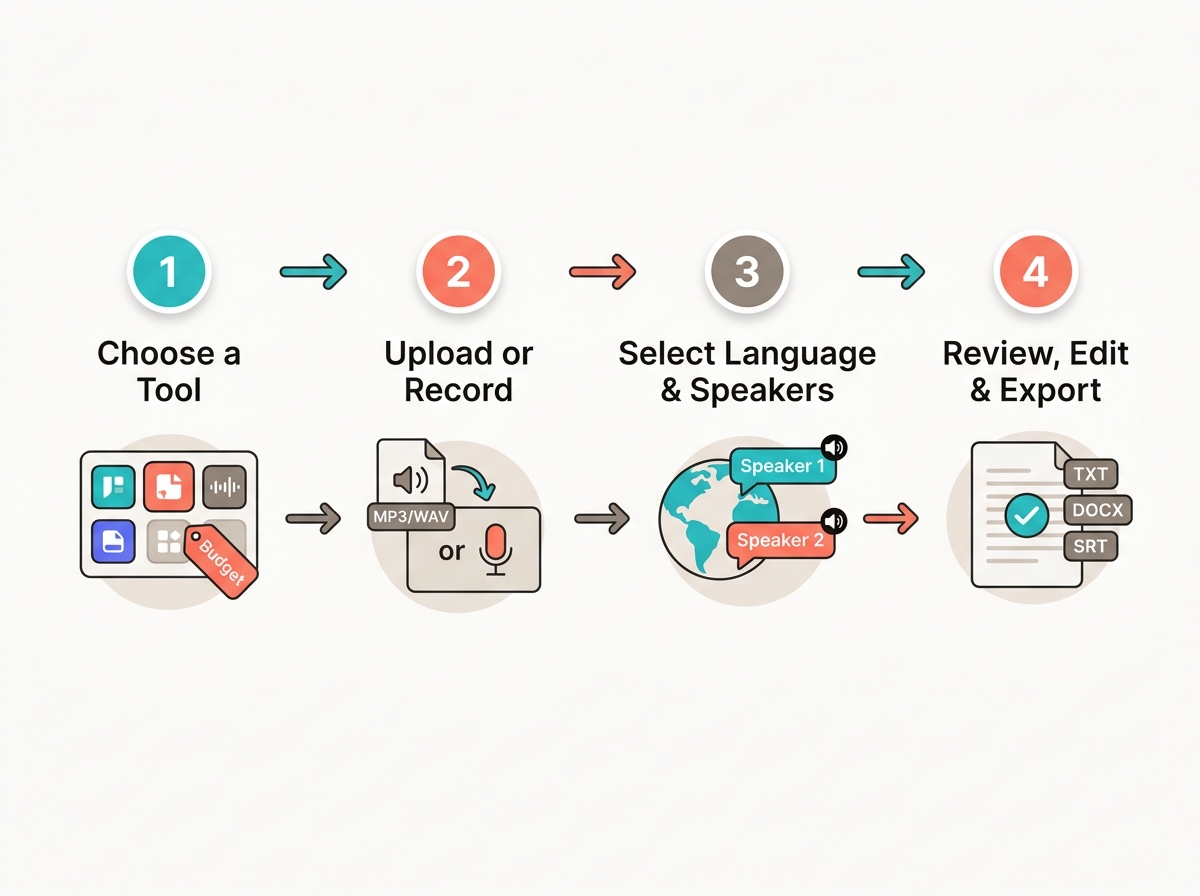
The upload-and-transcribe workflow is nearly identical across every tool. Here's the universal version.
Choose a tool that fits your file and budget. For a quick one-off, a fully free browser tool like AudioToText.com (no signup) or Otter.ai's free plan (300 minutes a month, 90-minute file cap per Otter) works. For long or frequent files, a flat subscription like TurboScribe Unlimited removes caps. Match the tool to your longest file and your monthly volume.
Upload or record your audio. Drag in an MP3, WAV, M4A, FLAC, AAC, or OGG file — or a video file if the tool accepts one. Some tools also record directly in the browser or capture a meeting. Cleaner input means better output, so use the highest-quality recording you have.
Select the language and speaker options. Pick the spoken language (Google Cloud Speech-to-Text supports 125+ languages; Happy Scribe advertises 150+). If multiple people talk, turn on speaker labeling — most tools tag "Speaker 1," "Speaker 2" and add timestamps automatically.
Review, edit, and export. AI-generated text always needs a proofread — check names, numbers, and any technical terms the model may have mangled. Then export to the format you need: TXT for plain notes, DOCX for documents, or SRT/VTT for video captions. TurboScribe, ElevenLabs Scribe, and Happy Scribe all export several of these.
The whole cycle for a one-hour recording typically finishes in a few minutes.
Best tools to transcribe audio to text (free and paid)
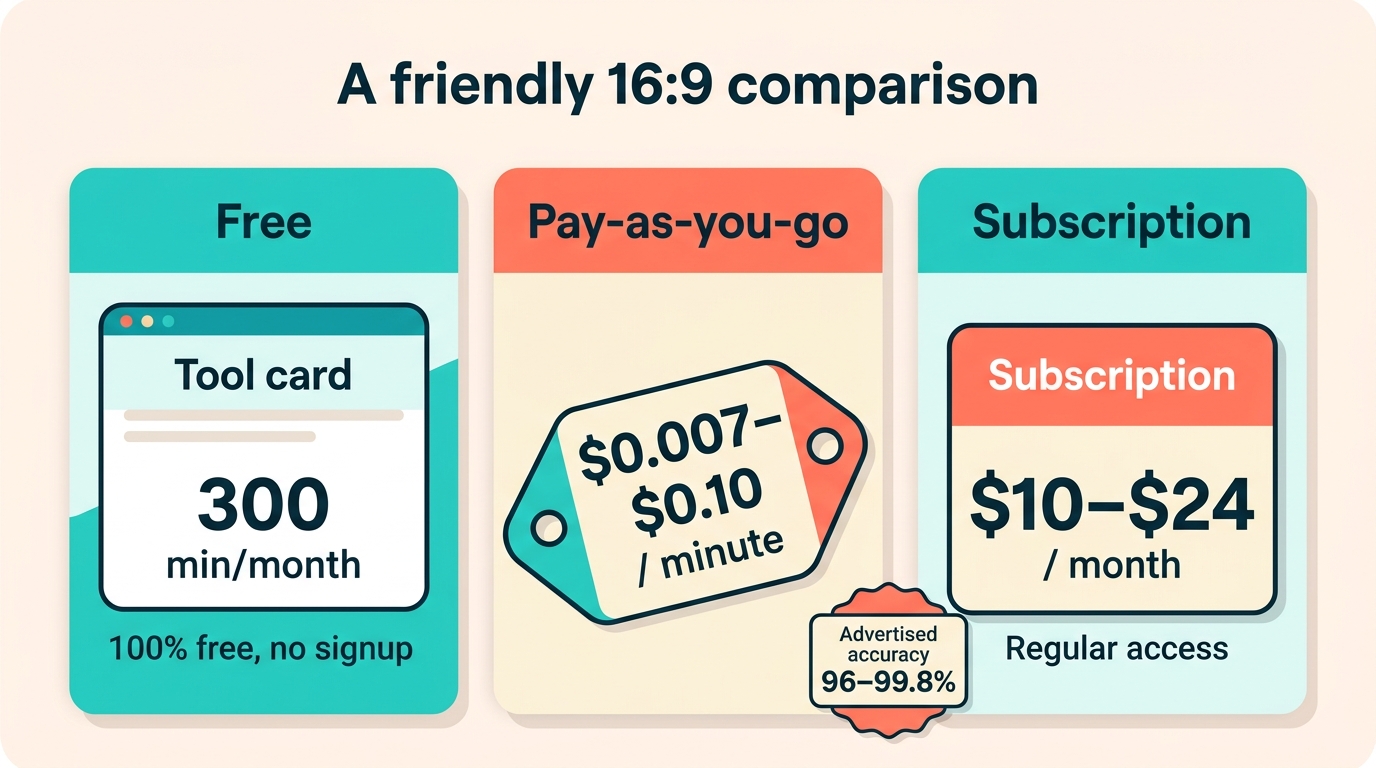
The best tool depends on your budget, file length, and whether you need speaker labels or captions — but a handful of services cover most needs. Free options include Otter.ai (300 minutes/month), AudioToText.com (100% free, no signup), Canva's built-in converter (files under 4.5MB), and Riverside's free tier (unlimited, single-speaker only). Paid pay-as-you-go rates run $0.007–$0.10 per minute; flat subscriptions run $10–$24 a month. Advertised accuracy across these tools clusters at 96–99.8% for clean audio, though every figure is vendor self-reported.
| Tool | Advertised accuracy | Free tier | Paid pricing | Languages |
|---|---|---|---|---|
| Otter.ai | Not stated | 300 min/month, 90-min file cap | Paid plans above free tier | English, Spanish, French |
| AudioToText.com | 99% | 100% free, no signup | Free | Multiple |
| Happy Scribe | 96% AI / up to 99% | First 10 min free | Paid plans (human review available) | 150+ |
| TurboScribe | 99.8% | 3 transcripts/day, 30-min files | $10/mo yearly or $20/mo | 98+ |
| Adobe Podcast | Not stated | Transcribe + Enhance Speech | Not stated on page | Not stated |
| Microsoft Word Transcribe | Not stated | 300 min/mo (M365) | Included in subscription | Multiple |
| Canva | Not stated | Free (files under 4.5MB) | Free | 100+ (translate) |
For meetings, Otter.ai turns transcripts into searchable summaries with action items. For students, journalists, and podcasters wanting a no-friction one-off, AudioToText.com needs no account and returns text in 2–5 minutes. For high volume, TurboScribe (powered by OpenAI Whisper, per TurboScribe) allows files up to 10 hours. Microsoft 365 users already have transcription built into Word — Microsoft's support docs cover a 300-minute monthly upload cap. Adobe Podcast pairs transcription with its Enhance Speech cleanup, and Canva folds a free converter into its design suite. If you want to see how these engines compare with dedicated dictation apps, FluidVox's 2026 speech-to-text buyer's guide breaks it down.
How much does audio transcription cost?
Audio transcription costs anywhere from nothing to about $0.10 per minute, with monthly subscriptions the most common middle ground. Fully free tools exist — AudioToText.com charges nothing with no signup, Otter.ai gives 300 minutes a month, Canva and Riverside offer free tiers, and TurboScribe's free plan allows 3 transcripts a day. These free options cap you by minutes, files per day, or file size.
Pay-as-you-go pricing sits between about $0.007 and $0.10 per minute. On the low end, Any2Text Premium works out to roughly $0.007/min ($19.99/month for 3,000 minutes); Google Cloud Speech-to-Text charges $0.016/min (with $300 in free credits for new customers); Any2Text's pay-per-file rate is $0.035/min; and Speechnotes' transcription runs $0.10/min. Flat subscriptions typically land at $10–$24 a month — TurboScribe Unlimited is $10/month billed yearly ($120/year) or $20 monthly, and Riverside paid plans start at $24/month.
The real comparison is against manual work. Human transcription is slower and pricier — Speechnotes states AI is roughly 10x cheaper than a human transcriber, and Happy Scribe's human-review service takes hours to 24 hours to deliver versus near-instant AI. Given that manual transcription eats 6–8 hours per audio hour, even a paid AI subscription usually pays for itself on the first long recording.
How accurate is AI audio-to-text transcription?
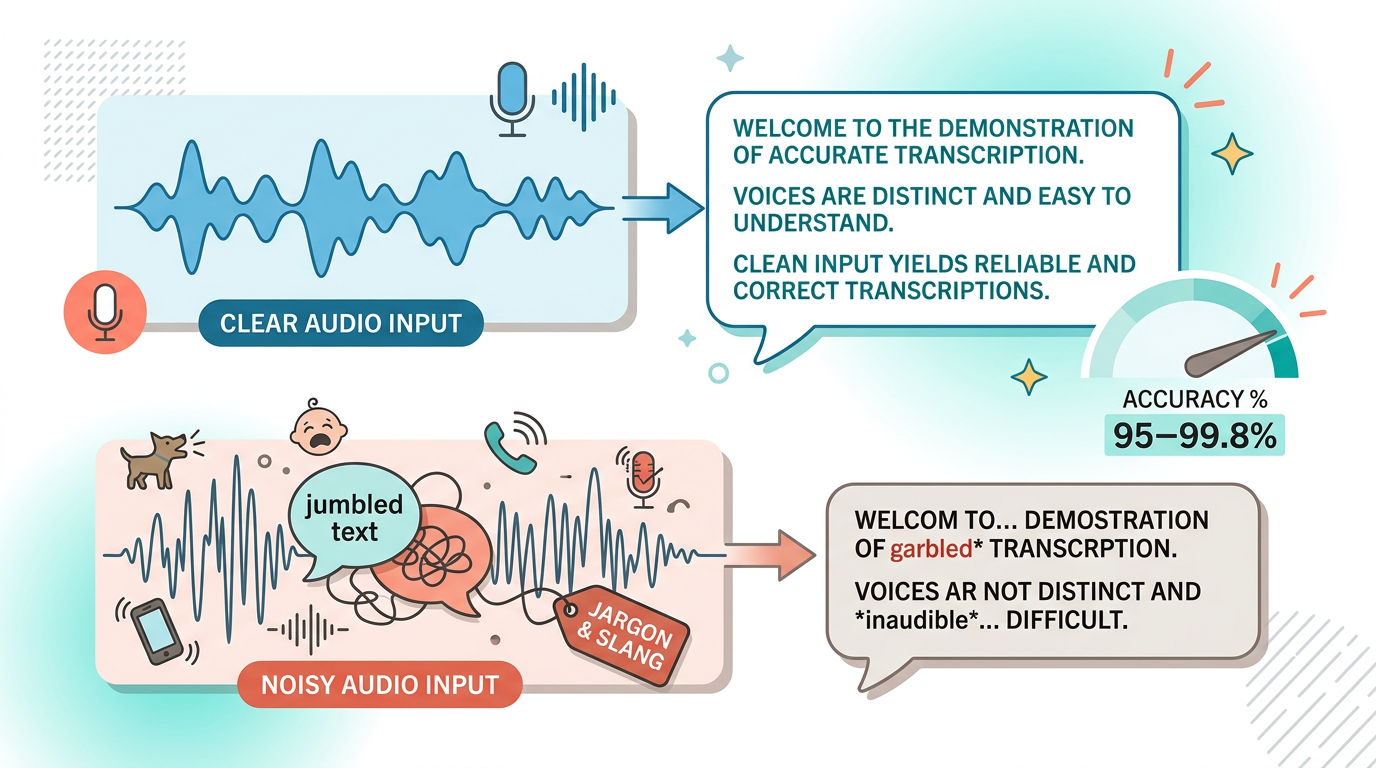
AI audio-to-text transcription is 95–99.8% accurate on clean audio, according to vendor claims — but that ceiling assumes ideal conditions, and every published figure is self-reported marketing rather than an independent benchmark. Speechnotes advertises 95% for English, Happy Scribe cites 96% AI accuracy on clear audio (up to 99%), and TurboScribe claims 99.8% using OpenAI Whisper. Treat these as best-case numbers, not guarantees.
Accuracy drops with real-world audio. Happy Scribe is explicit that its figures depend on clear audio, minimal background noise, and no overlapping speech. The main things that degrade transcription are heavy accents, background noise, two or more people talking at once (crosstalk), and technical jargon or proper nouns the model hasn't seen. A boardroom recording with three people interrupting each other will always transcribe worse than a single narrator with a good microphone.
Two fixes help most. First, record clean input — Riverside notes that capturing high-quality, uncompressed audio improves results. Second, use a custom dictionary if the tool offers one, so product names, medical terms, or project codewords transcribe correctly instead of turning into gibberish. FluidVox and several other tools support custom dictionaries for exactly this reason. If you want the mechanics behind why some engines handle noise better than others, FluidVox explains how AI dictation works in plain terms.
Dictating instead of uploading: transcribe as you speak
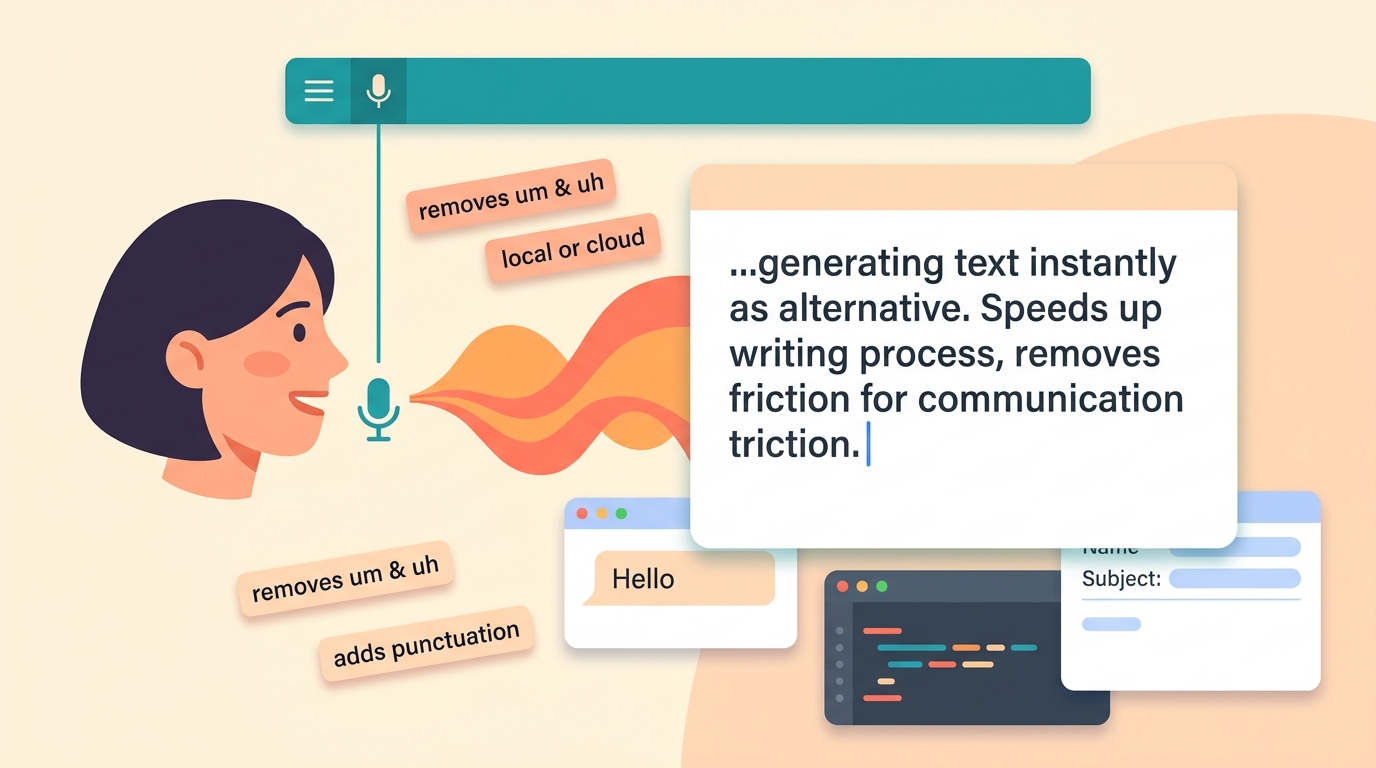
Dictation is the real-time alternative to uploading a file — instead of transcribing something already recorded, you speak and text appears instantly at your cursor. This suits drafting rather than archiving: emails, chat replies, notes, code comments, and documents. File transcription answers "turn this recording into text"; dictation answers "let me write by talking."
The convenience is that good dictation tools type into any app, not just their own window. FluidVox lives in the macOS and Windows menu bar (iPhone too, with Android coming) — you hold a hotkey, speak, release, and the cleaned-up text lands wherever your cursor sits, no copy-paste. Its AI removes filler words like "uh" and "um," fixes spelling and grammar, and adds punctuation as you go. It supports 99 languages and app-aware formatting, so a technical style applies in VS Code while a casual style applies in WhatsApp, per FluidVox's use-case pages.
One meaningful choice with dictation tools is local versus cloud transcription. Cloud models send audio to a server for processing, which usually means broader language support and lower device load. Local (offline) models keep audio on your machine — slower on older hardware, but better for privacy and usable without internet. FluidVox offers both. Microsoft Word's built-in dictate is a simpler cloud-only option already bundled into Microsoft 365 if you don't need cross-app typing.
Key takeaways
- AI audio-to-text tools advertise 95–99.8% accuracy on clean audio, but all figures are vendor self-reported.
- Pricing spans fully free to $0.007–$0.10 per minute; flat subscriptions run $10–$24/month.
- AI transcription returns text in minutes versus 6–8 hours of manual work per audio hour.
- Two workflows exist: upload a recorded file, or dictate live and type into any app.
- Free tools include Otter.ai (300 min/mo), AudioToText.com, Canva, and Riverside's free tier.
Frequently asked questions
Can I transcribe audio to text for free?
Yes. AudioToText.com is fully free with no signup, Otter.ai gives 300 minutes a month, Canva transcribes files under 4.5MB free, and Riverside offers an unlimited free tier for single-speaker audio. TurboScribe's free plan allows 3 transcripts a day, and Happy Scribe and Any2Text give 10–15 free minutes to start.
What is the most accurate audio-to-text tool?
No independent benchmark crowns one winner — all accuracy claims are vendor-reported. TurboScribe advertises the highest figure at 99.8% (using OpenAI Whisper), while AudioToText.com, Any2Text, Riverside, and 1Transcribe each claim up to 99%. Real accuracy depends heavily on audio quality, so clean recordings matter more than the marketed percentage.
How long does it take to transcribe an hour of audio?
AI transcription usually finishes a one-hour recording in a few minutes. AudioToText.com cites 2–5 minutes, Speechnotes about 20 minutes, and Any2Text roughly 10–30 seconds per minute of audio. Human transcription, by contrast, takes about 6–8 hours per audio hour, and Happy Scribe's human-review option can take up to 24 hours.
Can I transcribe audio to text offline?
Yes, with tools that offer a local transcription model. FluidVox provides an offline (local-only) option that keeps audio on your device, useful for privacy or when you have no internet. Most browser-based services and cloud APIs like Google Cloud Speech-to-Text require a connection. Local models can run slower on older hardware.
Which file formats can be transcribed?
Most tools accept MP3, WAV, M4A, FLAC, AAC, and OGG, plus common video formats like MP4 and MOV. AudioToText.com lists 15+ formats and Happy Scribe advertises 45+ with no file size limit. Check the tool's caps, though — Canva limits files to 4.5MB and Otter's free plan caps files at 90 minutes.