Blog
Speech to Text Software for Students: A Friendly Starter Guide
What is speech to text software for students?
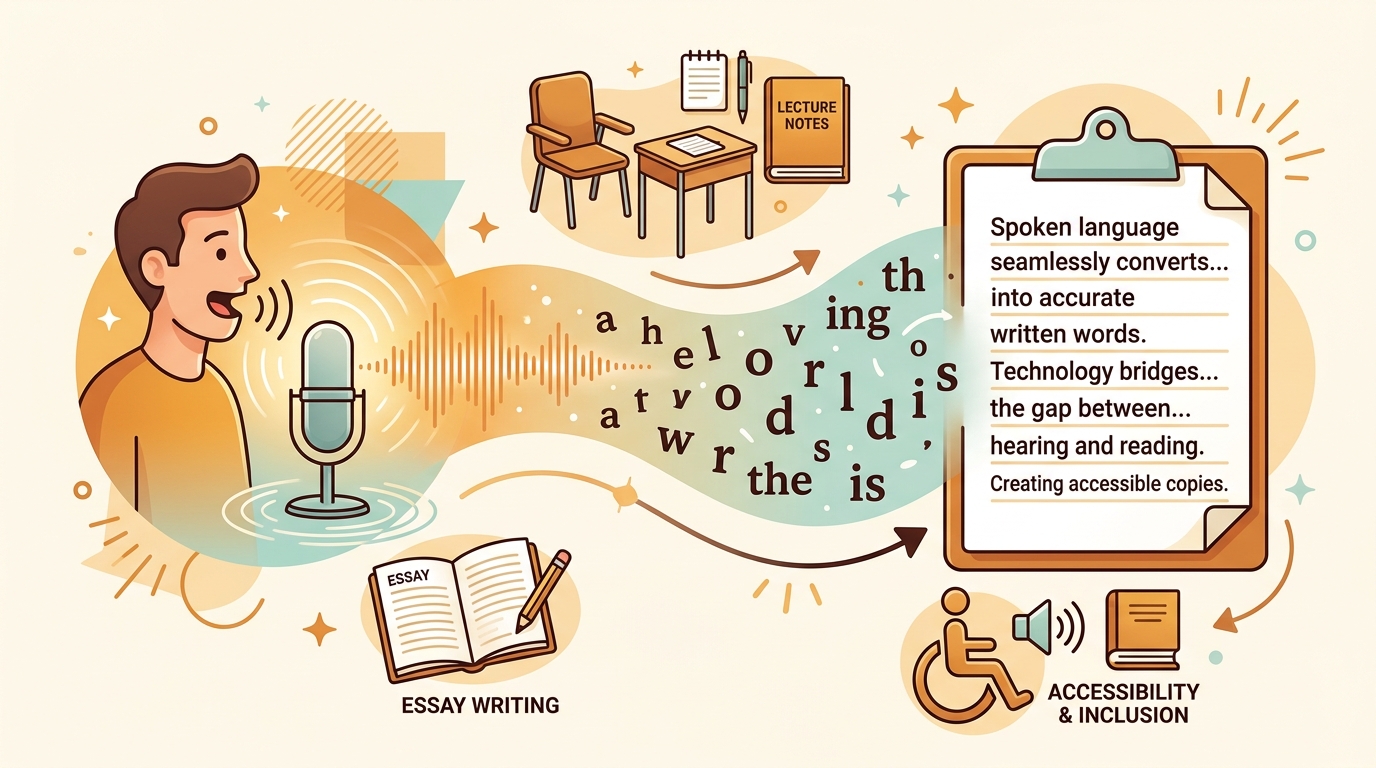
Speech to text software for students is any tool that converts spoken words into typed text, letting you draft essays, capture lecture notes, or fill out forms by talking instead of typing. The technology is also called dictation or voice typing, and it works by matching the sounds of your speech to words in a dictionary and displaying them on screen.
There are two broad families. Built-in OS tools ship free with the device you already own — Apple Dictation on Mac and iPhone, Windows Voice Typing on Windows 10 and 11, Google Docs Voice Typing in the browser, and Microsoft Word Dictate inside Microsoft 365. Dedicated apps like Dragon (Nuance), Otter.ai, and Speechnotes are separate products you download or subscribe to, usually adding higher accuracy, custom vocabularies, or transcription of recorded audio.
Students reach for these tools for three main jobs. The first is long-form writing — speaking is roughly two to four times faster than typing, with most people speaking around 125–160 words per minute versus about 40 WPM typing, according to a Voicy comparison of talk-to-text apps. The second is note-taking and lecture capture, where tools like Otter.ai generate live transcripts. The third is accessibility — dictation is widely recommended for dyslexia, dysgraphia, and motor impairments, as Reading Rockets explains in its dictation overview.
A useful distinction: real-time dictation (replacing your keyboard) is different from transcription (converting a recorded file) and live captioning (subtitling speech as it happens). FluidVox covers this difference in plain language in its technical walkthrough of how AI dictation works. Knowing which job you need shapes which tool fits.
Best speech to text software for students in 2026 (compared)
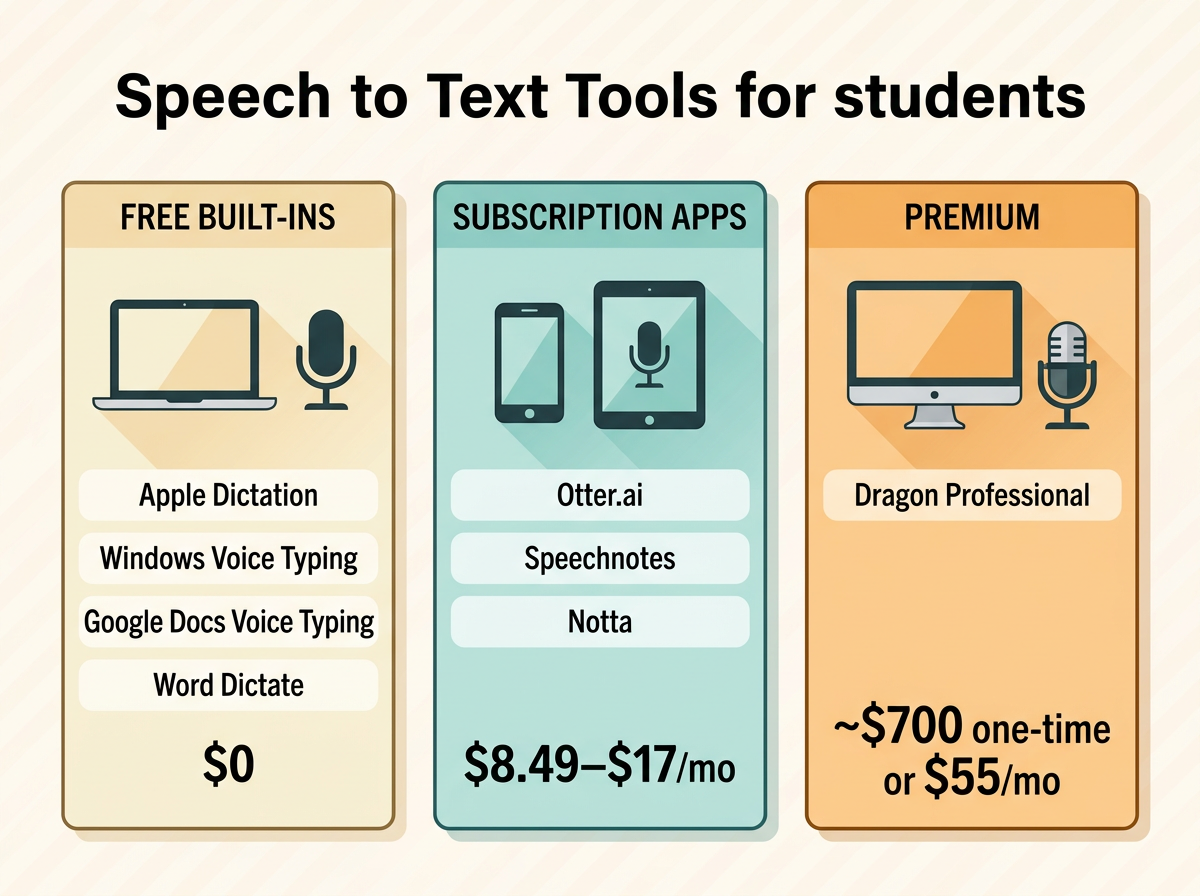
The most-recommended speech to text software for students in 2026 falls into three tiers: free built-ins (Apple Dictation, Windows Voice Typing, Google Docs Voice Typing, Word Dictate), mid-priced subscription apps ($8.49–$17/month), and the premium Dragon Professional at roughly $700 one-time or $55/month. No single tool wins for everyone — the right pick depends on your device, what you're writing, and any accessibility needs.
Here's how the tools university accessibility offices and review sites name most often stack up, plus FluidVox, which dictates system-wide into any program you're working in.
| Tool | Price | Platforms | Best for |
|---|---|---|---|
| Apple Dictation | Free (built in) | Mac, iPhone, iPad, Apple Watch | Quick dictation across apps on Apple devices, offline option |
| Windows Voice Typing | Free (built in) | Windows 10, Windows 11 | System-wide dictation via Win + H |
| Google Docs Voice Typing | Free | Web (Chrome) | Writing inside Google Docs, no training needed |
| Microsoft Word Dictate | Free with Microsoft 365 | Word, Outlook, OneNote, PowerPoint; Windows, Mac, Web, mobile | Writing in the Microsoft ecosystem (~99% accuracy) |
| Otter.ai | Free 300 min/mo; Pro $16.99/mo | Web, iOS, Android | Recording and transcribing lectures and meetings |
| Speechnotes | Free with ads; Premium $1.90/mo; transcription $0.10/min | Web (Chrome), Android | Browser-based dictation and file transcription on a budget |
| Dragon Professional | ~$700 one-time or $55/mo; mobile $15/mo | Windows desktop; iOS, Android (macOS support disputed) | Heavy accessibility use, specialized vocabulary, offline |
| FluidVox | 14-day free trial; from $2.99/mo or $39 one-time | Mac, Windows, iPhone | System-wide dictation that types cleaned-up text into any app |
Prices come from vendor pages and review sites and may shift — verify before buying. Apple Dictation and Windows Voice Typing pricing reflect being bundled free with the OS, per Voicy's 2026 roundup. Speechnotes lists its own Premium plan at $1.90/month and transcription at $0.10/minute on speechnotes.co.
Who should pick what? If you write mostly in Google Docs or Word, the free built-in dictation is usually enough. If you need to transcribe recorded lectures, Otter.ai is purpose-built for that, not document writing. If you have a documented disability that demands the highest accuracy and custom medical or legal terms, Dragon earns its price. And if you want to dictate into any app — email, Slack, Docs — without copy-pasting, FluidVox runs system-wide from your menu bar and cleans up filler words as you speak, across 99 languages with cloud and local models. FluidVox's 2026 buyer's guide walks through these trade-offs in more depth.
Free built-in speech to text tools every student already has
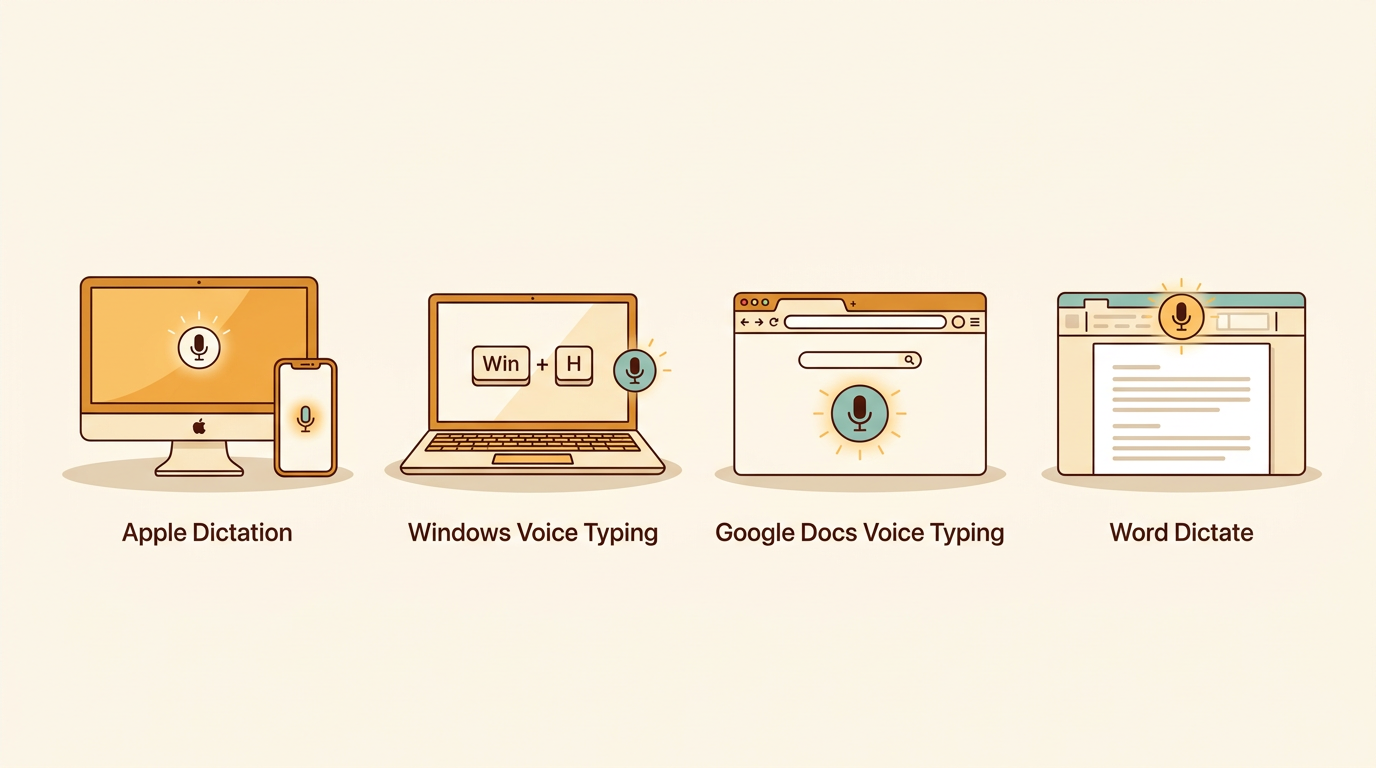
Every major operating system and office suite includes free dictation, so most students never need to spend a cent. These tools cost $0 and require only a microphone — and sometimes an internet connection. They won't match Dragon's accuracy on specialized vocabulary, but for everyday essays and notes they're often enough, a point echoed by Winthrop University's accessibility office.
Apple Dictation comes free on Mac, iPhone, iPad, and Apple Watch. Turn it on in System Settings under Keyboard, then press the dictation key (or Fn twice) and start talking in any text field. It supports 30-plus languages and can run on-device offline through Enhanced Dictation, according to Voicy. Its weakness is limited context awareness for academic terminology.
Windows Voice Typing is built into Windows 10 and 11. Press Win + H in any text box and a dictation bar appears, working system-wide across apps. Voice Access adds fuller hands-free control. It's free and needs no separate install.
Google Docs Voice Typing lives under the Tools menu → Voice typing in the Chrome browser. It requires no training and lets you correct mistakes without moving your cursor. The catch: it only works inside Google Docs, so you'll copy-paste to use the text elsewhere, as Willow notes.
Microsoft Word Dictate is free with a Microsoft 365 subscription and works in Word, Outlook, OneNote, and PowerPoint across Windows, Mac, web, and mobile. It's powered by Nuance technology (Microsoft acquired Nuance in 2022) and claims around 99% accuracy with clear speech. Wirecutter named it best for free, writing-focused dictation in its best dictation software review.
The main limitation across cloud-based built-ins like Google Docs Voice Typing is that they need a steady internet connection. Apple Dictation and Windows Voice Typing can work offline, which matters in dorms with patchy Wi-Fi.
How much does speech to text software for students cost?
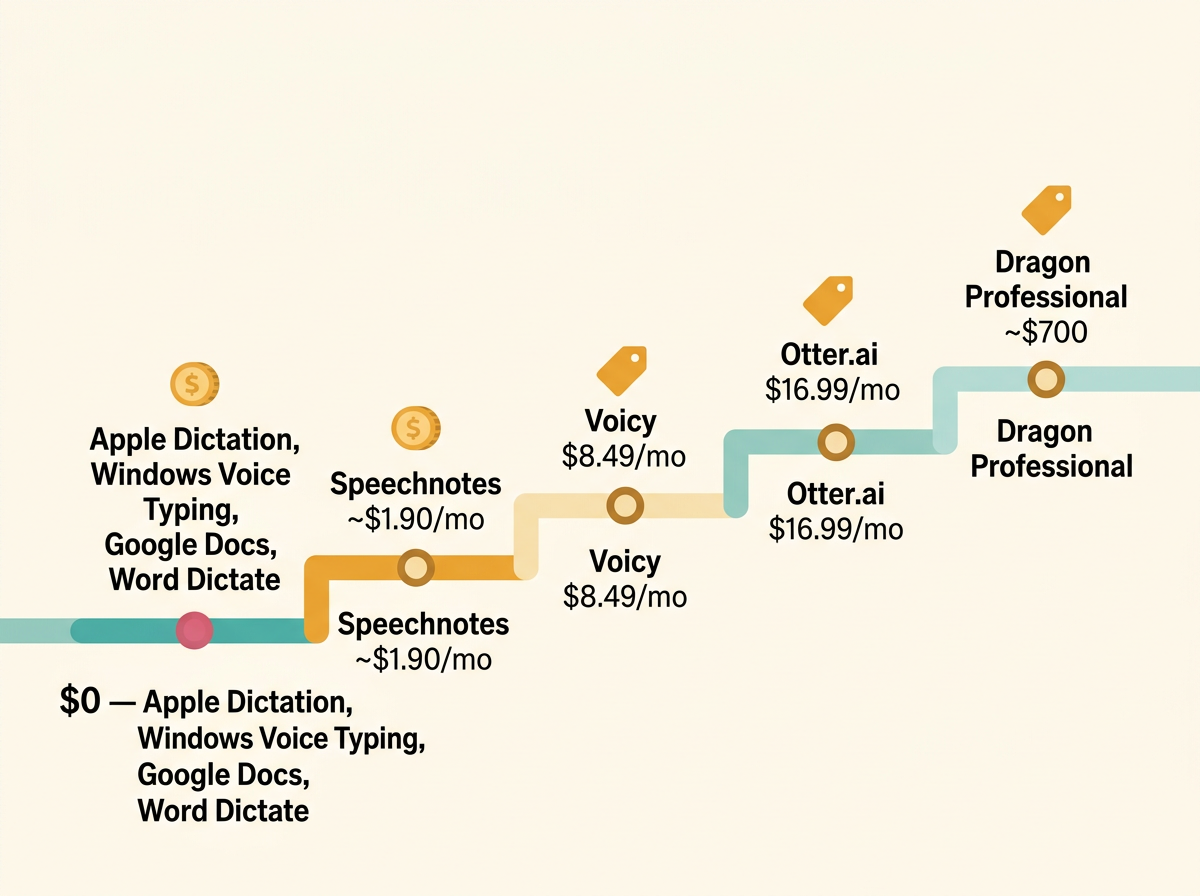
Speech to text software for students ranges from completely free to about $700, with most paid subscription apps landing between $8.49 and $17 per month. Many students never pay anything because the built-in dictation in Apple, Windows, Google Docs, and Microsoft 365 covers their needs at $0.
At the free end sit Apple Dictation, Windows Voice Typing, Google Docs Voice Typing, Word Dictate (free with Microsoft 365), Gboard, Dictation.io, and Speechnotes' ad-supported tier. Several universities also provide otherwise-paid software free through institutional licensing — Queen's University, for example, gives students Microsoft Word dictation at no cost, per its library guide, and the University of South Carolina's disability center offers Dragon on lab computers.
The middle tier is monthly subscriptions. Voicy lists at $8.49/month ($82/year or $260 lifetime), Notta Pro at $13.99/month, Dragon Anywhere mobile and Wispr Flow at $15/month, and Otter.ai Pro at $16.99/month, according to Voicy's pricing breakdown. Speechnotes Premium is the budget standout at roughly $1.90/month. FluidVox starts at $2.99/month per its pricing page.
At the high end, Dragon Professional desktop costs about $700 one-time or $55/month for Windows, with specialized Dragon Medical and Dragon Legal editions for professional vocabulary. That's the priciest mainstream option, justified mainly by offline processing, accuracy on technical terms, and deep accessibility support.
Student discounts are inconsistent — most consumer dictation apps don't advertise them, but check your campus disability or IT office first, since institutional licenses frequently make paid tools free to enrolled students. The honest trade-off: free built-ins win on price and convenience; paid tools earn their cost only when you need cross-app dictation, higher accuracy, or custom vocabularies a free tool can't handle.
Speech-to-text software for students with disabilities
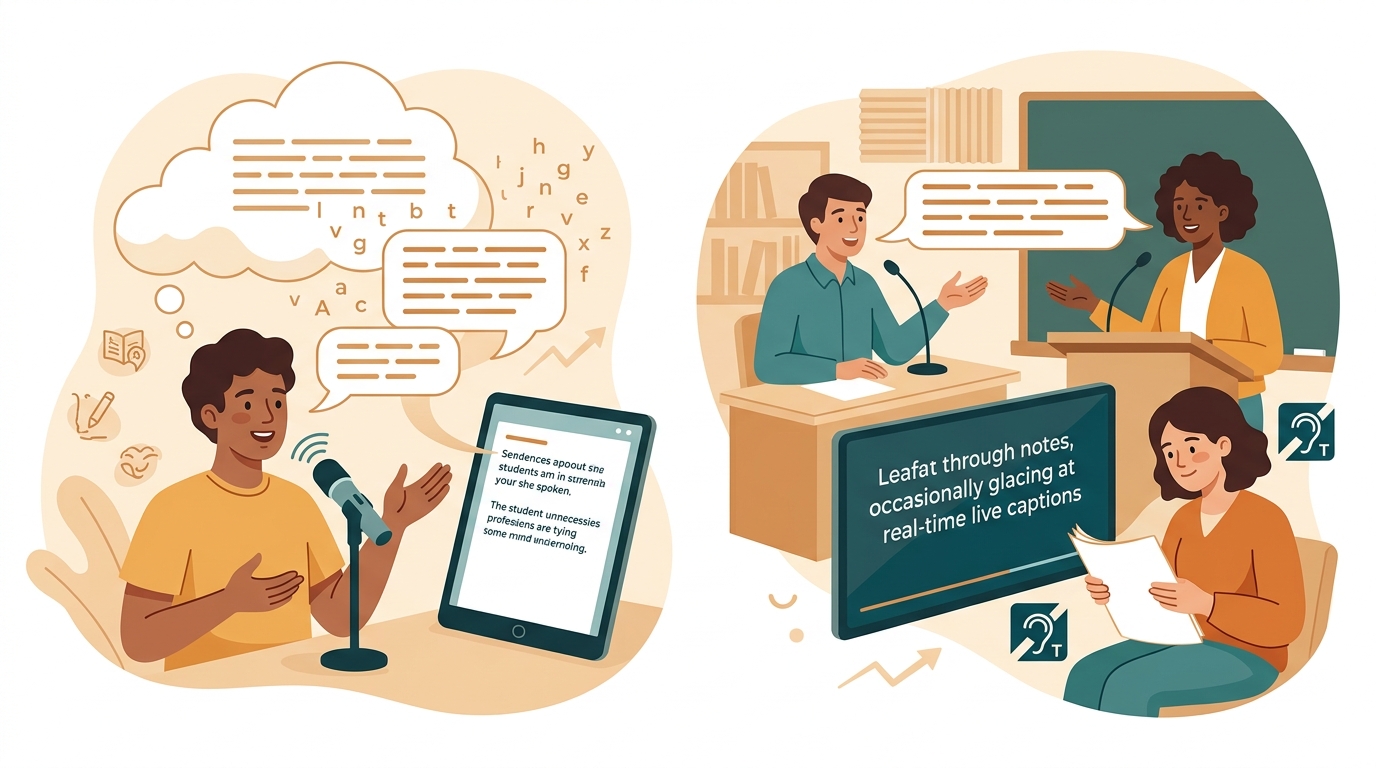
Speech-to-text software for students with disabilities is a recognized assistive technology for dyslexia, dysgraphia, motor impairments, and deaf or hard-of-hearing students — but the best tool varies by need. Dictation lets students who think faster than they write, or who struggle with handwriting and typing, produce text by speaking, as Reading Rockets documents.
For dyslexia, dysgraphia, and motor impairments, Dragon is the most-cited heavy-duty pick. It adapts to how you speak, becomes more accurate over time with training profiles, and works system-wide, which suits students who need reliable dictation across every app. The downsides are a lengthy training process and high upfront cost. Speechtexter, a free no-registration web tool, is specifically recommended for students with dyslexia or hand and hearing impairments by the University of South Carolina.
Speech to text for deaf students flips the direction: instead of typing by voice, these students need others' speech turned into readable captions. Otter.ai provides real-time captions and notes for lectures and classes with speaker identification and AI summaries, making it a common classroom accommodation. Microsoft Translator (free, 70-plus languages) and Google's Live Transcribe (free on Android) handle live captioning and translation. KNFB Reader serves blind, low-vision, and print-disabled students by converting text to speech or Braille and works without Wi-Fi.
A practical note on accommodations: most universities run a disability resource office that evaluates your needs, recommends specific tools, and sometimes provides paid software free. Start there before buying anything. These offices tend to recommend free built-ins plus Dragon rather than trendy paid apps, because they prioritize cost, reliability, and documented accessibility over marketing claims. FluidVox's voice typing for students page covers lecture, note, and essay workflows that overlap with many accommodation needs.
No tool is perfect for every disability — dictation helps many students but not all, and accuracy still depends on clear speech and a quiet room.
Why 'best speech to text app' lists disagree so much
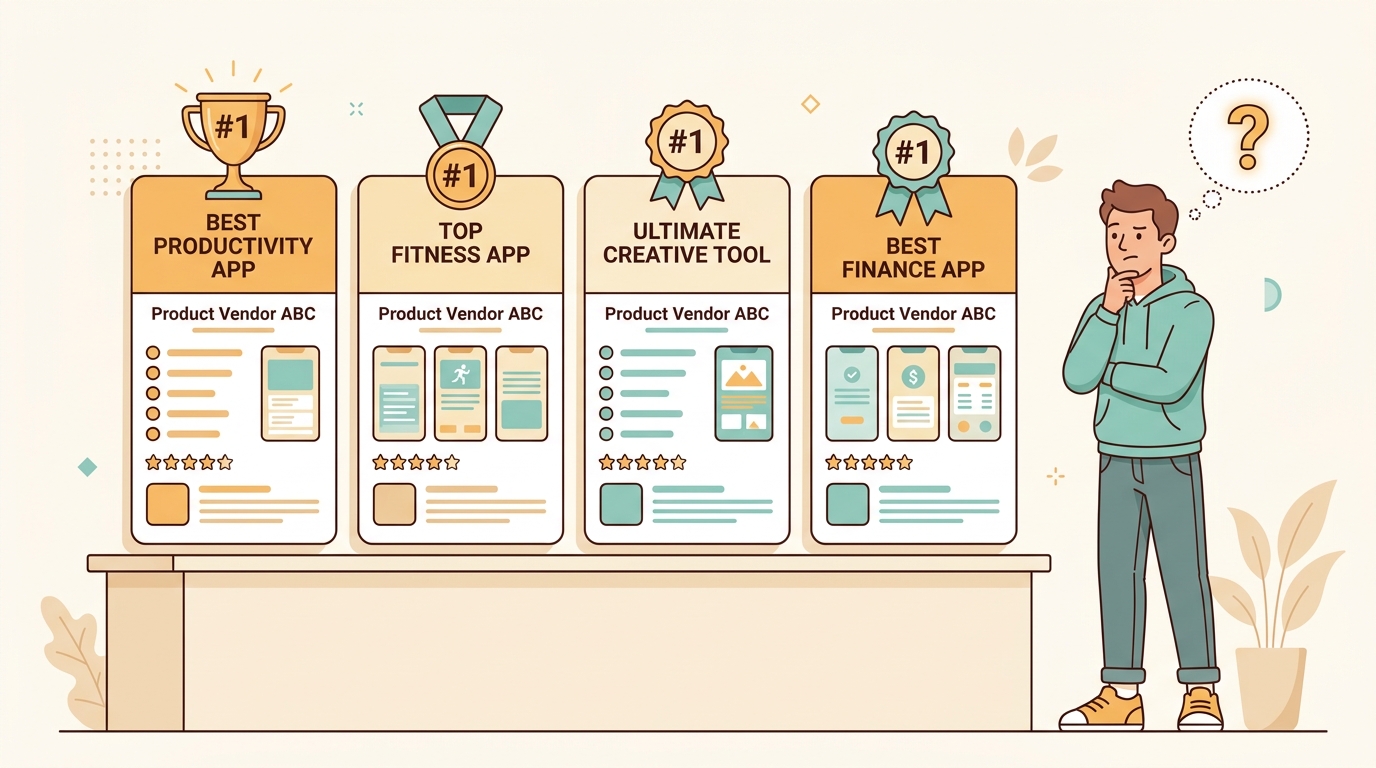
The single 'best' speech to text app for students has no consensus winner because the loudest rankings come from companies ranking their own products. Across 14 sources reviewed for this guide, the recommendation split cleanly along publisher self-interest.
Vendor listicles each crown themselves. Voicy's blog ranks Voicy as the #1 'best overall talk to text app.' Willow's blog ranks Willow as 'Best Overall' — and openly states its ranking is based on publicly available information rather than hands-on testing, per Willow's own post. Wirecutter, an independent reviewer, names Wispr Flow its top pick in its 2026 dictation review. Three sources, three different winners — and two of them happen to sell the tool they picked.
Neutral sources behave differently. University disability offices and accessibility resources like SNOW at OCAD University decline to rank at all; some explicitly state they don't endorse any listed software. Instead they list options by cost and platform, leaning toward free built-ins (Apple Dictation, Windows Voice Typing, Google Docs Voice Typing) and Dragon for heavier needs. Their framing emphasizes free and low-cost tools because their audience is students who may not have budget.
Accuracy claims compound the confusion. Voicy and Dragon cite 99%-plus, Speechnotes claims 95% for English, and free tools get pegged at 93–97% — but these are vendor self-reports, not independent head-to-head benchmarks under identical conditions. Treat any 'X% accurate' figure as a marketing estimate, not a measured fact.
How should you read these lists? Trust the methodology, not the ranking. A university office with nothing to sell and a reviewer who tested tools hands-on are more reliable than a brand's blog naming itself #1. And cross-check pricing — even Dragon's cost gets reported as $15/month (mobile) or $55/month or $700 (desktop) depending on which edition a source means.
How to choose the right dictation tool for your needs
Choose your dictation tool by working through five questions in order: device, budget, accuracy needs, accessibility requirements, and where the text needs to land. Most students who answer these honestly end up with a free built-in tool — and that's the right answer.
Device and OS first. Apple Dictation only runs on Apple hardware; Windows Voice Typing only on Windows; Google Docs Voice Typing needs Chrome. Dragon Professional is Windows-focused (its macOS support is disputed across sources). Match the tool to what you already own before anything else.
Budget second. If $0 is your ceiling, the built-ins cover it. If you'll pay, expect $8.49–$17/month for most apps, with Speechnotes Premium cheaper at ~$1.90/month and Dragon Professional far higher at ~$700. Check your campus disability office for free institutional licenses before paying.
Accuracy and accent handling third. Built-in tools handle clear, standard speech well but struggle with academic jargon and strong accents. Paid tools with training profiles and custom dictionaries adapt to your voice and field. Changing your microphone is actually the fastest accuracy upgrade, more than switching apps.
Accessibility fourth. If you have a documented disability, prioritize tools your accommodations office recommends and that offer the support you need — Dragon for system-wide dictation, Otter.ai for live captions.
Where the text lands fifth. Google Docs Voice Typing traps text inside Docs; Speechnotes is browser-bound. If you want to dictate into email, chat, and any app without copy-pasting, you need a system-wide tool. FluidVox takes this approach — it lives in your menu bar, you hold a hotkey to dictate, and it types cleaned-up text (filler words removed, punctuation and grammar fixed) directly into whatever app is active, across 99 languages with cloud and local models. That cross-app behavior is the main thing single-document free tools can't match.
Tips for getting accurate dictation as a student
The fastest way to improve dictation accuracy is to upgrade your microphone and reduce background noise — the software matters less than the audio it receives. A clean signal in a quiet room beats an expensive app fed muddy audio every time, a point both vendor guides and accessibility offices agree on.
Start with the microphone. A headset mic or a decent USB microphone positioned consistently near your mouth dramatically outperforms a laptop's built-in mic. This single change does more than any setting.
Work somewhere quiet. Background chatter, music, and HVAC hum all degrade recognition. If you must dictate in a shared space, a noise-cancelling headset helps, and some tools (FluidVox among them) filter background noise or offer a quiet whisper mode.
Train custom vocabulary if your tool allows it. Dragon and apps with custom dictionaries let you add names, technical terms, and course-specific jargon so the software stops guessing. For an organic chemistry student, adding compound names alone can cut errors sharply.
Speak your punctuation aloud. Say "comma," "period," "new paragraph," and "question mark" as you dictate. Most tools recognize these spoken commands, and your text comes out formatted instead of one long run-on. FluidVox's glossary defines the common dictation commands worth learning.
Always edit and proofread afterward. Even 99% accuracy means roughly one error every hundred words, and homophones (their/there, to/too) slip through silently. Read your draft out loud or run a spell check before submitting.
Finally, fold dictation into a real workflow rather than treating it as a gimmick. Many students dictate a messy first draft fast, then clean it up by typing — capturing ideas at speaking speed and editing at reading speed. That hybrid approach plays to dictation's actual strength.
Key takeaways
- Free built-in tools — Apple, Windows, Google Docs, Word — cover most students at $0.
- Dragon Professional is the premium pick at ~$700 one-time or $55/month.
- Most paid dictation subscriptions cost roughly $8.49–$17 per month.
- Vendor 'best' lists each crown their own product; university offices stay neutral.
- Right tool depends on device, disability needs, accuracy, and budget — not hype.
Frequently asked questions
What is the best free speech to text software for students?
The best free option is whatever your device already includes: Apple Dictation on Mac and iPhone, Windows Voice Typing (Win + H), Google Docs Voice Typing, or Microsoft Word Dictate with Microsoft 365. All cost $0 and need only a microphone. For free file transcription, Speechnotes offers an ad-supported tier and Otter.ai gives 300 free minutes per month.
Is Dragon worth the cost for students?
Dragon is worth roughly $700 one-time (or $55/month) only for students with serious accessibility needs, specialized vocabulary, or who dictate constantly across every app. It offers high accuracy, offline processing, and training profiles. Most students don't need it — free built-in tools handle everyday essays and notes. Check whether your campus disability office provides Dragon free before buying.
How do I turn on voice typing in Google Docs?
Open a document in Google Docs using the Chrome browser, click the Tools menu, then select Voice typing. A microphone icon appears — click it and start speaking. Voice typing requires no training and lets you correct mistakes without moving the cursor. The catch: it only works inside Google Docs, so you'll copy-paste text to use it elsewhere.
What speech-to-text software is best for students with dyslexia?
For dyslexia, Dragon is the most-recommended heavy-duty tool because it adapts to your speech and supports custom vocabulary. Speechtexter, a free no-registration web tool, is specifically recommended by university disability offices for dyslexia and hand or hearing impairments. Free built-ins like Apple Dictation also help. Start with your campus accommodations office, which can recommend and sometimes provide tools free.
Can deaf students use speech-to-text software for lectures?
Yes. Deaf and hard-of-hearing students use speech-to-text for live lecture captions — the reverse of dictation. Otter.ai provides real-time captions with speaker identification and AI summaries, a common classroom accommodation. Google's Live Transcribe (free on Android) and Microsoft Translator (free, 70-plus languages) also caption speech live. Your disability resource office can help arrange captioning as a formal accommodation.
Does Microsoft Word have built-in dictation?
Yes. Microsoft Word Dictate is built in and free with a Microsoft 365 subscription. It works in Word, Outlook, OneNote, and PowerPoint across Windows, Mac, web, and mobile. Powered by Nuance technology after Microsoft acquired Nuance in 2022, it claims around 99% accuracy with clear speech. Wirecutter named it best for free, writing-focused dictation.
How accurate is speech to text software for students?
Vendors claim 93–99% accuracy, but these are self-reported figures, not independent benchmarks under identical conditions. Free tools like Apple Dictation and Google Docs land around 93–97%; Dragon and some paid apps claim 99%-plus. Real accuracy depends heavily on your microphone, background noise, and accent. Even at 99%, expect about one error per hundred words, so always proofread.
Are there student discounts on speech to text apps?
Most consumer dictation apps don't advertise student discounts, but you may not need one. Many universities provide otherwise-paid software — including Dragon and Microsoft 365 — free to enrolled students through institutional licensing or on lab computers. Check your campus disability resource office or IT department first; that's often the cheapest path to a premium tool at no cost.