
Blog
How to Use Voice to Text on Mac: A Simple Setup Guide
How to turn on and use Apple Dictation on Mac
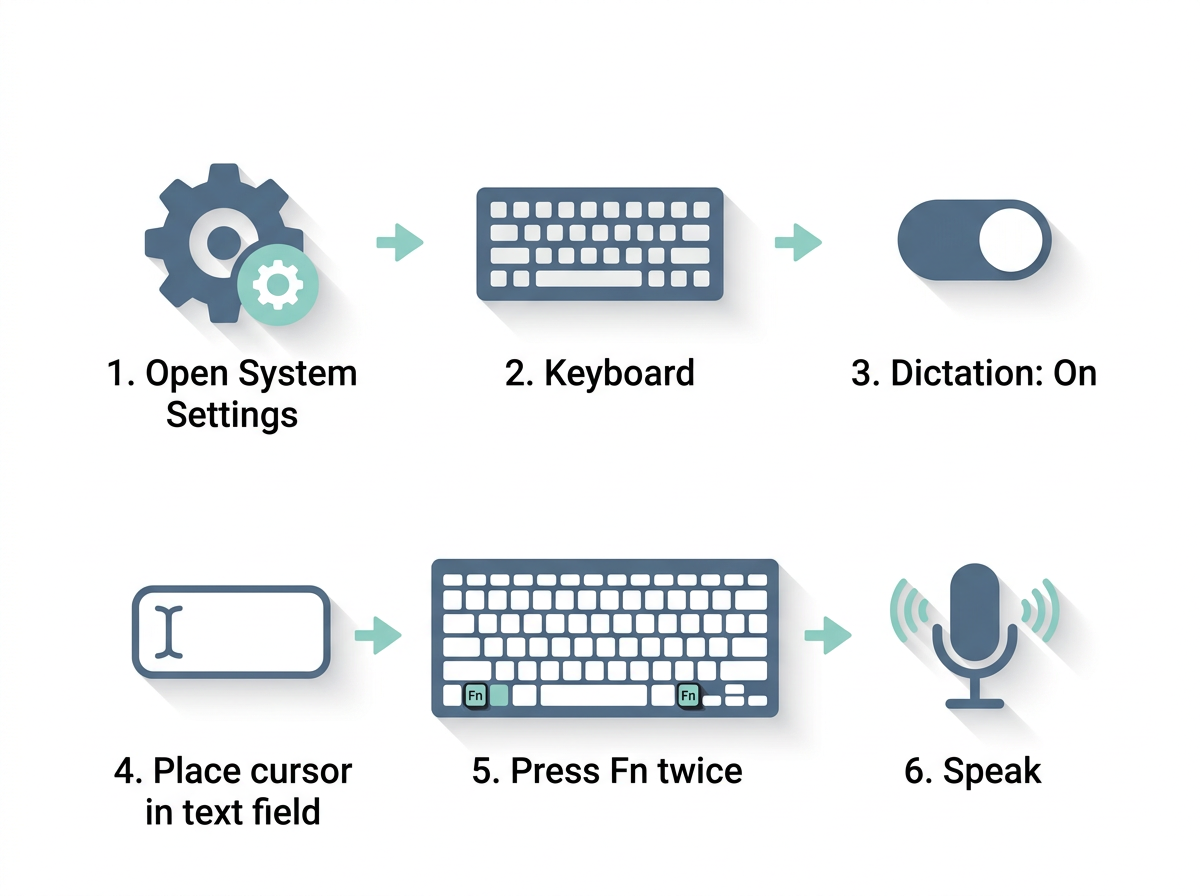
To use voice to text on Mac with the built-in tool, open the Apple menu, go to System Settings > Keyboard > Dictation, and toggle it on. Apple Dictation is free, ships with macOS, and works in any text field across apps including Notes, Mail, Safari, and Pages.
Here is the setup, step by step:
- Click the Apple menu > System Settings > Keyboard.
- Scroll to Dictation and switch it On. Choose your language and microphone (no restart needed).
- Grant microphone access if prompted, under System Settings > Privacy & Security > Microphone.
- Place your cursor in any text field where you want to type.
- Press the Fn (Function) key twice to start. You can also use the microphone key on newer keyboards, or pick Edit > Start Dictation.
- Speak. Your words appear at the cursor in 1–3 seconds, per Codebridge's testing.
- Stop by pressing Fn once more, clicking Done, or switching windows.
Apple documents the full process in its Dictate messages and documents on Mac guide — the page that ranks at the top of Google for this query.
You can add punctuation by speaking commands like "period," "comma," "new line," "new paragraph," and even "smiley face" for an emoji. On supported languages, recent macOS versions also insert some punctuation automatically. The University of Melbourne's getting started with Mac Dictation guide is a useful neutral walkthrough if you want a non-vendor reference.
One thing to know up front: Apple Dictation transcribes fairly literally. It leaves in filler words like "um" and "you know," and it won't clean up grammar. That gap is exactly where third-party tools like FluidVox and others step in.
How to use Dictation on Mac in 2026 (latest macOS changes)
Dictation on Mac in 2026 works the same way it has for years — Fn Fn to start — but where your audio is processed now depends on your hardware. On Apple Silicon Macs (M1 and later), Dictation runs on-device for many languages, so your speech never leaves the machine. On Intel Macs, or for certain languages, audio is encrypted and sent to Apple's servers, which means you need an internet connection.
Apple Dictation supports a broad set of languages, though sources disagree on the exact count: a Superwhisper comparison lists roughly 60, while a Voicy comparison table lists 30-plus. Apple's own framing references "over 20" for Siri-based recognition. The takeaway: it covers major languages well but trails dedicated apps that advertise 99 to 100-plus.
The most-repeated complaint online is a "30-second timeout." This claim is disputed and worth clarifying. Several vendor pages — Willow Voice, SnailText, and VoiceDash — say Dictation auto-stops after 30 seconds. But VoiceDash also notes Apple's documentation states there is no fixed duration limit on Apple Silicon. The 30 seconds appears to apply to detected silence, not total recording length. Keep talking and it keeps listening; pause too long and it stops.
You can customize the shortcut. In System Settings > Keyboard > Dictation, swap the default Fn Fn for the right Command key, the Globe key, or a custom combination — handy if double-tapping Fn conflicts with other shortcuts. Note that turning on Voice Control (System Settings > Accessibility > Voice Control) disables standard Dictation, so don't run both at once.
Apple Dictation vs third-party voice-to-text apps for Mac
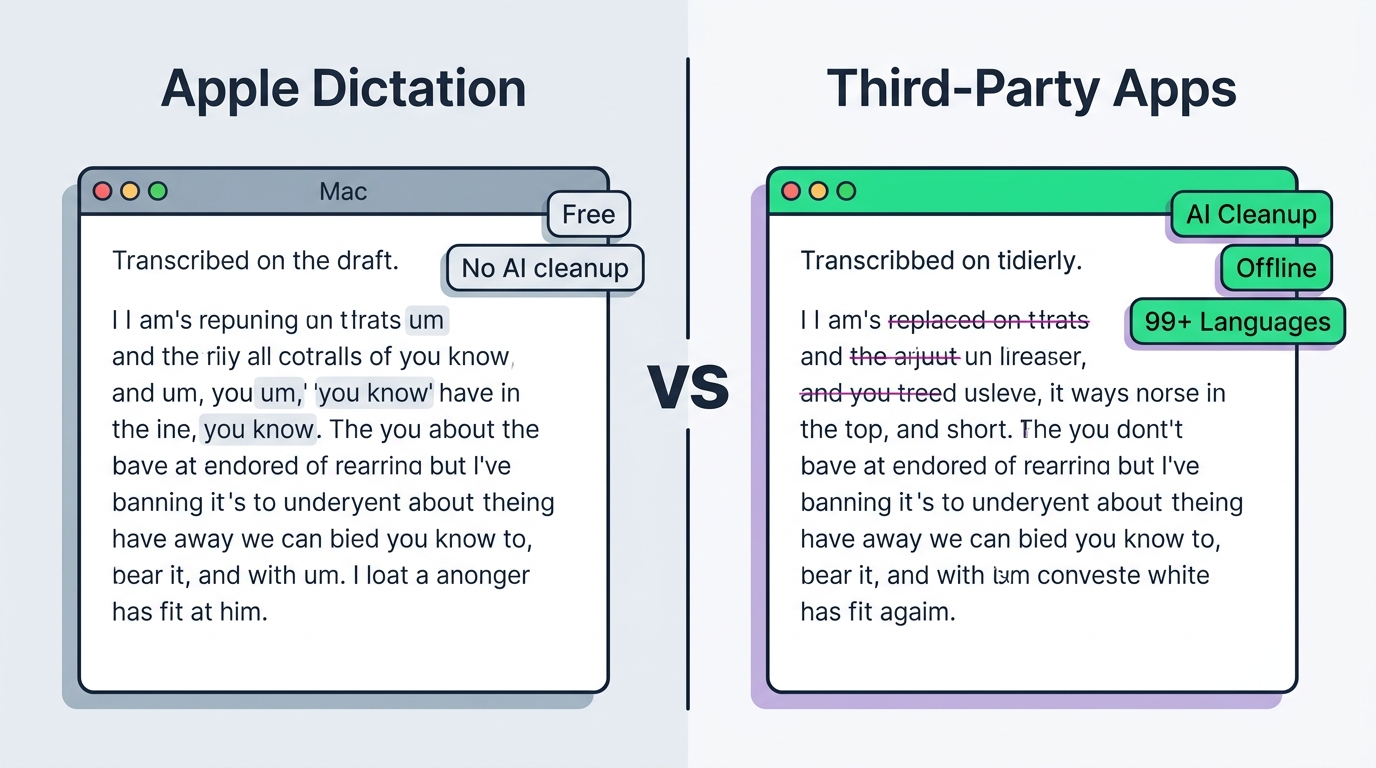
The core tradeoff is simple: Apple Dictation is free and good enough for short notes, while third-party voice-to-text apps add AI cleanup, offline models, and broader language support that justify a price. If you only dictate a quick reply now and then, the built-in tool is fine. If you write for hours, the differences add up fast.
Apple Dictation's main limitations, documented across multiple comparison sources, are that it offers no AI cleanup of filler words, weak handling of code and jargon, and no real vocabulary learning. A Zapier test cited by Setapp found 11 wrong words in a 200-word sample — roughly 94.5% accuracy.
Third-party apps close those gaps in three ways. First, they run local Whisper-based models so transcription works offline and stays private. Second, they use large language models to remove filler words, fix punctuation, and correct grammar in real time — FluidVox does this automatically as you speak. Third, they type directly into the active app via a hotkey, so there's no copy-paste step.
Be skeptical of the speed and accuracy numbers vendors quote. Claimed productivity gains range from "3x faster" (a Stanford study cited by Willow Voice and Voicy) to a Setapp figure of roughly 2x (150 wpm speech vs 80 wpm typing) to one Medium listicle's "10x." Accuracy claims of 95% to 99% come from each product's own marketing, not a shared benchmark — FluidVox's own voice typing accuracy explainer breaks down why word error rate matters more than a headline percentage.
Language support is a clear, verifiable difference. Apple covers maybe 20–60 languages depending on the source; apps like FluidVox and Superwhisper advertise 99 to 100-plus. For multilingual writers, that gap alone can decide the choice.
Best third-party voice-to-text apps for Mac
The leading third-party voice-to-text apps for Mac are FluidVox, Superwhisper, Wispr Flow, and VoiceInk — each adds something Apple Dictation lacks, from AI cleanup to fully offline processing. Here is what sets each apart.
FluidVox is a menu-bar app that types dictated speech directly into any active app via a hold-hotkey, so you skip copy-paste entirely. It removes filler words and fixes spelling, grammar, and punctuation in real time using large language models. It supports 99 languages, 6 transcription styles, and offers both cloud and local (offline) models. FluidVox runs on macOS, Windows, and iPhone, which makes it a fit for people who switch devices. FluidVox's use cases page shows it working inside Gmail, Slack, Notion, and more, and its executive workflow guide targets email and chat at speed.
Superwhisper processes audio offline on Apple Silicon (M1–M4 neural engine) and supports 100-plus languages. It has a free tier that doesn't expire, plus Pro at $8.49/month, $84.99/year, or a $249.99 lifetime license, per its own pricing page. Superwhisper also advertises SOC 2 Type II and HIPAA compliance. FluidVox publishes a Superwhisper alternative comparison if you want a side-by-side.
Wispr Flow focuses on AI cleanup and "flow" dictation across apps. It integrates with WhatsApp, VS Code, Slack, Notion, Obsidian, and many more. A Codebridge comparison lists a free tier of 2,000 words/week and Pro at $15/month (or $12/month billed annually). See FluidVox's Wispr Flow alternative page for differences.
VoiceInk is fully local and open source, running Whisper and Parakeet on the Apple Neural Engine with 100% offline processing. Its pricing page lists one-time licenses: $25 Solo (1 Mac), $39 Personal (2 Macs), and $49 Extended (3 Macs). It requires Apple Silicon and macOS 14.4+.
For a fuller ranked list, FluidVox maintains a best voice typing apps for Mac 2026 comparison.
How much does voice-to-text software for Mac cost?
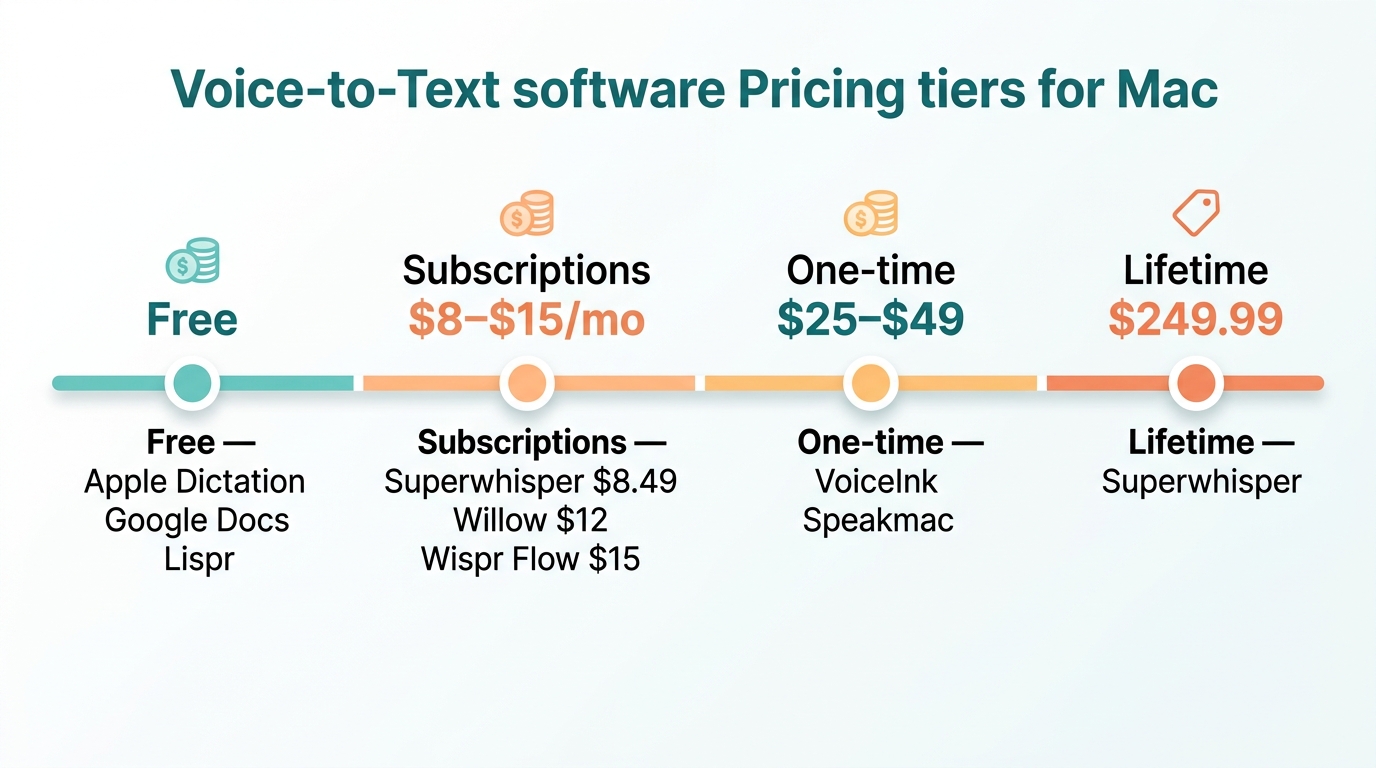
Voice-to-text software for Mac ranges from free to a $249.99 lifetime license, with most paid apps landing at $8–$15 per month or $25–$49 one-time. Your budget mostly tracks whether the app runs locally (often a one-time fee) or in the cloud (usually a subscription).
The free end includes Apple Dictation (built into macOS), Google Docs Voice Typing (inside Chrome), and Lispr, a 4 MB cloud-based app that needs no account, per Codebridge. Several paid apps also offer perpetual free tiers — Wispr Flow and Willow Voice cap at 2,000 words/week, while Superwhisper's free tier doesn't expire.
Subscriptions cluster tightly. Superwhisper Pro runs $8.49/month, Aqua Voice $8/month annual, Willow Voice $12/month annual, and Wispr Flow $15/month (or $12 billed annually). FluidVox advertises plans from $2.99/month on its homepage, positioning it at the lower end of the subscription range.
One-time licenses dominate the local-processing apps. VoiceInk costs $25–$49 depending on how many Macs you cover. Speakmac runs $29 (1 Mac) or $49 (2 Macs) with 12 months of updates. MacWhisper Pro is €49 on Gumroad. Superwhisper offers a $249.99 lifetime option for people who'd rather not subscribe. FluidVox's 2026 buyer's guide walks through which model fits which usage pattern.
A quick note on comparing prices: confirm billing frequency and device limits at checkout, since several of these figures come from vendor or single-listicle sources rather than independent verification.
How to fix Dictation not working on Mac
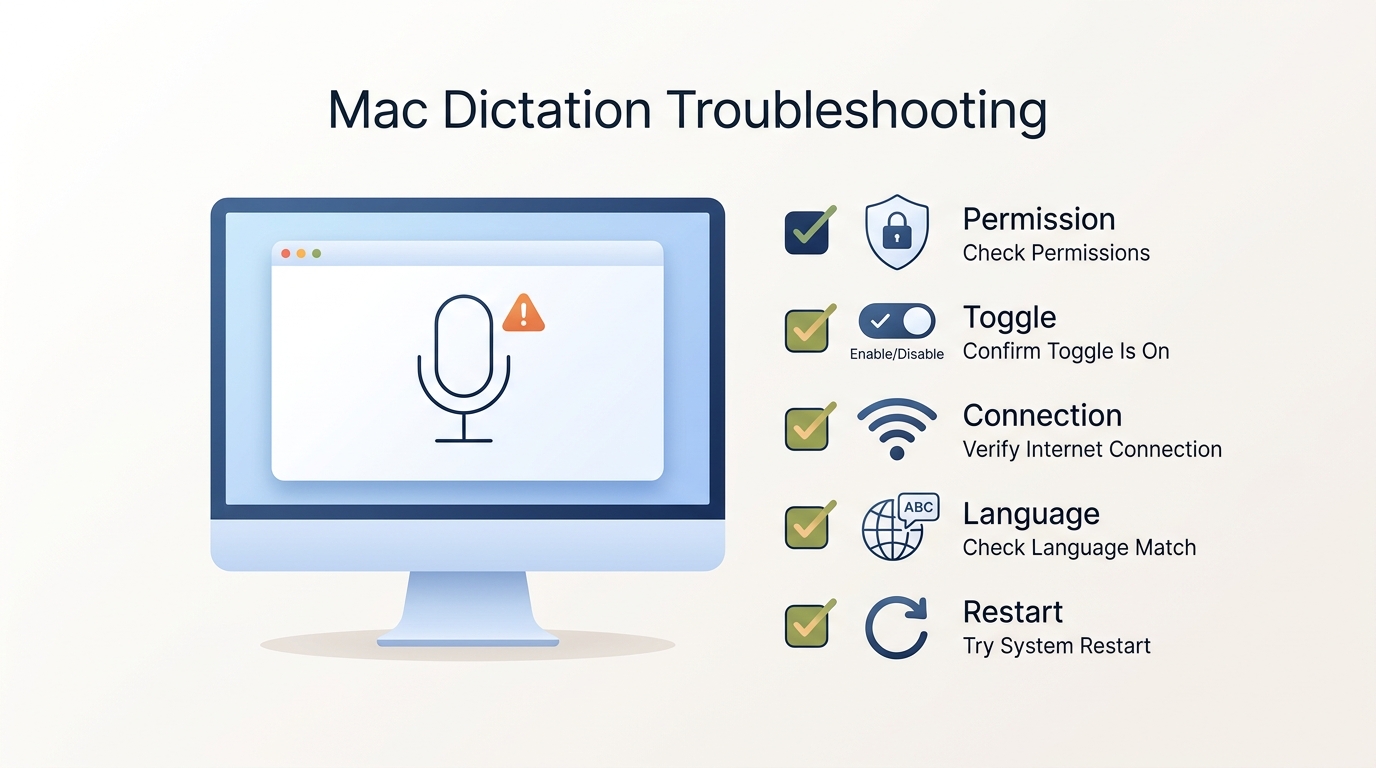
If Dictation isn't working on your Mac, the fix is almost always a permission, a setting, or a connection problem — work through these five checks in order. Most failures resolve in under two minutes.
First, check microphone permissions. Open System Settings > Privacy & Security > Microphone and confirm the app you're dictating into (and Dictation itself) has access. If you use an external USB or headset mic, select it under System Settings > Sound > Input — external mics usually beat the built-in one for accuracy.
Second, verify Dictation is actually enabled. Go to System Settings > Keyboard > Dictation and confirm the toggle is On and a language is selected. It's easy to assume it's on when it quietly reset after an update.
Third, check your internet connection. If you're on an Intel Mac or using a language that isn't processed on-device, Dictation needs the network to reach Apple's servers. On Apple Silicon with on-device languages, it should work offline.
Fourth, confirm the input language matches what you're speaking. Dictating Spanish while the language is set to English produces garbled output that looks like a malfunction but is just a mismatch.
Fifth, re-trigger or restart. Press Fn twice again, or quit and reopen the app. If you recently turned on Voice Control under Accessibility, turn it off — it disables standard Dictation. When built-in Dictation keeps failing, switching to an Apple Dictation alternative with its own engine sidesteps the whole macOS permission stack.
Which voice-to-text option should you use on Mac?
For occasional, free dictation, Apple Dictation is enough; for heavy daily writing, choose a third-party app with AI cleanup; for privacy, pick a local-processing tool; for multilingual work, prioritize language count. The right pick depends on how much you dictate and what you value.
If you fire off a short note a few times a week, don't pay for anything — Apple Dictation handles it, and you already own it. The accuracy gap on simple text is small.
If you write emails, documents, and chat messages for hours, the filler-word cleanup and direct-into-app typing of a tool like FluidVox save real time, because you're not editing out "um" and fixing punctuation by hand. FluidVox works across email, Slack, Notion, and even VS Code.
If privacy or offline use is the priority — sensitive documents, no-network environments — choose a local-processing app like VoiceInk or Superwhisper that keeps audio on-device. FluidVox also offers a local model for this case.
If you write in multiple languages, prioritize apps advertising 99–100-plus languages over Apple's narrower set. And on cost: free built-in vs roughly $3–$15/month or a $25–$49 one-time license is the core tradeoff. Pay only when the time you save clears the price.
Key takeaways
- Enable Apple Dictation in System Settings > Keyboard > Dictation, then press Fn twice to start.
- Apple Dictation is free, built into macOS, and runs on-device on Apple Silicon Macs.
- Third-party apps like FluidVox add AI cleanup, offline models, and up to 99 languages.
- Prices span free to $249.99 lifetime; most paid apps cost $8–$15/month or $25–$49 once.
- The disputed Apple "30-second timeout" applies to silence, not total recording length.
Frequently asked questions
How do you turn on voice to text on a Mac?
Open the Apple menu, go to System Settings > Keyboard > Dictation, and toggle it on. Choose a language and microphone, then grant microphone access if prompted. Place your cursor in any text field and press the Fn key twice to start dictating. Your spoken words appear at the cursor within a few seconds.
What is the keyboard shortcut for Dictation on Mac?
The default shortcut is pressing the Fn (Function) key twice. On newer Mac keyboards you can also use the dedicated microphone key. You can customize the shortcut in System Settings > Keyboard > Dictation to use the right Command key, the Globe key, or a custom combination if Fn Fn conflicts with other shortcuts.
Is Apple Dictation free?
Yes. Apple Dictation is completely free and built into macOS, with no subscription or separate purchase required. You enable it in System Settings > Keyboard > Dictation. It works in any text field across apps like Mail, Notes, Safari, and Pages. Third-party apps charge for extras like AI cleanup, offline models, and broader language support.
Does Mac Dictation work offline?
On Apple Silicon Macs (M1 and later), Dictation runs on-device for many languages, so it works offline and keeps your audio private. On Intel Macs, or for some languages, audio is encrypted and sent to Apple's servers, which requires an internet connection. Dedicated offline apps like VoiceInk and Superwhisper run fully local on Apple Silicon.
Why is Dictation not working on my Mac?
Check five things: microphone permissions in System Settings > Privacy & Security > Microphone; that Dictation is enabled under Keyboard settings; your internet connection if you're on an Intel Mac; that the input language matches what you're speaking; and that Voice Control is off, since it disables standard Dictation. Re-trigger with Fn Fn after each fix.
How many languages does Mac voice to text support?
Sources disagree on the exact number. A Superwhisper comparison lists roughly 60 languages for Apple Dictation, a Voicy table lists 30-plus, and Apple references "over 20" for Siri-based recognition. Dedicated third-party apps such as FluidVox and Superwhisper advertise 99 to 100-plus languages, which matters most for multilingual writers.
What is the best voice-to-text app for Mac in 2026?
There's no single consensus winner, since most rankings come from vendor pages promoting their own product. For free use, Apple Dictation suffices. For heavy writing with AI cleanup, FluidVox, Superwhisper, and Wispr Flow are strong picks. For fully offline, private processing, VoiceInk and Superwhisper run local models on Apple Silicon.