
Blog
How to Use Voice Typing in WhatsApp: A Simple Walkthrough
On this page
- Does WhatsApp Have Built-In Voice Typing?
- How to Voice Type in WhatsApp on Android
- How to Voice Type in WhatsApp on iPhone
- Voice Typing in WhatsApp on Desktop and Web
- Tips to Get Cleaner Voice-Typed Messages
Does WhatsApp Have Built-In Voice Typing?
WhatsApp has no built-in voice typing in the message box. The app never added its own dictation feature, so when you speak to type a message, the text is actually being produced by your device's keyboard or operating system. On a phone that means the mic on your keyboard app; on a computer it means the OS dictation tool or a separate app.
This is where most people get confused. Dictation and sending a voice note are two different things. When you dictate, your speech is converted into editable text that lands in the typing field—you can fix it, add to it, and send it as a normal written message. When you tap and hold WhatsApp's own microphone button, you're recording an audio clip that gets sent as a voice note, not text.
WhatsApp does offer a related feature that adds to the confusion: voice message transcripts, which turn voice notes you receive into readable text on your device. That's transcription of incoming audio, not dictation into the message box. So if your goal is to talk instead of type, the tool you need lives on your keyboard or your operating system—not inside WhatsApp itself. The rest of this guide shows you where to find it.
How to Voice Type in WhatsApp on Android
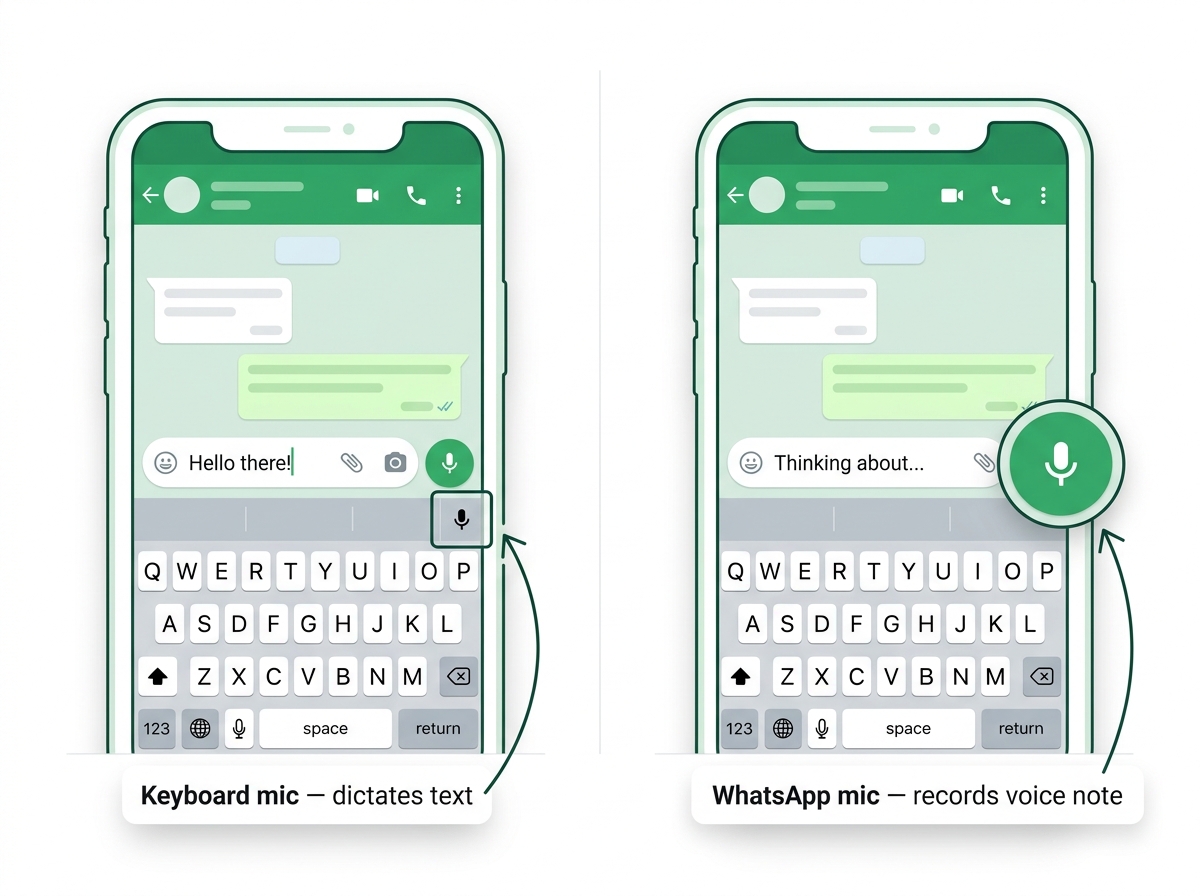
On Android, you voice type in WhatsApp using the microphone key on your keyboard, most commonly Gboard—not WhatsApp's own mic button. Here are the exact steps:
- Open the chat or group where you want to send a message.
- Tap the message box so the on-screen keyboard appears.
- Tap the microphone icon on the keyboard. On Gboard it usually sits in the top-right corner. This is the keyboard mic, not the round WhatsApp voice-note mic on the right side of the text field.
- Start speaking. Your words appear as editable text in the message box in real time.
- Add punctuation by saying it out loud—for example, "comma," "period," "new line," and "new paragraph."
- Review the text, make any edits, then tap the send (paper plane) button.
If you don't see the mic icon, voice typing may be turned off. Enable it under Settings > System > Languages & Input > On-screen keyboard > Gboard > Voice typing, then toggle it on. You may also need to grant microphone permission the first time you use it. Google's own Gboard voice typing help covers the setup if the icon still won't appear. This is the same flow people search for as "Google voice typing in WhatsApp," since Gboard is Google's keyboard.
How to Voice Type in WhatsApp on iPhone
On iPhone, you voice type in WhatsApp using the microphone key on Apple's built-in keyboard. The flow is quick once dictation is switched on:
- Enable dictation first. Go to Settings > General > Keyboard and turn on Enable Dictation. Confirm WhatsApp has microphone access under Settings > Privacy & Security > Microphone.
- Open WhatsApp and tap the chat you want to reply to.
- Tap the message field to bring up the keyboard.
- Tap the microphone icon next to the space bar on the iOS keyboard. Again, this is the keyboard mic—not WhatsApp's voice-note button.
- Speak naturally. iOS types your words into the message box in real time and adds a lot of punctuation automatically, though you can still say "comma" or "question mark" to place it yourself.
- Check the text, edit anything that came out wrong, then send.
Apple's Dictation on iOS 18 and later supports more than 20 languages, so you can switch between them by changing your keyboard language with the globe key. If the mic doesn't respond, make sure Siri-related permissions are enabled and that you're connected—older iPhones lean on a network connection for accuracy. This is the exact process behind searches for "voice typing in WhatsApp on iPhone."
Voice Typing in WhatsApp on Desktop and Web
WhatsApp Web and WhatsApp Desktop have no dictation built into the message box—the microphone button there only records voice notes. Because there's no keyboard mic to tap the way there is on a phone, you need a system-wide dictation tool that can type into any window on your computer. On Windows, the built-in option is Voice Typing: click into the WhatsApp message box and press Windows + H. On macOS, Apple's Dictation works after you turn it on in System Settings, and third-party apps fill the same gap with more polish.
FluidVox is a good fit on macOS because it was designed to type spoken words straight into whatever app you're using. Open any chat or group in WhatsApp for Mac, hold the Fn key, speak, then release—the text appears in the chat field. According to FluidVox's WhatsApp guide, it runs at roughly 150 words per minute compared with about 30 words per minute of phone thumb-typing, and it supports both the App Store and direct-download versions of WhatsApp for Mac.
What makes a system-wide tool worth it here is the cleanup. FluidVox applies a casual style so your dictation reads like a normal typed WhatsApp message, and its AI trims filler words and fixes grammar and punctuation as you go. Because it types directly at your cursor, there's no copy-paste step—install it once and it works across every macOS app, from WhatsApp to email to notes. FluidVox is a menu bar app for macOS, Windows, and iPhone; the desktop plans start at $2.99/mo, with a local, offline option also available per its homepage.
Tips to Get Cleaner Voice-Typed Messages
Cleaner voice-typed messages come down to how you speak and which tool you use. A few habits make a big difference on any platform:
- Speak punctuation clearly on mobile. On Android and iPhone, the keyboard mic won't guess every comma or period, so say "comma," "period," "new line," and "question mark" where you want them.
- Reduce background noise. Recognition accuracy drops in noisy rooms. A quieter spot and a decent microphone beat any software trick.
- Speak at a steady, natural pace. Rushing or trailing off mid-sentence causes more errors than talking fast does. Short natural pauses help the engine keep up.
- Let an AI tool handle the cleanup. On macOS, FluidVox automatically removes filler words like "um" and "you know" and corrects grammar and punctuation, so you edit far less. See FluidVox's full feature set for how it applies per-app styles.
- Use your own vocabulary. FluidVox supports 99 languages and a custom dictionary that learns names, slang, and brand terms, which is handy for group chats full of nicknames and inside jokes.
Key takeaways
- WhatsApp has no native voice typing; dictation comes from your device keyboard or operating system.
- On Android, tap the Gboard microphone key—not WhatsApp's voice-note button—to dictate text.
- On iPhone, enable Dictation in Settings, then tap the keyboard mic by the space bar.
- WhatsApp Web and Desktop have no in-box mic, so you need a system-wide dictation tool.
- On macOS, FluidVox lets you hold Fn and dictate into WhatsApp at roughly 150 WPM.
Frequently asked questions
How do I use Google voice typing in WhatsApp?
Open a chat, tap the message box to bring up Gboard, then tap the microphone icon in the keyboard's top-right corner—not WhatsApp's voice-note mic. Speak your message and it appears as editable text. If the icon is missing, enable it under Settings > System > Languages & Input > On-screen keyboard > Gboard > Voice typing.
How do I use voice typing in WhatsApp on iPhone?
First turn on dictation in Settings > General > Keyboard > Enable Dictation. Open a chat, tap the message field, then tap the microphone icon beside the space bar on the iOS keyboard. Speak and your words type in real time. Review and edit the text before tapping send.
Why is there no microphone for typing in WhatsApp Web?
WhatsApp Web and Desktop have no built-in voice typing, so there's no keyboard mic in the message box—the mic you do see only records voice notes. To dictate text, use a system-wide tool: press Windows + H on Windows, or use Apple Dictation or an app like FluidVox on macOS to type straight into the chat field.
Is voice typing the same as sending a voice message?
No. Voice typing converts your speech into editable text that lands in the message box, so you send a normal written message. A voice message is a recorded audio clip sent as a voice note. WhatsApp's mic button records audio, while dictation comes from your keyboard or OS.