
Blog
Voice Typing for Google Docs: How to Use It Effectively
On this page
- How to turn on voice typing in Google Docs (step by step)
- What is the voice typing shortcut in Google Docs on Mac and Windows?
- Which browsers support Google Docs voice typing?
- Voice commands and languages Google Docs voice typing supports
- Limitations of Google Docs voice typing (privacy, offline, and app lock-in)
- FluidVox vs Google Docs voice typing: a cross-app, offline alternative
- How to choose between Google Docs voice typing and a dedicated dictation app
How to turn on voice typing in Google Docs (step by step)
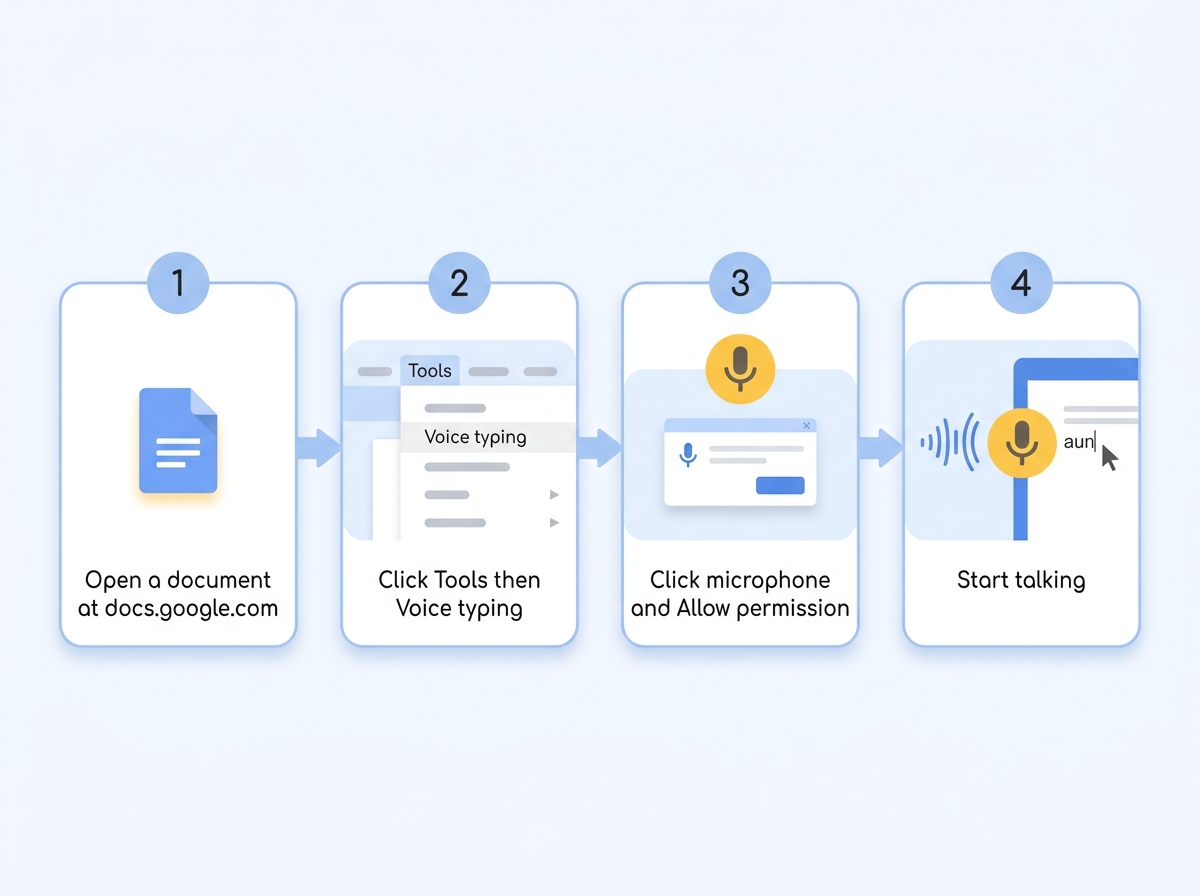
You turn on voice typing in Google Docs by opening a document, clicking the Tools menu, selecting Voice typing, then clicking the microphone icon that appears and speaking. Google's own help page documents this under the feature name "Type & edit with your voice," and the process takes about ten seconds start to finish (support.google.com).
Here is the exact flow on desktop:
- Sign in to your Google account and open a document at docs.google.com. You must be signed in — voice typing does not work for logged-out or view-only sessions.
- Click Tools in the top menu, then click Voice typing. A small floating panel with a microphone icon appears on the left of your document.
- Click the microphone icon. Your browser shows a microphone permission prompt the first time — click Allow. If you block it, the tool silently fails, which is the single most common reason people think voice typing is broken.
- Start talking. Text appears at your cursor as you speak. Click the microphone again to stop.
On mobile, Google Docs does not have its own voice typing button. Instead, you dictate through your keyboard's built-in microphone. On Android, tap the microphone on the Gboard keyboard; on iPhone or iPad, tap the microphone on the iOS keyboard while a Google Docs text field is active. This works, but the transcription quality and command support depend on your phone's keyboard, not Google Docs itself.
One detail people miss: the microphone permission is granted per browser and per site. If you cleared your cookies or switched Chrome profiles, you will see the permission prompt again. For a fuller walkthrough of the built-in limits and the Android mobile behavior, FluidVox maintains a dedicated Google Docs voice typing guide that covers the edge cases.
What is the voice typing shortcut in Google Docs on Mac and Windows?
The voice typing keyboard shortcut in Google Docs is Command+Shift+S on Mac and Ctrl+Shift+S on Windows. Pressing this shortcut toggles the voice typing tool open or closed without touching the Tools menu (support.google.com).
The shortcut only works when you are inside Google Docs with a document open and the window focused. It does nothing on the Google Docs home screen, inside Google Sheets, or in any other app. Once you press it, the floating microphone panel appears, and you still need to click the microphone icon (or press the shortcut again after it's open) to actually begin listening — the shortcut opens the tool, it doesn't automatically start recording in every case.
A few practical notes on the shortcut:
- On Mac, Command+Shift+S is also the default "Save As" shortcut in many other applications, so it only maps to voice typing while Google Docs has focus in the browser.
- If the shortcut does nothing, confirm you're in Chrome — the shortcut, like the feature itself, doesn't exist in Safari or Firefox because voice typing isn't available there at all.
- Google Slides has a related "speaker notes" voice typing option under Tools, but the main dictation shortcut is a Docs feature.
If you want a dictation shortcut that works everywhere — not just inside one browser tab — a system-wide hotkey tool is the alternative, which is exactly the gap the later FluidVox section addresses.
Which browsers support Google Docs voice typing?
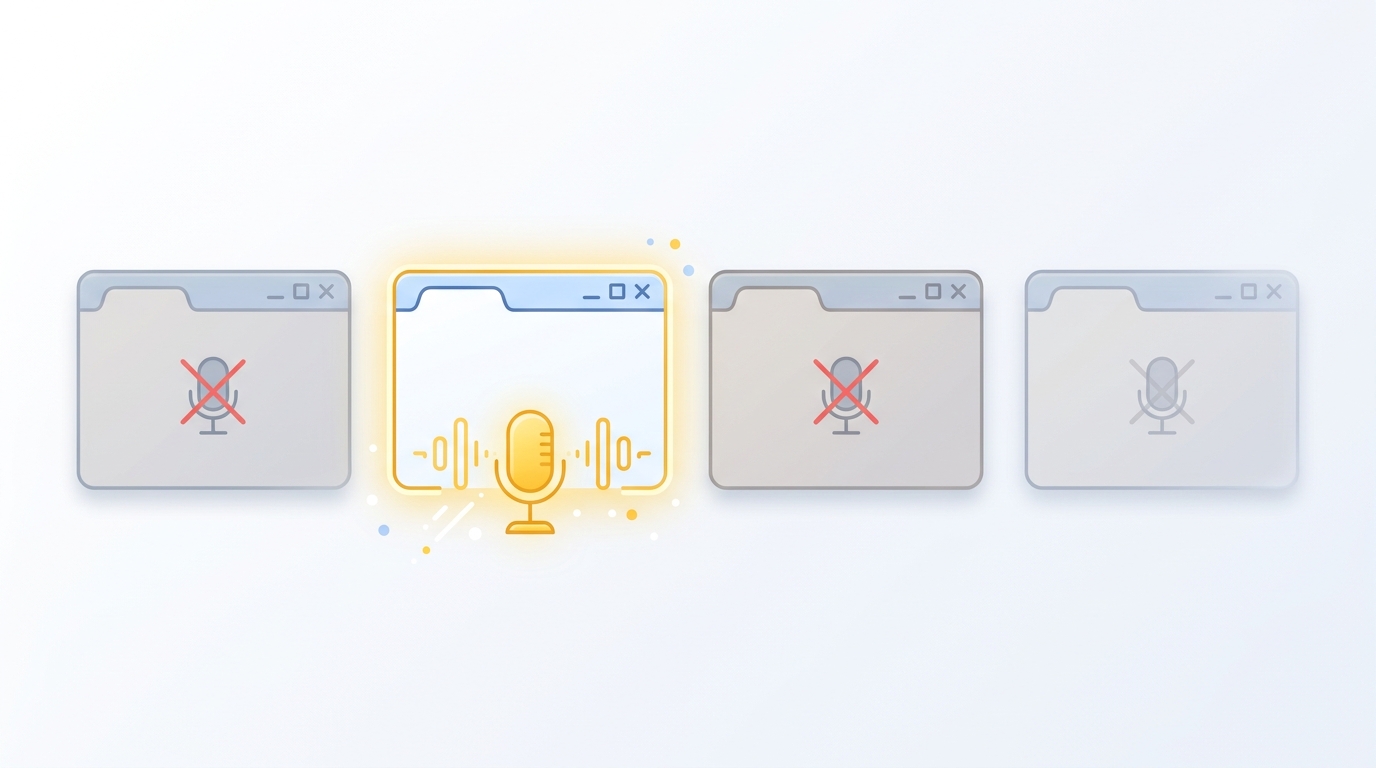
Google Docs voice typing works only in Google Chrome. It is not supported in Safari, Firefox, or Microsoft Edge, and if you open the Tools menu in those browsers, the Voice typing option is either missing or non-functional.
This is the most common source of confusion, partly because Chromium — the open-source engine behind Chrome — also powers Edge, so people reasonably assume Edge should work. It does not reliably. Google's help documentation, where the feature is officially called "Type & edit with your voice," specifies Chrome as the supported browser (support.google.com). A handful of third-party guides list Edge or Safari as sometimes working, but the behavior is inconsistent, so the safe answer is: use Chrome.
Why the Chrome-only limitation? Voice typing relies on a speech-recognition service that the browser itself controls and routes to Google's servers. Chrome integrates that service directly; other browsers either don't expose the same speech API to Google Docs or handle it differently. That's why switching browsers is not a workaround — the dependency is baked into how the feature captures and processes audio.
If you're committed to Safari, Firefox, or Edge and don't want to install Chrome just to dictate, a cross-app dictation app that runs at the operating-system level sidesteps the browser requirement entirely. Tools like FluidVox capture your speech before it ever touches a browser, so the browser you use becomes irrelevant. FluidVox also publishes a general "what is voice typing" primer if you want the underlying mechanics.
Voice commands and languages Google Docs voice typing supports
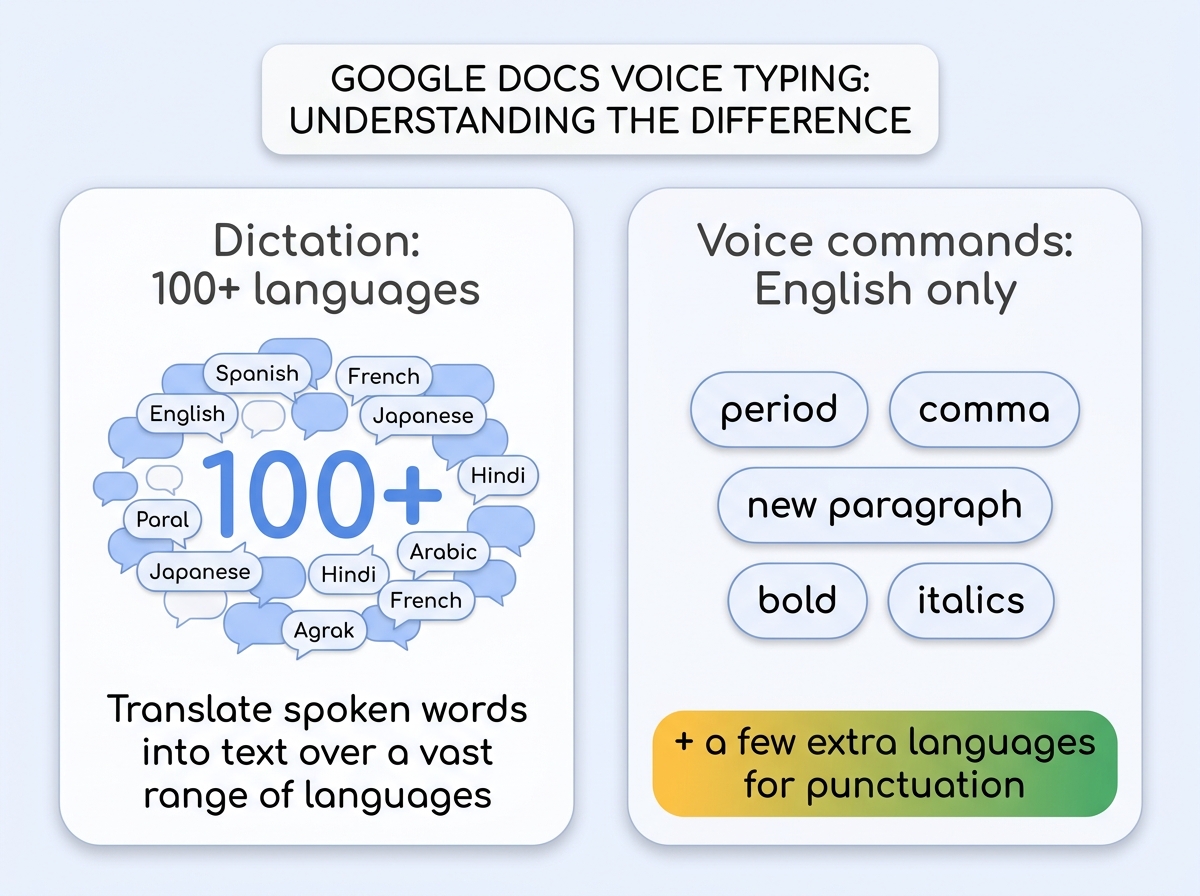
Google Docs dictation supports over 100 languages and dialects, but voice commands — the spoken instructions for punctuation, new lines, and formatting — work only in English. This split is the single biggest surprise for multilingual users (support.google.com).
Dictation itself is broad. You can speak in dozens of languages and Google will transcribe the words. The problem is control. To add a period, comma, or line break by voice, or to format text, both your Google account language and your document language must be set to English. In other languages, you can transcribe running text but you cannot say "comma" or "new paragraph" and have it interpreted as a command — it just gets typed as the literal word.
The most useful English voice commands include:
- Punctuation: "period," "comma," "question mark," "exclamation point," "new line," "new paragraph."
- Formatting: "bold," "italics," "underline," "select all," "apply heading 1."
- Editing and navigation: "delete," "go to end of line," "insert table."
Google also documents that punctuation commands work in a small set of additional languages — German, English, Spanish, French, Italian, Russian, and Portuguese appear across Google's own training materials, though sources disagree slightly on whether Portuguese is fully covered (Google News Initiative). Beyond those, command support drops off sharply.
For writers who work in several languages, this is a real constraint. A tool that handles commands and cleanup across the full language range — rather than gating them behind English — changes the workflow substantially. FluidVox, for comparison, supports voice commands and AI cleanup across all 99 of its languages, which is why ESL speakers and multilingual writers often reach for a dedicated app.
Limitations of Google Docs voice typing (privacy, offline, and app lock-in)
Google Docs voice typing has four hard limits: it requires Chrome, its commands are English-only, it has no offline mode, and it only works inside Google Docs. None of these are bugs — they're structural to how the feature was built.
No offline transcription. Voice typing sends your audio to Google's cloud speech service for processing; nothing runs on your device. Google's help page confirms the browser controls the speech-to-text service and returns text to Docs (support.google.com). If you're on a plane, in a location with no connection, or handling confidential material you'd rather not send to a cloud service, that's a dealbreaker.
Locked to Google Docs. You cannot use this feature to dictate an email in Gmail, a message in Slack, a task in a to-do app, or a note in a notes app. The moment you leave the Docs tab, the microphone panel disappears. For people who write across many apps in a day, having dictation trapped in one document editor is the most limiting factor of all.
Chrome-only. As covered above, switching browsers is not an option — the feature simply isn't there in Safari, Firefox, or Edge.
English-only commands. You can dictate in many languages, but you can't control punctuation or formatting by voice outside English.
On top of these, accuracy drops noticeably in noisy environments or with overlapping speakers, and the feature is known for homophone errors — "their" versus "there," "to" versus "two" — because it lacks the heavier grammar-correction layer that newer AI dictation tools apply. Older accessibility documentation from institutions like CALL Scotland flags exactly this: the transcription is "not yet 100%" and prone to errors. For a deeper look at what accuracy figures actually mean, FluidVox breaks down word error rate and how it's measured.
FluidVox vs Google Docs voice typing: a cross-app, offline alternative
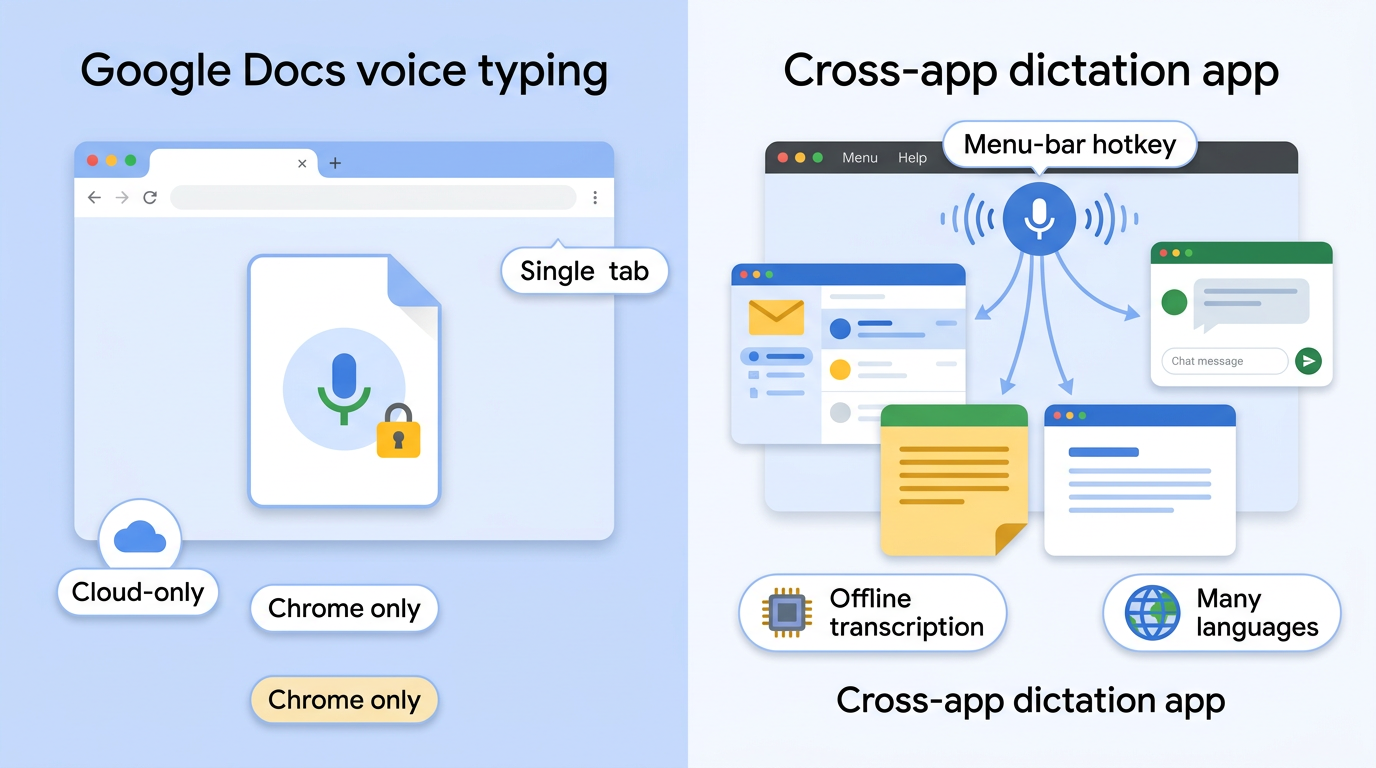
FluidVox is a menu-bar dictation app for macOS, Windows, and iPhone that types your dictated speech into any active app via a hotkey — including Google Docs, but also Gmail, Slack, notes, and code editors — which solves the app lock-in problem Google Docs voice typing can't (fluidvox.com). Instead of living inside one browser tab, it runs at the operating-system level: hold your hotkey, speak, release, and polished text appears wherever your cursor is.
The practical differences that matter most:
- Cross-app, not Docs-only. FluidVox inserts text into whatever app is focused. You dictate an email, then a Slack reply, then a Google Doc, without changing tools. Google Docs voice typing only works inside Google Docs.
- Offline, on-device transcription. FluidVox can run transcription locally using Whisper and Parakeet models, so your audio never leaves the machine (fluidvox.com). That's the opposite of the always-cloud Google Docs approach and matters for anyone handling sensitive material.
- 99 languages with AI cleanup across all of them. FluidVox supports 99 languages and automatically removes filler words and fixes grammar and punctuation in real time — not gated to English like Google's voice commands.
- AI editing beyond raw transcription. Six transcription styles plus "Hey Vox" commands let you translate, rephrase, or summarize text as you dictate, which reduces the homophone-and-cleanup burden that trips up Google Docs.
The pricing model is the other real difference. Google Docs voice typing is free but capped at those four limits. FluidVox offers a Local plan as a one-time $39 payment — buy once, free forever — or $2.99/month if you prefer a subscription (fluidvox.com). That one-time option undercuts subscription-only rivals like Wispr Flow (around $12/month) and sits far below Superwhisper's $249 one-time price, per FluidVox's own comparison. There's a 14-day full-access trial with no credit card required. FluidVox runs on macOS, Windows, and iPhone, with Android listed as coming soon, and if your main workflow is a writing tool, the voice typing for writers breakdown maps it to real use cases.
How to choose between Google Docs voice typing and a dedicated dictation app
Choose Google Docs voice typing if you write only in Google Docs, dictate in English, use Chrome, and want zero cost; choose a cross-app tool like FluidVox if you dictate across many apps, need offline privacy, or work in other languages. The decision comes down to four questions.
Do you write only in Google Docs? If every document you dictate lives in Docs and you never need to dictate an email, a chat message, or a note, the free built-in feature is genuinely enough. Don't pay for capability you won't use.
Do you write across email, Slack, and notes? If your day includes Gmail, Slack, Apple Notes, Notion, or a code editor, the Docs-only limit will frustrate you daily. A system-wide hotkey tool that types into any app removes the copy-paste shuffle entirely — see the full range of voice typing use cases for what that looks like across apps.
Do you need offline privacy? If you handle confidential drafts, legal or medical content, or simply don't want audio sent to a cloud service, Google Docs is out — it always processes in the cloud. On-device transcription is the requirement, and only dedicated apps offer it.
Do you work in more than one language? Google Docs gives you English-only commands. If you dictate in Spanish, French, Japanese, or any of dozens of other languages and want punctuation and cleanup to work, 99-language support in a dedicated tool is the deciding factor.
If you answered "yes" to any of the last three questions, the built-in feature will hit a wall, and a one-time purchase that works everywhere is the more durable choice.
Key takeaways
- Google Docs voice typing is free via Tools > Voice typing, no extra software needed.
- The shortcut is Command+Shift+S on Mac and Ctrl+Shift+S on Windows.
- Voice typing works only in Google Chrome — not Safari, Firefox, or Edge.
- Voice commands and punctuation only work in English; audio is processed in the cloud, never offline.
- FluidVox dictates into any app offline in 99 languages, with a one-time $39 buy-once option.
Frequently asked questions
Is voice typing in Google Docs free?
Yes. Voice typing is built into Google Docs at no cost and requires only a free Google account. You access it through Tools > Voice typing in Google Chrome. There is no separate purchase, subscription, or add-on — it's included with the standard Docs experience for anyone signed into a Google account.
Why isn't voice typing working in Google Docs?
The most common causes are using the wrong browser or blocking microphone access. Voice typing only works in Google Chrome, so it fails in Safari, Firefox, and Edge. If you're in Chrome, check that you clicked Allow on the browser's microphone permission prompt, that the correct mic is selected, and that you're signed into your Google account.
Does Google Docs voice typing work in Safari or Firefox?
No. Google Docs voice typing works only in Google Chrome. It is not supported in Safari, Firefox, or Microsoft Edge — the Voice typing option is either missing or non-functional in those browsers. If you want to dictate without switching to Chrome, an operating-system-level tool like FluidVox works regardless of which browser you use.
Can I use voice typing in Google Docs offline?
No. Google Docs voice typing has no offline mode. Your audio is sent to Google's cloud speech service for processing, so an internet connection is required. If offline dictation matters for privacy or connectivity reasons, a dedicated app such as FluidVox runs transcription on-device so your audio never leaves your machine.
What is the voice typing shortcut for Google Docs on Mac?
On Mac, the voice typing shortcut is Command+Shift+S. Pressing it inside an open Google Docs document toggles the voice typing microphone panel. On Windows the equivalent is Ctrl+Shift+S. The shortcut only functions in Chrome while a Google Docs document is open and focused.
Does Google Docs voice typing support languages other than English?
Dictation supports over 100 languages, but voice commands — punctuation, new lines, and formatting — work only in English. To use spoken commands, both your account and document language must be set to English. Multilingual users often prefer tools like FluidVox, which support commands and AI cleanup across all 99 of its languages.
Can I dictate into Gmail and other apps like I do in Google Docs?
Not with Google Docs voice typing — it only works inside Google Docs and disappears the moment you leave the tab. To dictate into Gmail, Slack, notes, or any other app, you need a cross-app tool. FluidVox lives in the menu bar and types dictated speech into whatever app is active via a hotkey.