
Guide
Dictation Not Working on Mac? How to Fix It
Hold one key, speak, and clean text appears in whatever app you're using. Your transcript history stays on your computer.
Download FluidVox 14-day free trial, no credit card.
On this page
- Find your symptom
- Check Dictation step by step
- When the fixes aren't enough
- Apple Dictation and FluidVox compared
- Dictate with FluidVox instead
- Which should you use
- FAQ
- Sources
Most of the time, Mac dictation that seems broken is a setting, not a fault. Apple keeps every Dictation option in one place, Keyboard settings, and its own troubleshooting page lists the same handful of checks. This guide matches what you're seeing to the setting that causes it. If you're setting Dictation up for the first time, start with our simple setup guide for voice to text on Mac instead.
Find your symptom
| What you see | What to check |
|---|---|
| Nothing happens when you press the shortcut | Dictation is turned on, and you're pressing the shortcut set in the Shortcut pop-up menu. Try Edit > Start Dictation to rule the shortcut out. |
| Dictation starts, but no words appear | The Microphone source menu points at the mic you're using, and its input volume in Sound settings is high enough. |
| The words come out wrong | The dictation language and region match what you speak. Background noise or echo can also be the cause; a headset mic helps. |
| It stops by itself | Dictation ends when it hears no speech for 30 seconds. Start it again with your shortcut. |
| It only works when you're online | The text below Dictation in Keyboard settings tells you whether your Mac needs an internet connection for your language. |
| No commas or periods | Auto-punctuation is on, and your language supports it. Otherwise say the punctuation, such as "comma" or "question mark". |
| Standard Dictation isn't available at all | Turn Voice Control off. While it's on, you dictate through Voice Control instead. |
Check Dictation step by step
Work through these in order. Each step uses Apple's own setting names, as they appear in macOS Sonoma, Sequoia, Tahoe and macOS 27.
- Turn Dictation on. Choose Apple menu > System Settings, then click Keyboard in the sidebar (you may need to scroll down). Go to Dictation and turn it on. If a prompt appears, click Enable.
- Check the shortcut. Under Dictation, click the Shortcut pop-up menu and note which shortcut is set, for example Press Fn (Function) Key Twice. To use your own keys, choose Customize and press them. You can also press the Microphone key in the top row of some keyboards (press and release; holding it starts Siri), or choose Edit > Start Dictation in any app.
- Pick the right microphone. Click the pop-up menu next to Microphone source and choose the mic you're speaking into. With Automatic, your Mac listens to the device it thinks you're most likely to use, which may not be the one you're speaking into.
- Turn the input volume up. Choose Apple menu > System Settings, click Sound, then click Input. Select your microphone and raise its input volume if your Mac isn't responding to your voice. Make sure nothing covers the built-in mic.
- Match the language. Next to Languages, click Edit, then select your language and region (on Sonoma, language and dialect). If you dictate in more than one language, switch by clicking the language shown next to the cursor while you dictate (on Sequoia and Sonoma, next to the microphone icon).
- Check the connection. Read the text below Dictation in Keyboard settings: it says whether your dictation is processed on your Mac or sent to Siri servers. If it needs them, check your connection under System Settings > Network.
- Turn off Voice Control if it's on. When Voice Control is on, standard Dictation isn't available. Find it under System Settings > Accessibility > Voice Control.
You'll know Dictation is listening when the cursor is highlighted and pulsing, or when you hear its tone. On macOS Sequoia and Sonoma, a microphone icon appears above or below the highlighted cursor instead.
When the fixes aren't enough
Some things that feel like faults are how Apple's Dictation works, so no setting changes them:
- It stops after a pause. You can dictate text of any length, but Dictation ends when it hears no speech for 30 seconds. Stop to think for half a minute and you have to start it again.
- There's nowhere to add your own words. Keyboard settings offers Dictation, Languages, Microphone source, Shortcut and Auto-punctuation, and no list of names or terms. A colleague's name or a product name that comes out wrong today comes out wrong tomorrow.
- The text is the same everywhere. A Slack reply and a client email get the same treatment.
- Punctuation isn't automatic in every language. Auto-punctuation works only in supported languages; in others you say each mark. In macOS 27, Apple Intelligence improves spelling, punctuation and capitalization, in English on Macs with M3 or later and at least 12 GB of memory.
If those are what's stopping you, a dictation app with its own speech engine works differently. FluidVox is one, and it doesn't rely on Apple's Dictation settings at all; here's how it compares as an Apple Dictation alternative.
Apple Dictation and FluidVox compared
| Apple Dictation | FluidVox | |
|---|---|---|
| Price | Free, built into macOS | Pro, with AI clean-up and styles: $10 a month. Local, which transcribes on your Mac: $2.99 a month or $39 once. Both start with a 14-day free trial |
| How you start it | A shortcut you choose, the Microphone key, or Edit > Start Dictation | Hold Fn, speak, let go |
| When it stops | When you stop it, or after 30 seconds without speech | When you let go of the key |
| Your own words | No list of custom words | Personal dictionary that also learns your corrections |
| Tone per app | The same everywhere | On Pro, a style per app, such as casual in Slack and professional in Outlook |
| Clean-up | Auto-punctuation in supported languages | On Pro, removes filler words and fixes grammar, spelling and punctuation |
| Offline | Depends on your Mac and language; Keyboard settings tells you | On the Local plan, transcription runs on your Mac |
| Languages | Varies by region; Apple lists them on its macOS feature availability page | 99 |
Dictate with FluidVox instead
FluidVox lives in your menu bar and types into whatever app is in front of you, from Mail and Notes to Slack and your browser.
- Download FluidVox and start the 14-day free trial. No credit card is needed.
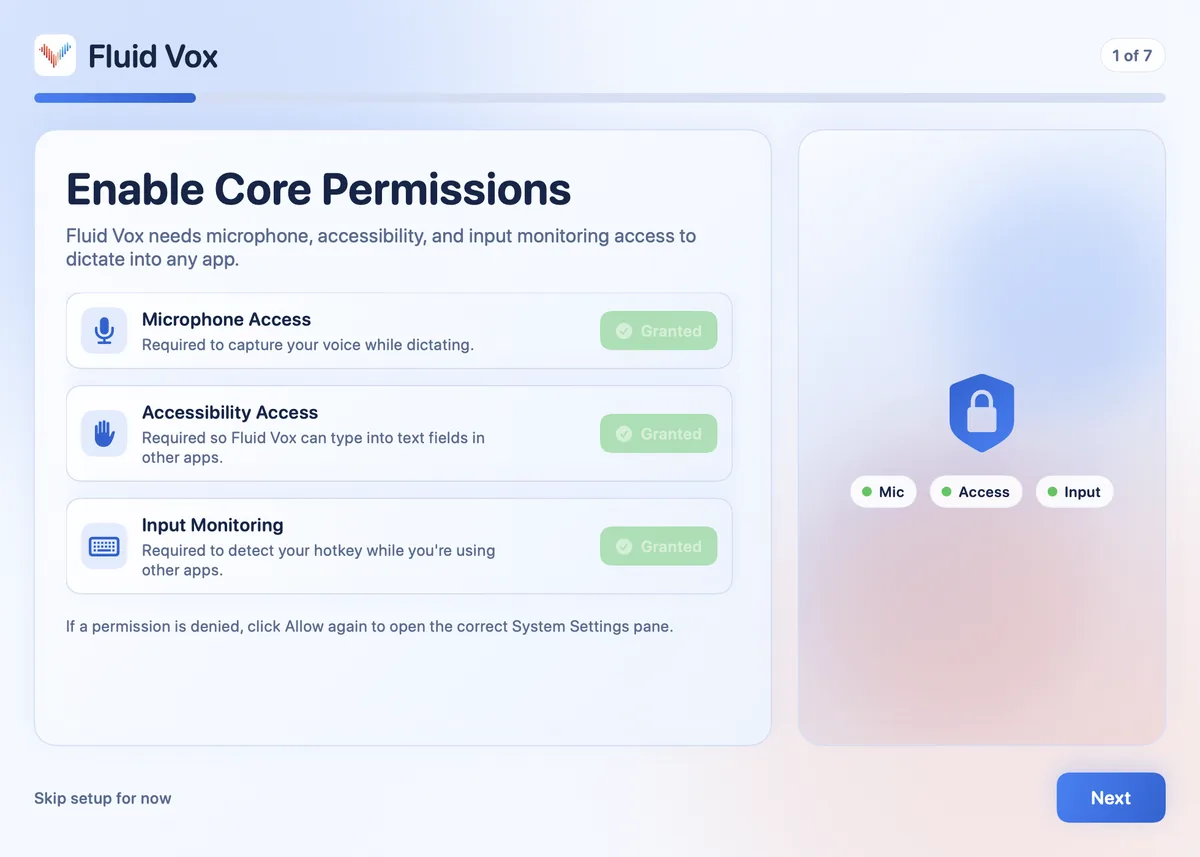
- When setup asks, allow Microphone (to hear you), Accessibility (to type into other apps) and Input Monitoring (to notice your hotkey). If you denied one, click Allow again and FluidVox opens the right System Settings pane.
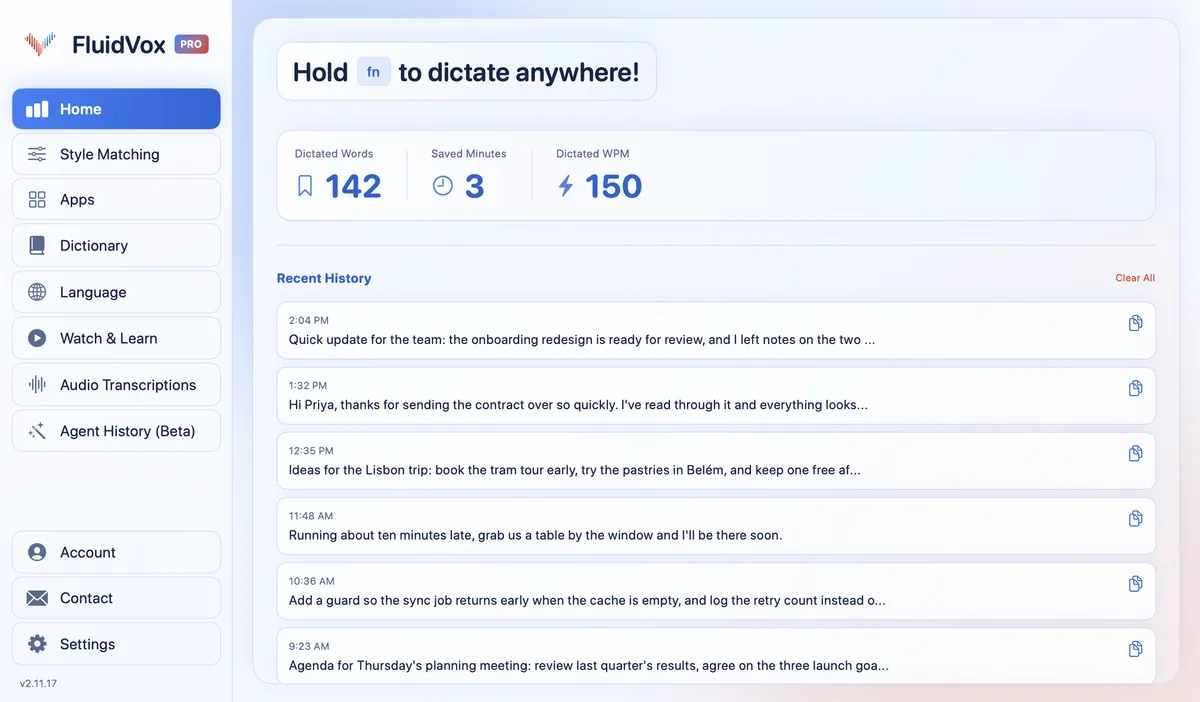
- Click where you want the text, hold Fn, speak, and let go. Clean text appears where your cursor is.
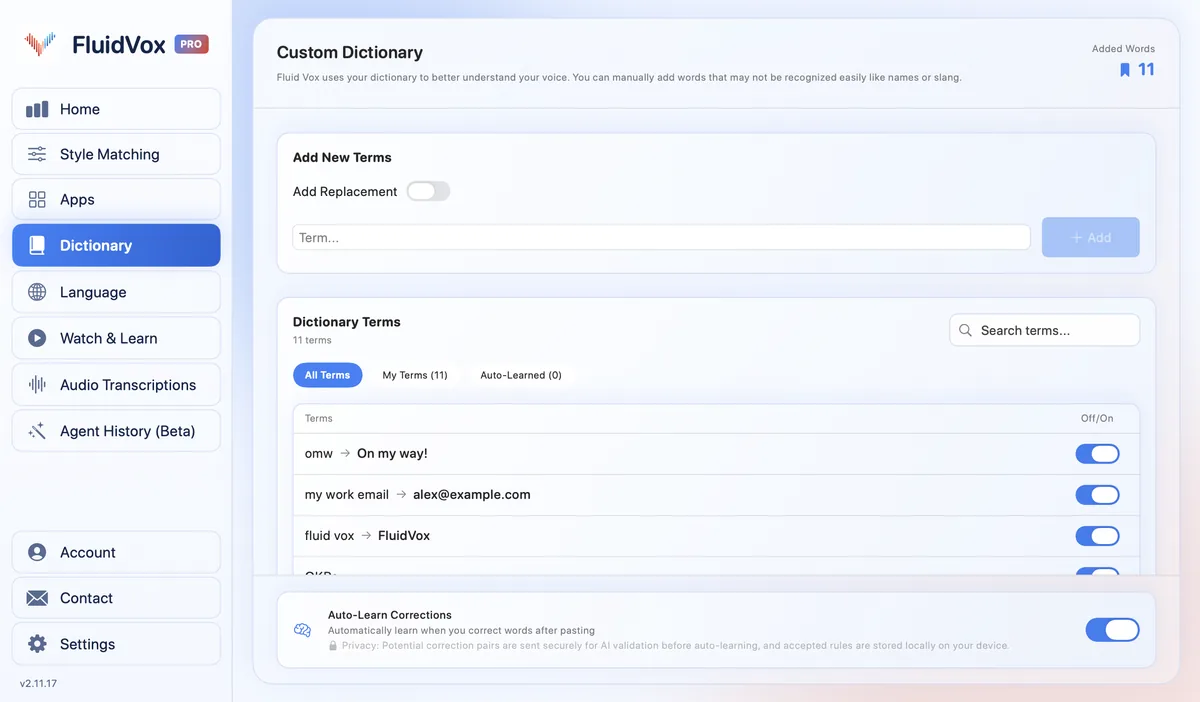
- Add the names and terms you use to the Dictionary. On Pro, pick a style for each app under Apps.
Need to talk for longer without holding a key? Press Fn and Space together for hands-free mode.
On privacy: cloud transcription sends your audio to a speech service to turn it into text, and on the Local plan transcription runs on your Mac instead. Either way, your transcript history stays on your computer.
Which should you use
If Dictation was simply switched off, set to the wrong mic or the wrong language, fixing that setting is all you need, and Apple's Dictation is free. For a quick message now and then, it's enough.
If it works but keeps cutting out when you pause, gets the same names wrong, or you'd like an email to read like an email and a chat message like a chat message, that's where FluidVox earns its place. Try it for 14 days alongside Apple's Dictation and keep whichever you reach for.
FAQ
Why does dictation keep stopping on my Mac?
Apple's Dictation stops on its own when it hears no speech for 30 seconds. There's no limit on how long you can dictate while you keep talking. Start it again with your shortcut, or press the Escape key to stop it yourself.
Why is Mac dictation not typing anything?
Check the microphone first. In System Settings > Keyboard, check the Microphone source menu under Dictation, then raise the input volume under System Settings > Sound > Input. Also check that nothing covers the built-in mic.
Does Mac dictation need the internet?
It depends on your Mac and language. Below Dictation in Keyboard settings, macOS tells you whether your dictation is processed on your Mac or sent to Siri servers. For macOS Sonoma, Apple says Macs with Apple silicon process dictation on the Mac for supported languages, with no internet connection needed.
Why can't I use Dictation when Voice Control is on?
When Voice Control is on, standard macOS Dictation isn't available; you dictate through Voice Control instead. Turn Voice Control off in Accessibility settings to use Dictation again.
Does FluidVox use Apple's Dictation?
No. FluidVox has its own transcription, so Apple's Dictation settings don't affect it. It needs its own Microphone, Accessibility and Input Monitoring access, which setup asks for.
Sources
- Apple Support, Dictate messages and documents on Mac, checked 27 October 2026.
- Apple Support, If Dictation on Mac doesn't work as expected, checked 27 October 2026.
- Apple Support, Keyboard settings on Mac, checked 27 October 2026.
Hold one key, speak, and clean text appears in whatever app you're using. Your transcript history stays on your computer.
Download FluidVox 14-day free trial, no credit card.