
Guide
Windows Speech to Text: How to Use It on Windows 11 and 10
Hold one key, speak, and clean text appears in whatever app you're using. Your transcript history stays on your computer.
Download FluidVox 14-day free trial, no credit card.
On this page
- Start voice typing
- Settings worth changing
- Voice commands
- If it doesn't work
- Windows 10 differences
- Voice typing, Voice access and Windows Speech Recognition
- Where it falls short
- Voice typing and FluidVox compared
- Dictate with FluidVox on Windows
- Which should you use
- FAQ
- Sources
Watch it in 3 minutes: Windows Has Voice Typing Built In. Press Windows + H.
Microsoft calls its speech to text feature voice typing on Windows 11 and dictation on Windows 10. It types what you say into any text box, in any app, and there's nothing to install.
Start voice typing
- Click in the text box where you want the words to go: an email, a document, a chat window or a browser field.
- Press the Windows logo key + H. On a touchscreen, press the Microphone button on the touch keyboard instead.
- Wait for the "Listening…" alert, then speak normally.
- To stop, say "Stop listening" or press the microphone button on the voice typing menu.
Microsoft lists three requirements: an internet connection, a working microphone, and your cursor in a text box. Voice typing needs all three. To move around the voice typing menu with the keyboard, press the Windows logo key + Alt + H.
Settings worth changing
Select the gear icon on the voice typing menu. You'll find:
- Voice typing launcher, which lets you quickly start voice typing when you're in a text box.
- Automatic punctuation, which adds punctuation based on what you say. Turn it on unless you'd rather say each mark.
- Filter profanity, which blocks or allows typing out profanity.
- Default microphone, to pick the mic voice typing listens to.
- Wait time before acting, how long voice typing waits before it carries out a voice command. A longer wait helps if you speak slowly.
On Copilot+ PCs, Windows 11 also has Fluid dictation, in all English locales. It runs on the PC and corrects grammar, punctuation and filler words as you speak. It's on by default once its model has downloaded; say "Undo that" to get your original words back.
Another language. Voice typing on Windows 11 supports 46 languages and regional variants. To add one, select Start > Settings > Time & language > Language & region, find Preferred languages and select Add a language. Switch between them with the language switcher on the taskbar or the Windows logo key + Spacebar.
Voice commands
Say these while voice typing is listening (English, United States):
| To do this | Say |
|---|---|
| Add punctuation | "comma", "period" or "full stop", "question mark", "exclamation point", "colon", "semicolon" |
| Start a new line or paragraph | "new line", "new paragraph" |
| Quote something | "open quotes" … "close quotes" |
| Remove what you just said | "delete that", "erase that" or "scratch that" |
| Select the last thing you said | "select that" |
| Press a key | "press Enter", "backspace" |
| Undo | "undo that" |
| Stop | "stop listening", "stop dictation" or "pause voice typing" |
If it doesn't work
- Nothing happens, or it says it can't connect. Check your connection, then check that online speech recognition is on: on Windows 11, Start > Settings > Privacy & security > Speech; on Windows 10, Start > Settings > Privacy > Speech.
- It listens but types nothing. Test the microphone: Start > Settings > System > Sound > Input, open your mic's properties, select Start test and adjust its input volume. Then pick that mic under Default microphone in voice typing's settings.
- It types in the wrong language. Voice typing follows your input language. Switch it with the Windows logo key + Spacebar.
- The shortcut does nothing. Make sure your cursor is in a text box first; voice typing only works there.
Windows 10 differences
On Windows 10 the feature is called dictation and opens a dictation toolbar with the same Windows logo key + H. Say "stop dictation" to stop. Its voice commands work in US English only, and it supports fewer languages: Simplified Chinese, English (Australia, Canada, India, United Kingdom), French (France, Canada), German, Italian, Portuguese (Brazil) and Spanish (Mexico, Spain). The launcher, Automatic punctuation and Fluid dictation are Windows 11 features. Microsoft ended support for Windows 10 on October 14, 2025.
Voice typing, Voice access and Windows Speech Recognition
Windows has three speech tools, and it's easy to mix them up:
- Voice typing (Windows logo key + H) is dictation: it types what you say into a text box. It works on Windows 11 and 10, online.
- Voice access lets you control the whole PC by voice and dictate. It's on Windows 11 version 22H2 and later, works without the internet, and you start it from Settings > Accessibility > Speech. It supports English, Spanish, French and German.
- Windows Speech Recognition is the old desktop tool. Microsoft deprecated it in December 2023 and says it's no longer being developed. Voice access replaced it on Windows 11 22H2 and later in September 2024.
If you came here looking for a replacement for that old tool, our Windows Speech Recognition alternative guide compares every option.
Where it falls short
Voice typing is free and good for short bursts. Where people run into its limits:
- It needs the internet. Microsoft's own page says voice typing uses online speech recognition. On a plane, or on a network that blocks it, it won't type.
- There's no list of your own words. Its settings have no place to add names, product names or jargon, so a word it gets wrong, it keeps getting wrong.
- The text is the same everywhere. A Teams message and a client email come out the same way.
- Clean-up depends on your PC. Removing filler words and fixing grammar comes with Fluid dictation, which needs a Copilot+ PC and English. Elsewhere you get your words with automatic punctuation.
Voice typing and FluidVox compared
| Windows voice typing | FluidVox | |
|---|---|---|
| Price | Free, built into Windows | Pro, with AI clean-up and styles: $10 a month. Local, which transcribes on your PC: $2.99 a month or $39 once. Both start with a 14-day free trial |
| How you start it | Windows logo key + H | Hold your dictation hotkey, speak, let go |
| Offline | No, it needs the internet | Yes, on the Local plan transcription runs on your PC |
| Your own words | No list of custom words | Personal dictionary that also learns your corrections |
| Tone per app | The same everywhere | On Pro, a style per app, such as casual in Slack and professional in Outlook |
| Clean-up | Automatic punctuation; grammar and filler words only with Fluid dictation on Copilot+ PCs | On Pro, removes filler words and fixes grammar, spelling and punctuation |
| Languages | 46 languages and variants on Windows 11 | 99 |
| Other devices | Windows only | Windows and Mac, plus an iPhone app with its own plans |
Dictate with FluidVox on Windows
FluidVox sits in the notification area and types into whichever app has your cursor: Outlook, Word, Teams, Slack, your browser.
- Download FluidVox for Windows and start the 14-day free trial. No credit card is needed.
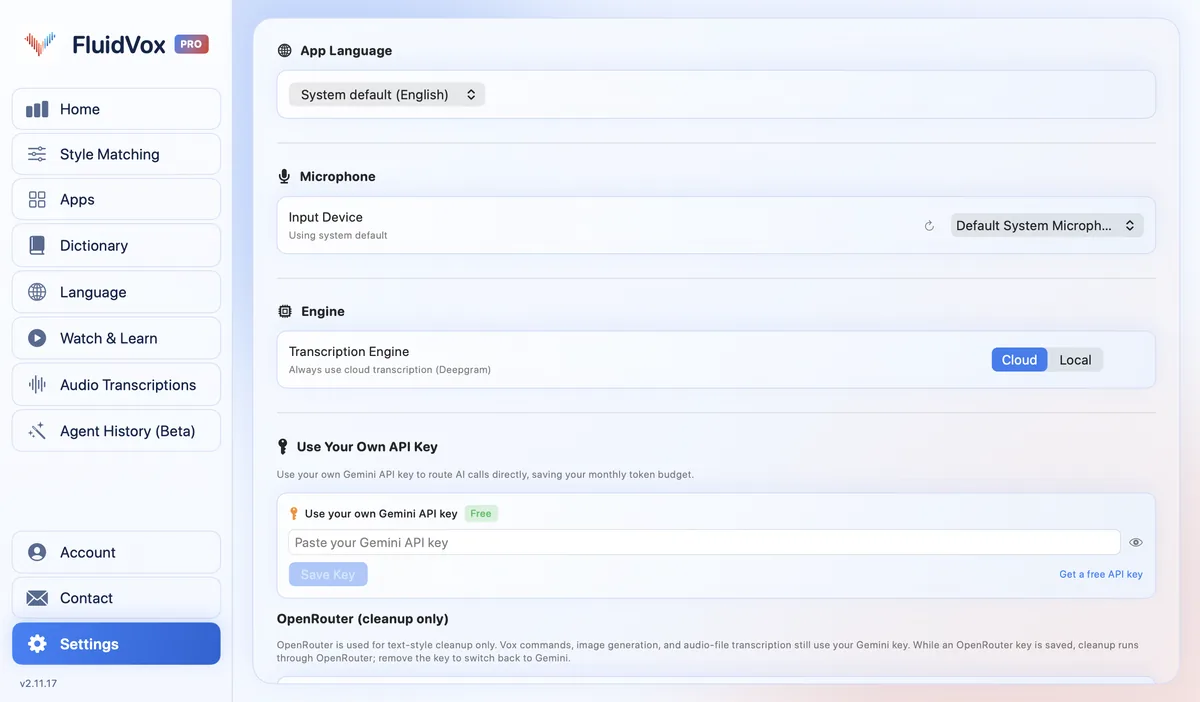
- Open its settings and check your dictation hotkey. You can change it there, to a single key or a key combination.
- Click where you want the text, hold the hotkey, speak, and let go. Clean text appears where your cursor is.
- Add the names and terms you use to the Dictionary. On Pro, choose a style for each app under Apps.
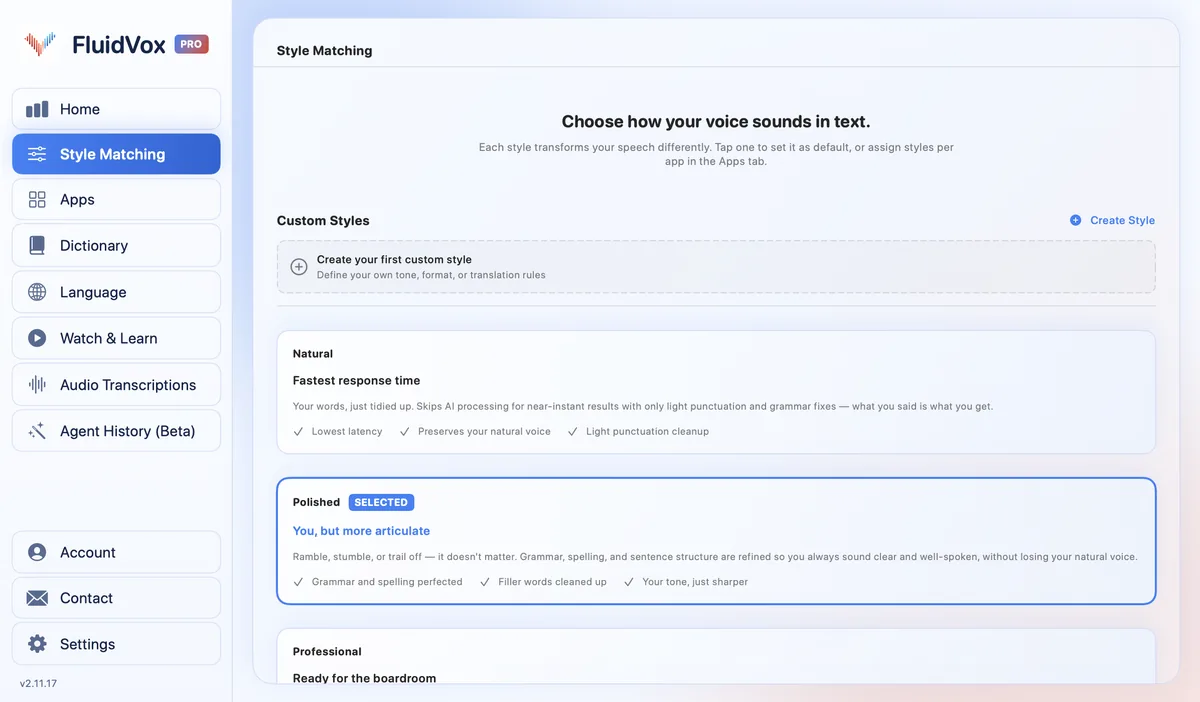
To have it ready every time you sign in, turn on Launch at Login in its settings: it starts quietly in the notification area with your hotkeys ready.
On privacy: cloud transcription sends your audio to a speech service to turn it into text, and on the Local plan transcription runs on your PC instead. Either way, your transcript history stays on your computer.
Which should you use
If you dictate a sentence or two now and then and you're always online, Windows voice typing is free and already there. Press the Windows logo key + H and see if it's enough.
If you write a lot by voice, need it to work offline, or keep correcting the same names, FluidVox is built for that. Try it for 14 days; voice typing stays installed, so you can use both. For a wider look at the paid options, see our comparison of speech recognition software for Windows.
FAQ
How do I turn on speech to text in Windows 11?
Click in a text box and press the Windows logo key + H: that turns voice typing on, with nothing to install. If it can't connect, check that online speech recognition is on under Settings > Privacy & security > Speech.
Does Windows voice typing work offline?
No. Microsoft says voice typing uses online speech recognition powered by Azure Speech services, so it needs an internet connection. Voice access, on Windows 11 22H2 and later, works offline.
How do I get Windows voice typing to add punctuation?
Open the gear icon on the voice typing menu and turn on Automatic punctuation. Or say the marks yourself: "comma", "period", "question mark".
Is Windows Speech Recognition still available?
Microsoft deprecated Windows Speech Recognition in December 2023 and is no longer developing it. On Windows 11 22H2 and later, Voice access replaced it in September 2024.
Can I use voice typing in any app?
Yes, in any app where your cursor is in a text box: Word, Outlook, Teams, a browser. It types where the cursor is, like a keyboard.
Sources
- Microsoft Support, Use voice typing to talk instead of type on your PC, checked 27 October 2026.
- Microsoft Support, Speech, voice activation, inking, typing, and privacy, checked 27 October 2026.
- Microsoft Support, Voice access frequently asked questions, checked 27 October 2026.
- Microsoft Learn, Deprecated features for Windows client, checked 27 October 2026.
- Microsoft Support, Use voice recognition in Windows, checked 27 October 2026.
- Microsoft Support, How to set up and test microphones in Windows, checked 27 October 2026.
Hold one key, speak, and clean text appears in whatever app you're using. Your transcript history stays on your computer.
Download FluidVox 14-day free trial, no credit card.