
Guide
How to Dictate in Word on Windows and Mac
Hold one key, speak, and clean text appears in whatever app you're using. Your transcript history stays on your computer.
Download FluidVox 14-day free trial, no credit card.
On this page
- Where Dictate is in Word
- Dictate in Word on Windows and Mac
- Dictate in Word for the web
- Dictation settings
- Voice commands
- If Dictate is missing or doesn't work
- Where it falls short
- Word Dictate and FluidVox compared
- Dictate in Word with FluidVox
- Which should you use
- FAQ
- Sources
Where Dictate is in Word
Dictate is a button on Word's Home tab. If you can't see it, you're most likely not signed in with a Microsoft 365 subscription: Microsoft makes Dictate a subscriber-only feature. It works the same way in Word on Windows and Word for Mac, and there's a version in Word for the web. Writing in Google Docs instead? It has its own tool, and here's how to use voice typing in Google Docs well.
Dictate in Word on Windows and Mac
- Open a new or existing document and click where you want the text to go.
- Go to Home > Dictate, while signed in to Microsoft 365 on a computer with a microphone. On a Mac you can also press Option + F1.
- Wait for the Dictate button to turn on and start listening.
- Speak. The text appears as you talk.
- Say a punctuation mark when you want one, for example "comma" or "question mark", or turn on Auto Punctuation (see below).
- To stop, say "stop dictation". To pick up where you left off, press Alt + ` or the mic icon in the floating dictation menu.
Word marks words it may have misheard. If a marked word is already right, select Ignore.
Dictate in Word for the web
In Word for the web, select Dictate, speak, and select it again when you're done. Give your browser permission to use the microphone, or Dictate can't hear you. The web version also understands table commands, such as "insert table" and "delete row", and "resume dictation". Its punctuation setting is called Enable auto-punctuation.
Dictation settings
Click the gear icon on the floating dictation menu:
- Spoken Language: the language you're speaking. By default it's your document's language.
- Microphone: which microphone Dictate listens to.
- Auto Punctuation: adds punctuation for you, where the language supports it.
- Filter sensitive phrases: masks potentially sensitive phrases with ***.
Microsoft lists 15 fully supported languages and 36 more in preview. Preview languages may have lower accuracy or limited punctuation support.
Voice commands
These are some of the English commands Microsoft lists. Say "show commands" while dictating to see them all.
| To do this | Say |
|---|---|
| Add punctuation | "period" or "full stop", "comma", "question mark", "exclamation point", "colon", "semicolon", "ellipsis" |
| Start a new line | "new line" |
| Quote something | "open quotes" … "close quotes" |
| Remove the last word or mark | "delete" |
| Remove what you just said | "delete that" or "scratch that" |
| Remove a particular word | "delete" and the word, for example "delete tomorrow" |
| Format as you go | "bold" and a word or phrase, "bold last word", "underline last sentence" |
| Make a list | "create bullet list" |
| Add a comment | "add comment" and the comment's text |
| Undo | "undo" |
| Pause or stop | "pause dictation", "stop dictation" |
If Dictate is missing or doesn't work
- There's no Dictate button. Make sure you're signed in with an active Microsoft 365 subscription. Dictate isn't available in Office 2016 or 2019 for Windows without Microsoft 365, and on Windows it needs Windows 10 or later.
- "We don't have access to your microphone". Close any other app or web page that's using the microphone and try again. In Word for the web, refresh, select Dictate and allow the browser to use the microphone.
- "There is a problem with your microphone". Check the microphone is plugged in, test it, and check the microphone settings in Control Panel.
- Nothing appears as you talk. Make sure the microphone isn't muted, raise its input level, move somewhere quieter, or try a headset.
- Lots of wrong or missing words. Microsoft's advice: a fast, reliable internet connection, less background noise, and speaking a little more deliberately.
Where it falls short
Word's Dictate is good at what it's for: drafting a document inside Word. Its limits are the edges of that job:
- It only works inside Microsoft 365. Dictate types into Word and other Microsoft 365 apps, not into Slack, your browser's email or any other app.
- It needs a subscription and the internet. No Microsoft 365, no Dictate button. No connection, no dictation.
- There's no list of your own words. Dictation settings have a language, a microphone, punctuation and a filter, and nowhere to add names or terms.
- Clean-up is up to you. Dictate adds punctuation, but Microsoft doesn't describe it removing filler words or rewriting sentences, so tidying a rambling draft is still your job.
Word Dictate and FluidVox compared
| Word Dictate | FluidVox | |
|---|---|---|
| Price | Included with a Microsoft 365 subscription | Pro, with AI clean-up and styles: $10 a month. Local, which transcribes on your computer: $2.99 a month or $39 once. Both start with a 14-day free trial |
| Where it types | Word and other Microsoft 365 apps | Any app on your Mac or PC, Word included |
| Offline | No, it needs the internet | Yes, on the Local plan transcription runs on your computer |
| Your own words | No list of custom words | Personal dictionary that also learns your corrections |
| Clean-up | Auto Punctuation | On Pro, removes filler words and fixes grammar, spelling and punctuation |
| Tone per app | One style | On Pro, a style per app, such as professional in Word and casual in Slack |
| Languages | 15, plus 36 in preview | 99 |
Dictate in Word with FluidVox
FluidVox doesn't need a button in Word: it types into whatever app has your cursor, so it works the same in Word, Outlook, Google Docs or a chat window.
- Download FluidVox and start the 14-day free trial. No credit card is needed.
- On a Mac, allow Microphone, Accessibility and Input Monitoring when setup asks. On Windows, check your dictation hotkey in FluidVox's settings.
- In Word, click where you want the text, hold your hotkey (Fn on a Mac), speak, and let go. Clean, punctuated text appears at the cursor.
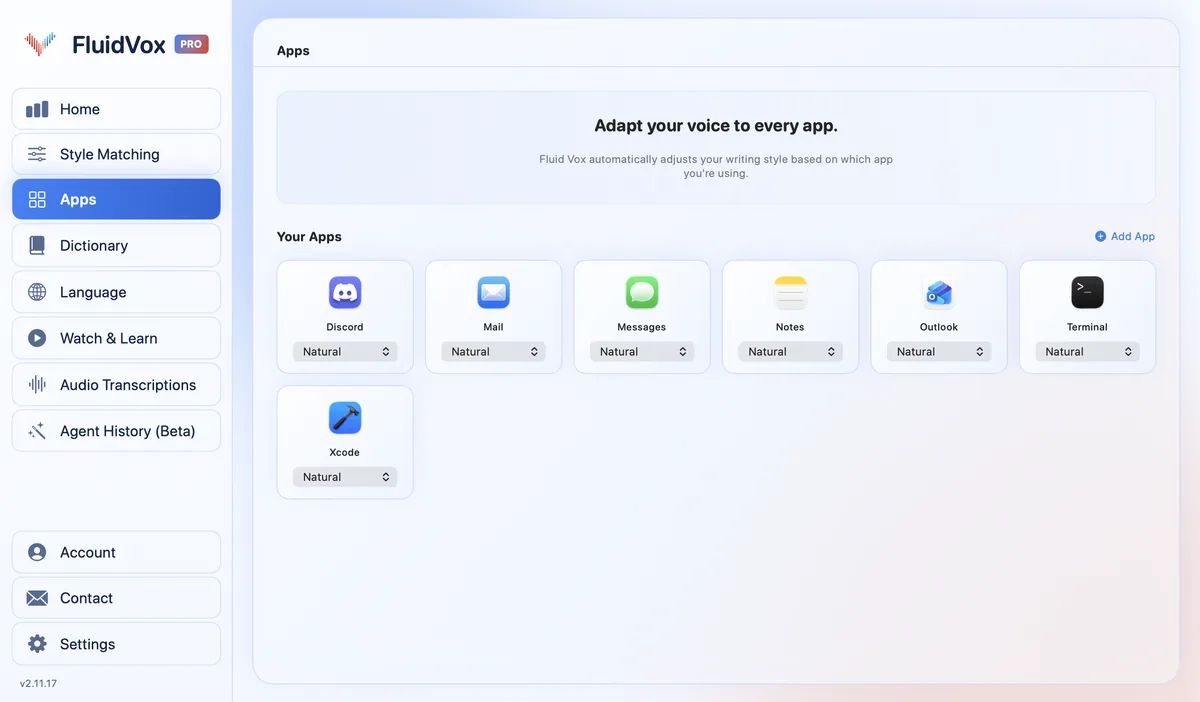
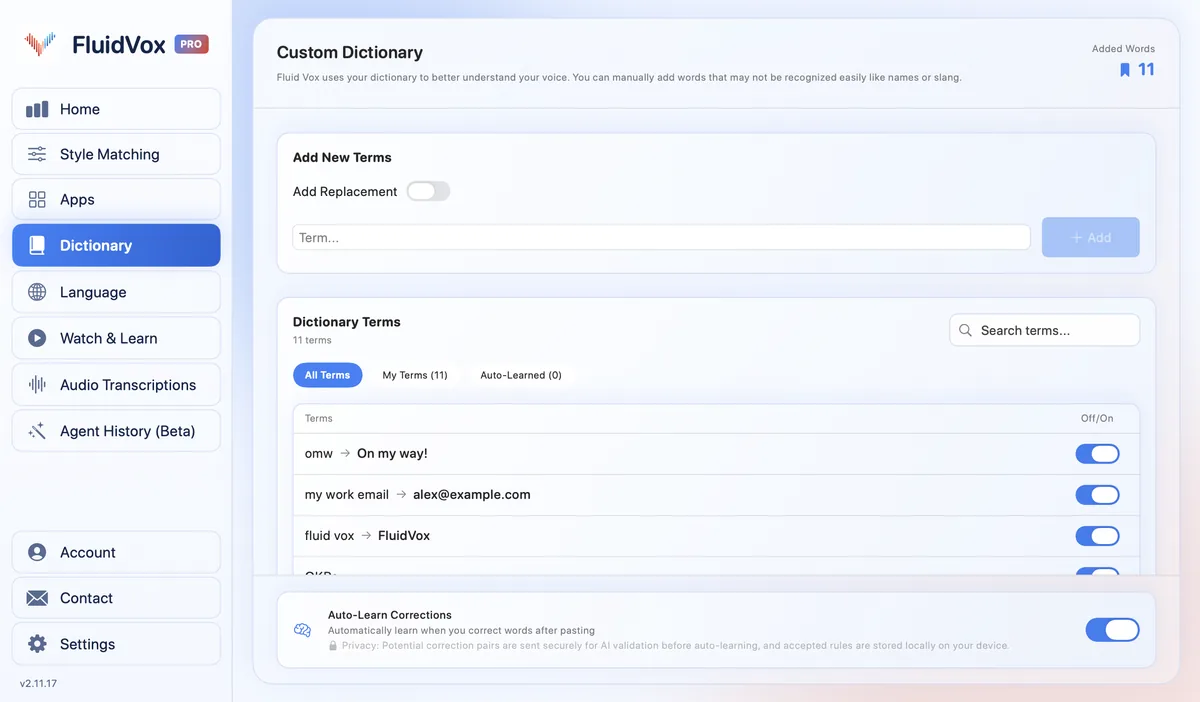
- Add names and terms to the Dictionary. On Pro, give Word a style under Apps, such as professional for reports, and keep a casual one for chat apps.
On privacy: cloud transcription sends your audio to a speech service to turn it into text, and on the Local plan transcription runs on your computer instead. Either way, your transcript history stays on your computer.
Which should you use
If you have Microsoft 365, write mostly in Word, and want to format by voice ("bold that", "create bullet list"), Word's own Dictate is the better fit, and you've already paid for it.
If you also write emails, chat messages and notes outside Word, need to dictate offline, or don't have Microsoft 365, FluidVox gives you one hotkey for all of them. You can use both: FluidVox for the first draft anywhere, and Word's tools for formatting.
FAQ
Why can't I find Dictate in Word?
Dictate is only for Microsoft 365 subscribers, so sign in with an account that has an active subscription. It isn't in Office 2016 or 2019 for Windows without Microsoft 365. On Windows, you also need Windows 10 or later.
Is dictation in Word free?
It comes with a Microsoft 365 subscription, at no extra cost. Without a subscription, Word has no Dictate button.
Can I dictate in Word offline?
No. Microsoft says Dictate needs a microphone and a reliable internet connection.
What is the shortcut to dictate in Word?
On a Mac, Option + F1 starts dictation. Microsoft also gives Alt + ` to resume dictation; otherwise you start it from Home > Dictate.
Does Word keep my recordings?
Microsoft says the service doesn't store your audio or the transcribed text. Your speech is sent to Microsoft and used only to give you the text.
Sources
- Microsoft Support, Dictate your documents in Word, checked 27 October 2026.
- Microsoft Support, Dictate your documents in Word for the web, checked 27 October 2026.
Hold one key, speak, and clean text appears in whatever app you're using. Your transcript history stays on your computer.
Download FluidVox 14-day free trial, no credit card.