
Guide
How to Use Talk to Text on iPhone: Turn It On and Dictate
Hold one key, speak, and clean text appears in whatever app you're using. Your transcript history stays on your computer.
Download FluidVox 14-day free trial, no credit card.
On this page
- Turn on talk to text
- Talk to text, step by step
- Punctuation, emoji and edits by voice
- Offline and in other languages
- Where it falls short
- iPhone Dictation and FluidVox compared
- Talk to text with the FluidVox keyboard
- Which should you use
- FAQ
- Sources
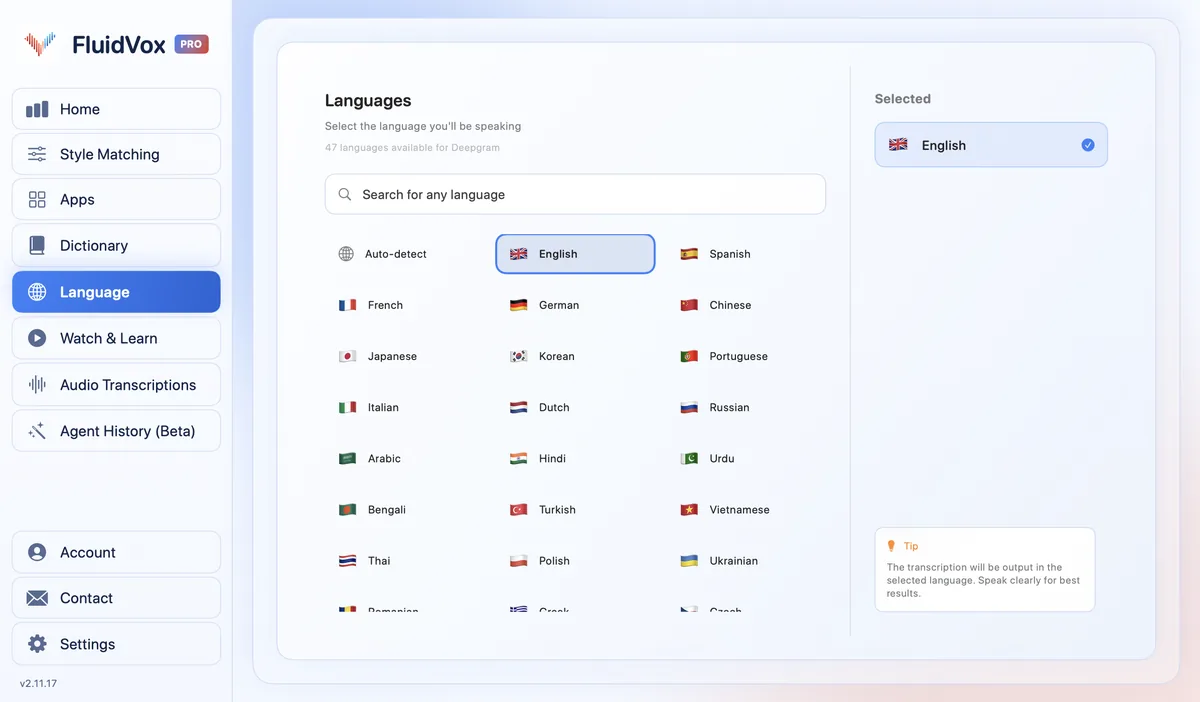
Apple calls talk to text Dictation, and it's built into the iPhone's onscreen keyboard: you can dictate anywhere you can type, in Messages, Mail, Notes or any other app. The keyboard stays open while you talk, so you can switch between typing and speaking in the same sentence. It's what you use for voice typing in WhatsApp, too. If you want punctuation handled for you, we also compared iPhone voice to text apps that get punctuation right, and there's a wider roundup of voice typing apps for iPhone.
Turn on talk to text
- Open the Settings app.
- Tap General, then tap Keyboard.
- Turn on Enable Dictation. If a prompt appears, tap Enable Dictation.
Below the dictation settings, About Dictation & Privacy explains what Apple does with what you say. To switch talk to text off again, go back to the same place and turn off Enable Dictation.
Talk to text, step by step
- In a text field, tap where you want the words to go.
- Tap the microphone, Apple's Dictate button, on the onscreen keyboard. Some text fields show the button too.
- When the button appears next to the insertion point, start talking.
- Say punctuation and line breaks as you go, or let Auto-Punctuation add the commas, periods and question marks (see below).
- To stop, tap the microphone again or say "stop dictation". If you say nothing for 30 seconds, Dictation stops on its own.
You don't have to choose between typing and talking: the keyboard stays on screen, so you can tap a word to fix it and carry on speaking.
Punctuation, emoji and edits by voice
In supported languages, Dictation puts in commas, periods and question marks for you. If you'd rather say every mark yourself, turn off Auto-Punctuation in Settings > General > Keyboard. These are some of the commands Apple lists:
| To do this | Say |
|---|---|
| Add punctuation | "period", "comma", "question mark", "exclamation point", "colon", "semicolon" |
| Quote something | "quote" … "end quote" |
| Start a new line or paragraph | "new line", "new paragraph" |
| Capitalize | "cap" for the next word, "all caps" for the next word in capitals |
| Add an emoji | its name, such as "heart emoji" or "smiley emoji" |
| Spell a name | "Let's invite Steven S-T-E-P-H-E-N" |
| Fix a word | "change tea to T-E-E" |
| Select or delete words | "select" or "delete" and the phrase |
| Undo or redo | "undo", "redo" |
| Stop | "stop dictation" |
The editing commands ("change … to …", "insert … before …", "select", "delete", "undo" and "redo") work in U.S. English on iPhone 12 and later, except iPhone SE. Emoji by voice works in some languages only.
Offline and in other languages
- No internet needed, in many languages. Apple processes Dictation on the iPhone itself in many languages. When you dictate into a search field, your dictated text may be sent to the search engine to run the search. Apple also notes that cellular data charges may apply when you use Dictation.
- Other languages. Dictation follows your keyboard: add a keyboard for another language in the keyboard settings, switch to it, and dictate in that language. It isn't available in every language or in every country or region.
- Apple Intelligence. In iOS 27, Apple Intelligence improves Dictation's spelling, punctuation and capitalization with an on-device model, in English, on iPhone 17 Pro, iPhone 17 Pro Max, iPhone Air or later.
If you don't see the microphone on the keyboard, check that Enable Dictation is on, as in the first section.
Where it falls short
For a quick text or a short note, Dictation is hard to beat. The trouble starts when you dictate more than a sentence or two:
- It stops after 30 seconds of silence. Pause to think for too long and it switches off, so you tap the microphone again mid-thought.
- It writes what you said, not what you meant. Apple doesn't describe Dictation removing false starts or rephrasing, so "I mean" and restarted sentences stay in. Apple Intelligence tidies spelling, punctuation and capitals, and only on the newest iPhones in English.
- There's no list for your own words. Apple's help describes no way to add names or terms, so you spell unusual ones out letter by letter or fix them afterwards.
- One style for every app. A message to a friend and an email to a client come out in the same style.
iPhone Dictation and FluidVox compared
| iPhone Dictation | FluidVox for iPhone | |
|---|---|---|
| Price | Free, built in | Pro: $14.99 a month, after a 3-day free trial. Lifetime: $39 once |
| Where it types | Anywhere you can type | Any app, through the FluidVox keyboard |
| Offline | Yes, in many languages | Lifetime transcribes on your iPhone and works offline, in languages with an on-device model. Pro transcribes in the cloud |
| Clean-up | Auto-punctuation, plus Apple Intelligence on the newest iPhones in English | Pro polishes the text the moment you stop. On Lifetime, AI clean-up uses your own Google Gemini API key |
| Your own words | No list of your own words | Custom words and replacement rules |
| Tone | One style | Styles such as Casual, Concise and Professional |
Talk to text with the FluidVox keyboard
FluidVox for iPhone works as a keyboard, so it types into the same text fields as Dictation, in any app:
- Get FluidVox from the App Store and open it once.
- Go to Settings > General > Keyboard > Keyboards, tap Add New Keyboard… and choose FluidVox.
- Tap FluidVox in the list and turn on Allow Full Access. The keyboard needs it to talk to the FluidVox app, which records and processes your voice.
- In any text field, touch and hold the globe key and choose FluidVox.
- Tap Start VOX on the FluidVox keyboard. FluidVox opens to start a session and keeps running in the background; go back to your app, then tap the mic and speak. On Pro, your words appear as you talk and are polished the moment you stop.
Add names, brands and terms under Custom Words, and set up Replacements for words it keeps getting wrong. Pick a style for how your text should read, such as Casual, Concise or Professional, or Natural to skip the AI clean-up.
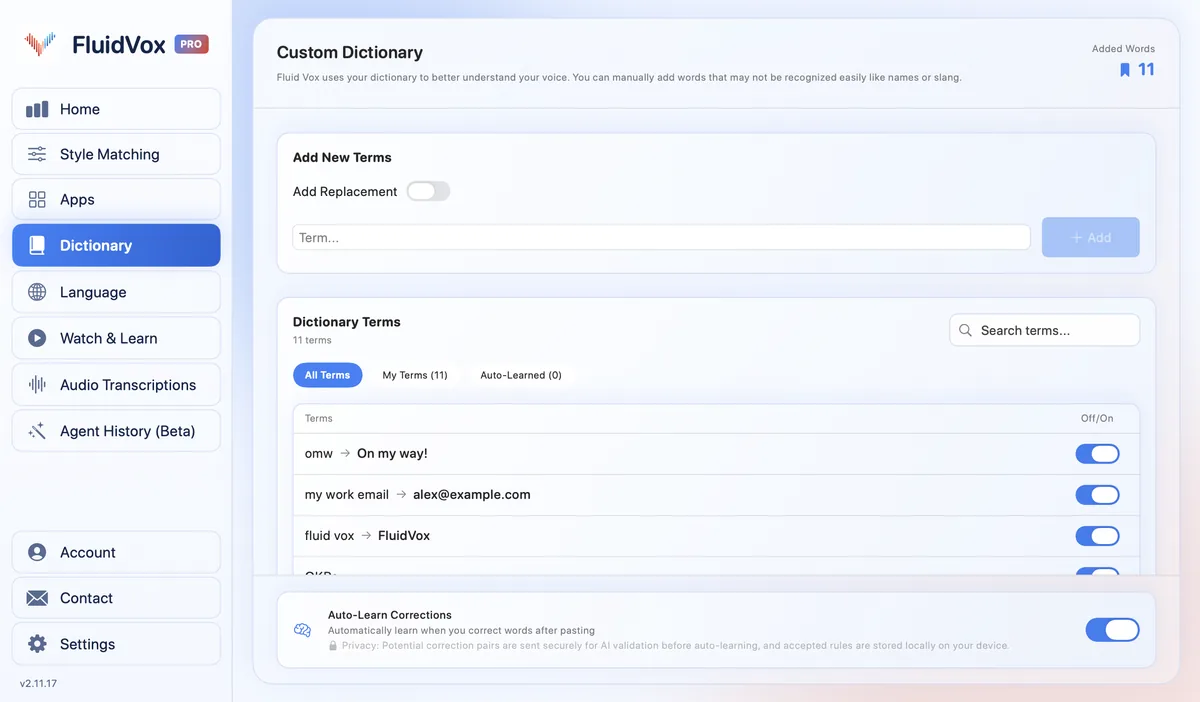
On privacy: with Pro, your audio is sent to a speech service to be turned into text. With Lifetime, transcription runs on your iPhone instead, in languages your iPhone can transcribe on-device. Either way, FluidVox keeps no recordings and can't see your transcript history.
FluidVox for iPhone has its own App Store plans, separate from the Mac and Windows apps. The 14-day free trial is for FluidVox on Mac and Windows.
Which should you use
If you mostly send short messages and notes, iPhone Dictation is free, already there and works offline in many languages. Leave Auto-Punctuation on and you may never need anything else.
If you dictate longer emails and documents, keep losing your place when it stops after a long pause, or spend time fixing names and filler words, FluidVox's keyboard gives you cleaner text in the same apps. You can keep both keyboards and switch with the globe key.
FAQ
Why does talk to text stop by itself on iPhone?
Dictation turns itself off after 30 seconds of silence. Tap the microphone again to carry on, or say "stop dictation" when you want it to stop.
Does talk to text work without the internet?
Yes, in many languages Apple processes Dictation on the iPhone, so no internet connection is needed. Dictating into a search field may send your words to the search engine.
How do I add punctuation with talk to text?
Say the mark, such as "comma", "period" or "question mark", or leave Auto-Punctuation on in Settings > General > Keyboard and Dictation adds commas, periods and question marks for you in supported languages.
How do I turn off talk to text on iPhone?
Go to Settings > General > Keyboard and turn off Enable Dictation. The microphone then disappears from the keyboard.
Is talk to text the same as voice to text or dictation?
Yes. On iPhone, "talk to text", "voice to text" and "speech to text" all refer to Dictation, which turns what you say into typed text.
Can I talk to text in any app?
Yes. Dictation works anywhere you can type with the onscreen keyboard, including Messages, Mail, Notes and WhatsApp.
Sources
- Apple Support, Dictate text on iPhone, checked 30 October 2026.
- Apple Support, Commands for dictating text on iPhone, checked 30 October 2026.
Hold one key, speak, and clean text appears in whatever app you're using. Your transcript history stays on your computer.
Download FluidVox 14-day free trial, no credit card.