
Guide
How to Use Voice Access on Windows 11
Hold one key, speak, and clean text appears in whatever app you're using. Your transcript history stays on your computer.
Download FluidVox 14-day free trial, no credit card.
On this page
- Turn on voice access
- Wake it up and put it to sleep
- Dictate text with voice access
- Fix and edit what you said
- Settings worth changing
- Where voice access falls short
- Voice access, voice typing and FluidVox compared
- Dictate with FluidVox on Windows
- Which should you use
- FAQ
- Sources
Voice access is the voice control feature built into Windows 11. Microsoft describes it as a way to control your PC and author text using only your voice, without an internet connection: open and switch between apps, browse the web, and read and write email. It's free, and it's the successor to the old Windows Speech Recognition tool, which it replaced on Windows 11 22H2 and later. If all you want is to type with your voice now and then, Windows also has voice typing, started with Windows + H; the comparison table below shows how the two differ.
Turn on voice access
Voice access is in Windows 11, version 22H2 and later. The first setup needs an internet connection, to download your language.
- In the Start menu, select Settings > Accessibility > Speech.
- Turn on the Voice access switch. Or open Windows search, type voice access and select Open.
- On the welcome screen, choose your language and select Agree and continue. Voice access downloads that language's files for on-device speech recognition. It may take a few minutes, and if you exit before it finishes, you start setup again next time.
- On the Setup microphone screen, check that your microphone is selected. Voice access is now ready, and the voice access bar appears at the top of your screen.
- Select Continue for a short interactive guide that teaches the basic commands, or exit and start right away.
To have it start every time, tick Start voice access before you sign in to your PC or Start voice access after you sign into your PC under Settings > Accessibility > Speech. If it can't hear you, check that microphone use is allowed under Settings > Privacy & security > Microphone, including Let desktop apps access your microphone.
Voice access is available in English (US, UK, India, New Zealand, Canada and Australia), Spanish (Spain and Mexico), German, French (France and Canada), Simplified Chinese, Traditional Chinese (Taiwan), Japanese and Italian. Switch languages under the voice access settings > Languages.
Wake it up and put it to sleep
Voice access has three microphone states, shown on the bar:
- Listening: it acts on everything you say.
- Sleep: it ignores everything except the wake command.
- Microphone off: it doesn't listen at all.
| To do this | Say | Or press |
|---|---|---|
| Wake voice access up | "Voice access wake up" or "Unmute" | Alt + Shift + B |
| Put it to sleep | "Voice access sleep" or "Mute" | Alt + Shift + B |
| Turn the microphone off | "Turn off microphone" | Alt + Shift + C |
| Turn the microphone back on | (no voice command) | Alt + Shift + C |
| See what you can say | "What can I say" or "Show all commands" | |
| Close voice access | "Turn off voice access" or "Stop voice access" |
You can also click the microphone button on the bar. The left side of the bar shows what voice access heard, so you can see why a command did or didn't work.
Dictate text with voice access
- Put the cursor in a text box. Click it, or say "Click" and the box's name, such as "Click find a setting". If you don't know its name, say "Show numbers" and then the number on the box.
- Speak the text you want. It appears at the cursor.
- Say punctuation by name: "comma", "period" or "full stop", "question mark", "exclamation mark", "colon", "open quotes" and "close quotes". You can say it in the same breath, such as "Hello comma how are you question mark".
- To move to the next field, say "Tab"; for a new line, say "Enter".
Because voice access also listens for commands, a phrase that sounds like one can run as a command. To type it as words instead, say "Type" first, such as "Type what can I say". You can also switch modes:
- "Dictation mode": everything you say goes into the text box, and no commands run.
- "Commands mode": only commands, no dictation.
- "Default mode": both, which is how it starts.
For names, usernames and email addresses, say "Caps" before a word to capitalize it, "No space" before a word to join it to the last one, or "Spell out" to spell a word letter by letter. Words you spell this way are added to the Windows dictionary, so they come up as suggestions next time.
Fix and edit what you said
| To do this | Say |
|---|---|
| Remove what you just dictated | "Delete that" |
| Undo or redo | "Undo that", "Redo that" |
| Fix a word it got wrong | "Correct that" or "Correct word" |
| Spell the last thing you said, letter by letter | "Spell that" |
| Delete specific words | "Delete text", "Delete previous word", "Delete all" |
| Copy, cut and paste | "Copy that", "Cut that", "Paste" |
| Format text | "Bold text", "Italicize that", "Underline that" |
| Change capitals | "Capitalize word", "Uppercase that", "Lowercase that" |
| Join words together | "No space that" |
If a word appears more than once, voice access puts numbers on each match; say "Click" and the number you mean.
Settings worth changing
Select the settings button on the voice access bar:
- Manage options > Turn on automatic punctuation. It's off by default; turn it on so voice access adds punctuation as you speak.
- Manage options > Filter profanity. On by default; it masks profane words.
- Manage options > Fluid dictation. On Copilot+ PCs, in English, it corrects grammar, punctuation and filler words as you speak, using small language models on the PC. It's on by default once its model has downloaded; say "Undo that" or "Revert" to get your original words back.
- Select default microphone, to choose which microphone it listens to.
- Wait time before acting. How long it waits before acting on what you said; the default is Medium (0.5 seconds). Choose a longer wait if you speak slowly.
- Add to vocabulary. Add names and hard-to-say words so it recognizes them, or say "Add to vocabulary".
Where voice access falls short
Voice access is a capable, free tool, and for controlling a PC hands-free it's the one to use. For writing, these are the limits people run into:
- It's Windows 11 only. Windows 10 doesn't have it, and Windows 11 needs version 22H2 or later.
- Commands and words share one channel. In the default mode, it's listening for commands as you write, so you switch to dictation mode or say "Type" when a sentence sounds like a command.
- Punctuation is yours to say, at first. Automatic punctuation is off until you turn it on in its settings.
- Clean-up depends on your PC. Removing filler words and fixing grammar comes from fluid dictation, which needs a Copilot+ PC and English. Elsewhere you get your words, with automatic punctuation if you turn it on.
- It works in 15 languages and dialects. If yours isn't one of them, it can't help you.
- The text is the same everywhere. A chat message and a client email get the same treatment.
Voice access, voice typing and FluidVox compared
| Voice access | Voice typing | FluidVox | |
|---|---|---|---|
| Works on | Windows 11, version 22H2 and later | Windows 11, and Windows 10 as dictation | Windows and Mac, plus an iPhone app with its own plans |
| Built for | Controlling the whole PC by voice, and writing | Dictating into a text box | Dictating: it types what you say where your cursor is |
| How you start it | Settings > Accessibility > Speech, then "Voice access wake up" | Windows logo key + H, with the cursor in a text box | Hold your dictation hotkey, speak, let go |
| Internet | Only to download a language, at setup or when you add one; then it works offline | Always: it uses online speech recognition | Not on the Local plan, which transcribes on your PC |
| Clean-up | Automatic punctuation once you turn it on; grammar and filler words with fluid dictation on Copilot+ PCs, in English | Automatic punctuation; fluid dictation on Copilot+ PCs, in English | On Pro, removes filler words and fixes grammar, spelling and punctuation |
| Your own words | Add to vocabulary, and words you spell out | No list of custom words | Personal dictionary that also learns your corrections |
| Tone per app | The same everywhere | The same everywhere | On Pro, a style per app, such as casual in Slack and professional in Outlook |
| Languages | 15 languages and dialects | 46 languages and variants on Windows 11 | 99 with the Local plan, 46 with cloud transcription |
| Price | Free, built into Windows 11 | Free, built into Windows | Pro: $10 a month. Local: $2.99 a month or $39 once. Both start with a 14-day free trial |
Dictate with FluidVox on Windows
FluidVox doesn't control your PC: if you need to run Windows by voice, voice access is the tool for that. FluidVox is for writing. It sits in the notification area and types into whichever app has your cursor, with no training first.
- Download FluidVox for Windows and start the 14-day free trial. No credit card is needed.
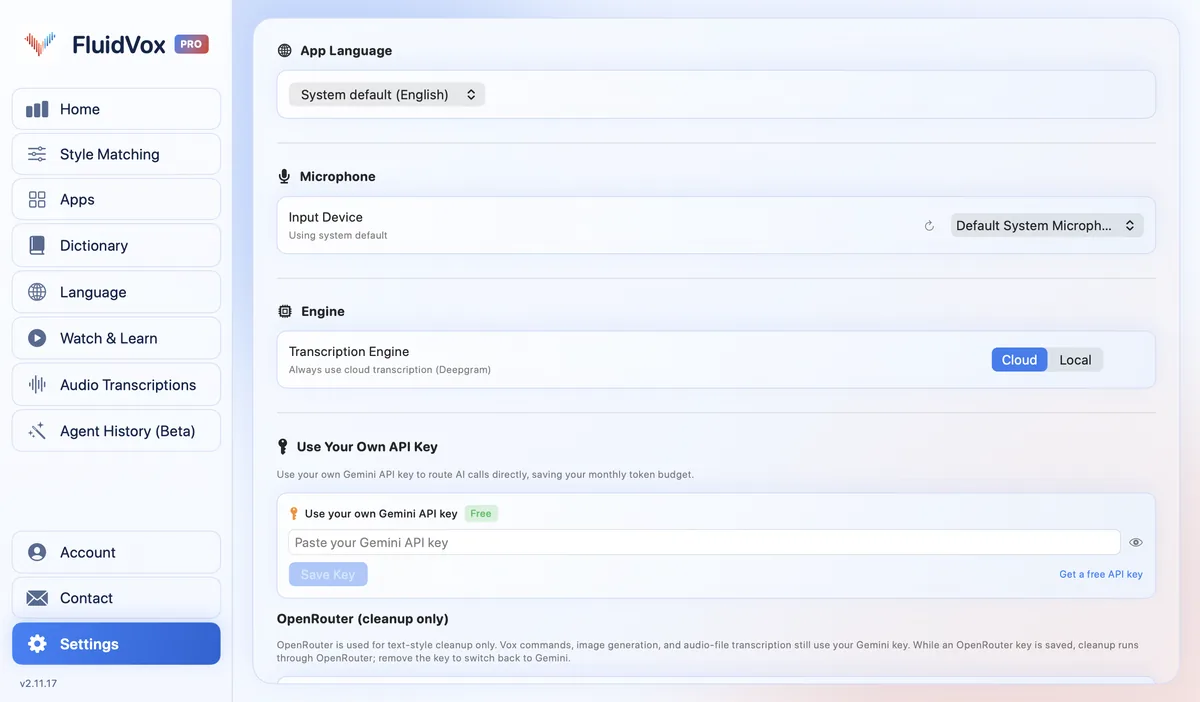
- Open its settings and check your dictation hotkey. You can change it there, to a single key or a key combination.
- Click where you want the text, hold the hotkey, speak, and let go. It listens for as long as you hold the key, and clean text appears where your cursor is.
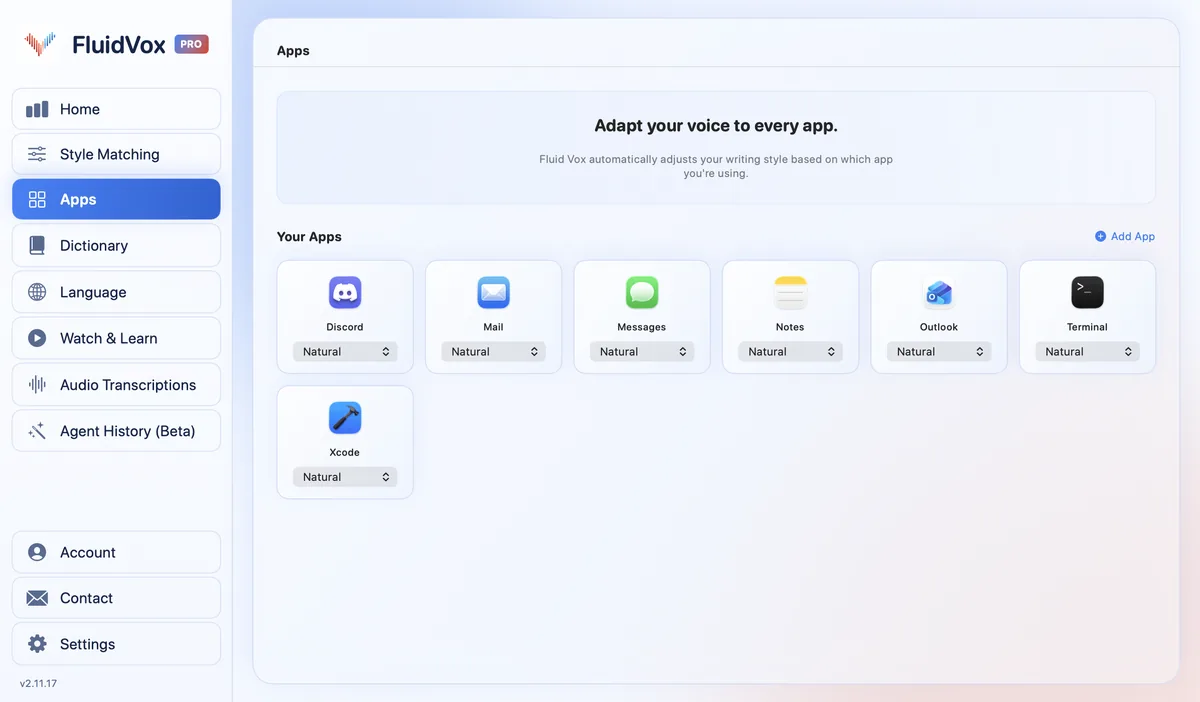
- Add the names and terms you use to the Dictionary. On Pro, FluidVox removes filler words and fixes grammar and punctuation, and you can choose a style for each app under Apps.
On privacy: cloud transcription sends your audio to a speech service to turn it into text, and on the Local plan transcription runs on your PC instead, so it works offline too. Either way, your transcript history stays on your computer. Our page on what to use instead of Windows' built-in speech tools goes into the differences, and the voice typing guide for accessibility covers dictation for people who can't type comfortably.
Which should you use
If you need to control your PC without a keyboard or mouse, use voice access. It's free, works offline once it's set up, and it's the only tool here that controls the whole PC.
If you mostly want to write by voice, voice access works, but you'll spend some effort keeping commands and words apart. Windows voice typing is simpler for a quick message if you're online. If you write a lot, want clean text without filler words, or keep correcting the same names, try FluidVox for 14 days alongside voice access.
FAQ
How do I turn on voice access in Windows 11?
Select Start > Settings > Accessibility > Speech and turn on the Voice access switch, or search for voice access and select Open. The first time, choose your language and select Agree and continue so it can download, then check your microphone.
Does Windows voice access work offline?
Yes, after setup. Setting it up needs an internet connection to download your language's files; after that, voice access uses on-device speech recognition and works without the internet.
What is the difference between voice access and voice typing?
Voice typing (Windows logo key + H) only dictates, and only when your cursor is in a text box; it needs the internet. Voice access dictates and also controls the whole PC, works offline after setup, and is only on Windows 11. If voice access is running and you press Windows logo key + H, Windows tells you to use voice access for typing too.
Is voice access available on Windows 10?
No. Voice access is available in Windows 11, version 22H2 and later. On Windows 10, use dictation (Windows logo key + H) or Windows Speech Recognition.
What is the keyboard shortcut for voice access?
Alt + Shift + B wakes voice access up or puts it to sleep, and Alt + Shift + C turns the microphone on or off. Microsoft doesn't list a shortcut to start it: turn it on in Settings > Accessibility > Speech, or set it to start when you sign in.
Can I use voice access to sign in to my PC?
Yes, starting with Windows 11, version 23H2. Turn it on from the accessibility menu on the lock screen, or tick Start voice access before you sign in to your PC under Settings > Accessibility > Speech.
Sources
- Microsoft Support, Set up voice access, checked 11 November 2026.
- Microsoft Support, Get started with voice access, checked 11 November 2026.
- Microsoft Support, Dictate text with voice, checked 11 November 2026.
- Microsoft Support, Edit text with voice, checked 11 November 2026.
- Microsoft Support, Fluid dictation, checked 11 November 2026.
- Microsoft Support, Use voice access to control your PC & author text with your voice, checked 11 November 2026.
- Microsoft Support, Voice access frequently asked questions (FAQs), checked 11 November 2026.
Hold one key, speak, and clean text appears in whatever app you're using. Your transcript history stays on your computer.
Download FluidVox 14-day free trial, no credit card.