
Guide
How to Use Windows Speech Recognition (and What Replaces It)
Hold one key, speak, and clean text appears in whatever app you're using. Your transcript history stays on your computer.
Download FluidVox 14-day free trial, no credit card.
On this page
- Which Windows still has it
- Set up Windows Speech Recognition
- Start, stop and get help
- Windows Speech Recognition commands
- What replaces it: voice access
- Where it falls short
- Speech Recognition, voice access and FluidVox compared
- Dictate with FluidVox on Windows
- Which should you use
- FAQ
- Sources
Watch it on YouTube: Windows Speech Recognition Is Being Replaced: What Now?
Windows Speech Recognition is the voice control tool built into Windows 10 and early versions of Windows 11. Microsoft describes it as a way to control your PC by voice alone, without a keyboard or mouse: you open apps, click buttons and dictate text by speaking. It's also on its way out. Below are the steps to set it up and use it where it still exists, the commands worth knowing, and what to use on a PC where it's gone. If you only want to type with your voice, Windows has a simpler built-in tool for that too: voice typing, which starts with the Windows logo key + H.
Which Windows still has it
- Windows 10: yes.
- Windows 11 before version 22H2: yes.
- Windows 11, version 22H2 and later: no. Microsoft says voice access replaced Windows Speech Recognition on these versions in September 2024.
Microsoft announced in December 2023 that Windows Speech Recognition is deprecated: it's no longer being developed, and voice access is replacing it. Older versions of Windows keep it, but it won't get new features. If you're on a recent Windows 11 PC, skip ahead to voice access.
Set up Windows Speech Recognition
Set up your microphone first, then teach Windows your voice.
Set up the microphone (Windows 11):
- Select Start > Settings > Time & language > Speech.
- Under Microphone, select Get started.
- The Speech wizard opens and checks your microphone. If it finds a problem, it lists it and helps you fix it.
On Windows 10 it's the same path: Start > Settings > Time & Language > Speech, then Get started under Microphone.
Teach it your voice (Windows 11):
- Press the Windows logo key + Ctrl + S. The Set up Speech Recognition wizard opens on the Welcome to Speech Recognition page.
- Select Next and follow the instructions on screen.
- At the end, select Start Tutorial to learn the basics, or Skip Tutorial to start right away.
Teach it your voice (Windows 10):
- In the search box on the taskbar, type Windows Speech Recognition and select it in the results.
- If you don't see the voice training dialog, open Control Panel and select Ease of Access > Speech Recognition > Train your computer to understand you better.
- Follow the instructions to set it up.
To retrain it later on Windows 11, open Control Panel and select Ease of Access > Speech Recognition > Train your computer to better understand you.
Start, stop and get help
Once it's set up, pressing the Windows logo key + Ctrl + S opens Speech Recognition and it's ready to use.
- Say "Start listening" to turn listening on, and "Stop listening" to turn it off.
- Say "What can I say?" at any time to see the commands you can use.
- Say "Move speech recognition" to move the microphone bar, or "Minimize speech recognition" to minimize it.
Windows Speech Recognition commands
Microsoft's full list is long. Here are the common ones (English):
| To do this | Say |
|---|---|
| Add punctuation | "comma", "period", "question mark", "exclamation point", "colon", "semicolon" |
| Quote something | "open quote" … "close quote" |
| Start a new line or paragraph | "new line", "new paragraph" |
| Fix a word | "correct word" |
| Delete what you just said | "delete that" |
| Undo | "undo that" or "scratch that" |
| Capitalize a word | "caps word", or "all caps word" |
| Type the word itself, not the mark | "literal comma" |
| Type a digit | "numeral three" |
| Press a key | "press Enter", "press Ctrl plus A", "Backspace" |
| Open or switch apps | "open Paint", "switch to app name", "close that" |
| Click something you can't name | "show numbers", then the number and "OK" |
| Use the mouse | "mousegrid", then the number of a square |
You can also move around a document by voice: "go to word", "go to end of paragraph", "select previous 10 words", "select all". Keyboard commands work only in languages that use the Latin alphabet.
Languages. Windows Speech Recognition works in English (United States, United Kingdom, Canada, India and Australia), French, German, Japanese, Mandarin (Chinese Simplified and Chinese Traditional) and Spanish.
What replaces it: voice access
Voice access is Microsoft's replacement, on Windows 11 version 22H2 and later. Like Speech Recognition, it lets you control your PC and write text by voice: open and switch between apps, browse the web, and read and write email. It uses on-device speech recognition and works without the internet once it's set up.
- In the Start menu, select Settings > Accessibility > Speech.
- Turn on the Voice access switch. You can also open Windows search, type voice access and select Open.
- The first time, choose your language and select Agree and continue. Voice access downloads that language's files, which needs an internet connection and may take a few minutes.
- On the Setup microphone screen, check that your microphone is selected. Then you can start right away, or select Continue for a short interactive guide.
To have it start every time, tick Start voice access before you sign in to your PC or Start voice access after you sign into your PC in the same settings. Voice access is available in English (US, UK, India, New Zealand, Canada and Australia), Spanish (Spain and Mexico), German, French (France and Canada), Simplified Chinese, Traditional Chinese (Taiwan), Japanese and Italian.
If you used Speech Recognition mostly to write rather than to control your PC, our guide to what to use instead of Windows Speech Recognition compares voice access, voice typing, Dragon and an app that types for you.
Where it falls short
Speech Recognition still works where it's installed, but if you're starting fresh, keep these in mind:
- It's deprecated. In December 2023 Microsoft announced it's no longer being developed, and it's not on Windows 11 22H2 and later.
- It takes setup. A microphone wizard and voice training come before your first sentence.
- You speak the punctuation. Its command list has a word for each mark, from "comma" to "close quote", and corrections are commands too.
- It covers a handful of languages. Five English regions, French, German, Japanese, Mandarin and Spanish.
- The text is the same in every app. A chat message and a client email get the same formatting.
Speech Recognition, voice access and FluidVox compared
| Windows Speech Recognition | Voice access | FluidVox | |
|---|---|---|---|
| Works on | Windows 10, and Windows 11 before 22H2 | Windows 11, version 22H2 and later | Windows and Mac, plus an iPhone app with its own plans |
| Built for | Controlling the PC and dictating | Controlling the PC and writing | Dictating: it types what you say where your cursor is |
| Before you start | Microphone wizard and voice training | Download a language, pick a microphone | Install it, check your hotkey, and speak |
| Languages | English, French, German, Japanese, Mandarin, Spanish | English, Spanish, German, French, Chinese, Japanese, Italian | 99 with the Local plan, 46 with cloud transcription |
| Your own words | Voice training, and "correct word" to fix one | Corrections by voice | Personal dictionary that also learns your corrections |
| Tone per app | The same everywhere | The same everywhere | On Pro, a style per app, such as casual in Slack and professional in Outlook |
| Price | Free, built into Windows | Free, built into Windows 11 | Pro: $10 a month. Local: $2.99 a month or $39 once. Both start with a 14-day free trial |
Dictate with FluidVox on Windows
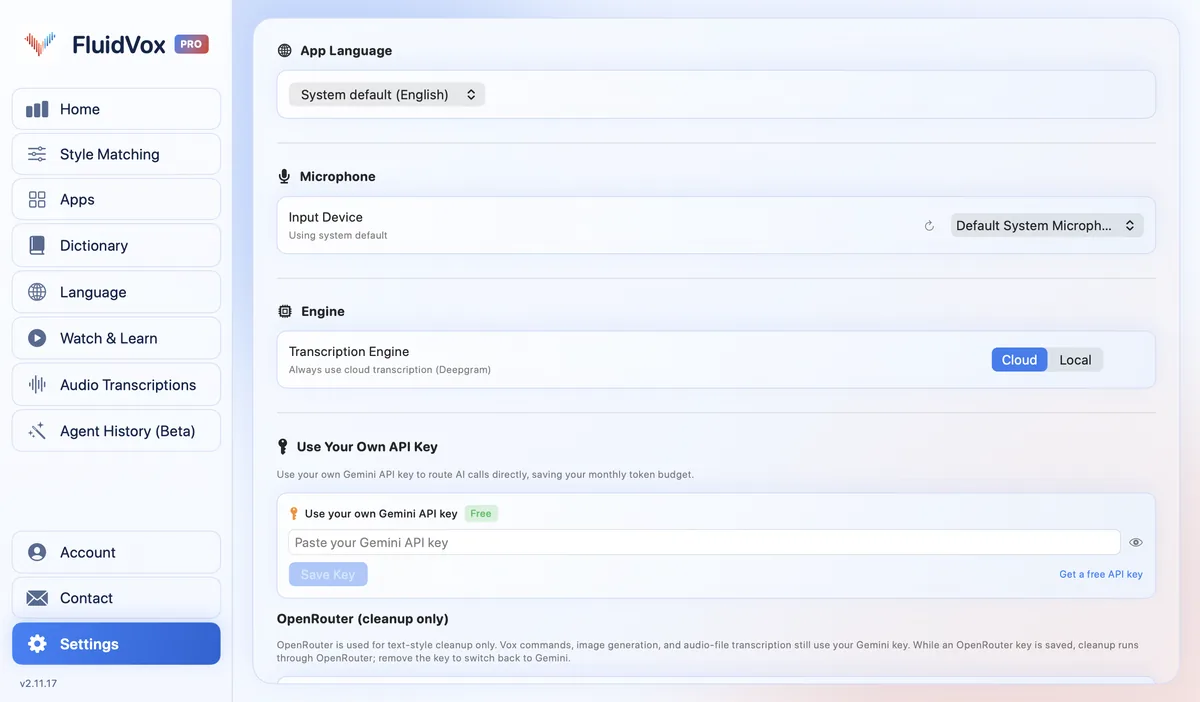
FluidVox doesn't replace voice control: if you need to run your PC by voice, voice access is the tool for that. FluidVox is for writing. It sits in the notification area and types into whichever app has your cursor, with no training first.
- Download FluidVox for Windows and start the 14-day free trial. No credit card is needed.
- Open its settings and check your dictation hotkey. You can change it there, to a single key or a key combination.
- Click where you want the text, hold the hotkey, speak, and let go. Clean text appears where your cursor is.
- Add the names and terms you use to the Dictionary, so it spells them right without you training your voice. On Pro, FluidVox removes filler words and fixes grammar and punctuation, and you can choose a style for each app under Apps.
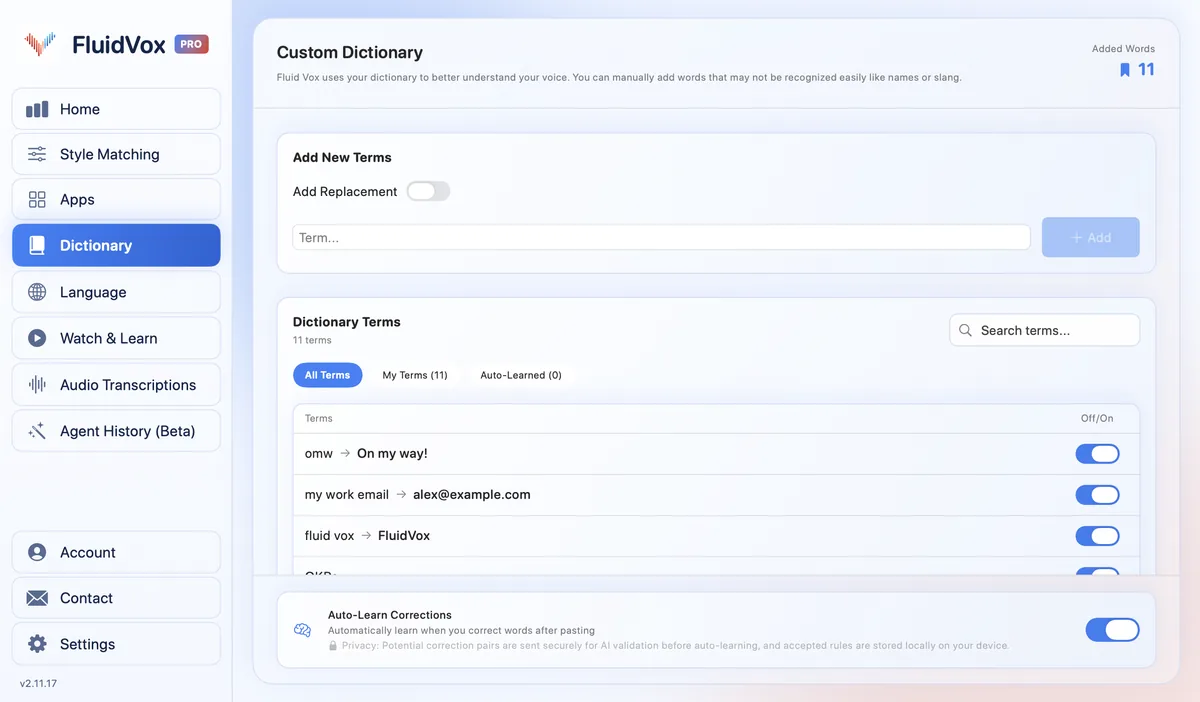
On privacy: cloud transcription sends your audio to a speech service to turn it into text, and on the Local plan transcription runs on your PC instead, so it works offline too. Either way, your transcript history stays on your computer.
Which should you use
If you need to control your PC by voice, use what your Windows has: voice access on Windows 11 22H2 and later, or Speech Recognition on Windows 10 and older Windows 11 versions. Both are free.
If you mostly want to write by voice, you don't need either. Try Windows voice typing first; it's free, but it needs an internet connection. If you write a lot, want clean text without filler words, or keep correcting the same names, try FluidVox for 14 days alongside it. If you'd been weighing Dragon instead, our guide to Dragon dictation software covers its editions and price.
FAQ
How do I turn on Windows Speech Recognition?
Set up your microphone in Settings > Time & language > Speech, then press the Windows logo key + Ctrl + S on Windows 11 to run the setup wizard. On Windows 10, type Windows Speech Recognition in the taskbar search box and select it. Once it's set up, say "Start listening".
Is Windows Speech Recognition still available in Windows 11?
Only on versions before 22H2. Microsoft says voice access replaced Windows Speech Recognition on Windows 11 22H2 and later in September 2024. Older versions of Windows keep it.
What replaced Windows Speech Recognition?
Voice access. It's in Settings > Accessibility > Speech on Windows 11 version 22H2 and later, lets you control your PC and write by voice, and works without the internet after its language files download.
What can I say to Windows Speech Recognition?
Say "What can I say?" to see the commands for what's on screen. The common ones are "Start listening", "Stop listening", "new line", "new paragraph", "correct" plus a word, "delete that", and punctuation like "comma" and "period".
What languages does Windows Speech Recognition support?
English (United States, United Kingdom, Canada, India and Australia), French, German, Japanese, Mandarin (Chinese Simplified and Chinese Traditional) and Spanish.
Sources
- Microsoft Support, Use voice recognition in Windows, checked 9 November 2026.
- Microsoft Support, Windows Speech Recognition commands, checked 9 November 2026.
- Microsoft Learn, Deprecated features for Windows client, checked 9 November 2026.
- Microsoft Support, Use voice access to control your PC & author text with your voice, checked 9 November 2026.
- Microsoft Support, Set up voice access, checked 9 November 2026.
- Microsoft Support, Use voice typing to talk instead of type on your PC, checked 9 November 2026.
Hold one key, speak, and clean text appears in whatever app you're using. Your transcript history stays on your computer.
Download FluidVox 14-day free trial, no credit card.