
Guide
Dictation in Excel: How to Dictate Into Cells on Windows and Mac
Hold one key, speak, and clean text appears in whatever app you're using. Your transcript history stays on your computer.
Download FluidVox 14-day free trial, no credit card.
On this page
- Is there a Dictate button in Excel?
- Dictate in Excel on Windows
- Dictate in Excel on a Mac
- Check what you entered by ear
- Where it falls short
- Built-in dictation and FluidVox compared
- Dictate in Excel with FluidVox
- Which should you use
- FAQ
- Sources
Is there a Dictate button in Excel?
Word has a Dictate button on its Home tab, so it's natural to look for one in Excel. Microsoft's "Dictate in Microsoft 365" help lists articles for Word, Outlook, OneNote and PowerPoint, and none for Excel. If you're writing a document rather than a sheet, here's how Word's own Dictate button works.
You don't need Microsoft's button to talk into a spreadsheet. The dictation built into Windows and macOS types into whatever has your cursor, and an Excel cell is just another place to type. The steps below use those, one cell at a time.
Dictate in Excel on Windows
These steps are for voice typing in Windows 11, which needs an internet connection and a working microphone. On Windows 10, Windows + H opens dictation instead, and you say "stop dictation" to stop it.
- Select the cell you want to fill. To add to what's already in a cell, double-click it so the cursor is inside.
- Press the Windows logo key + H. Wait for the "Listening..." alert.
- Say the entry. For symbols, say their names, such as "dollar sign", "percent sign" or "comma".
- Say "press Tab" to finish the cell and move one to the right, or "press Enter" to move down. Then say the next entry.
- Made a mistake? Say "delete that" or "undo that".
- To stop, say "stop listening" or press the microphone button on the voice typing menu.
If periods turn up at the end of short entries, select the gear icon on the voice typing menu and turn off Automatic punctuation. The same menu sets the default microphone. For everything else voice typing can do, see our guide to Windows voice typing.
Dictate in Excel on a Mac
- Choose Apple menu > System Settings, then click Keyboard in the sidebar. You may need to scroll down.
- Go to Dictation and turn it on. If you're asked, click Enable.
- In Excel, select the cell you want to fill.
- Press the Microphone key if your keyboard has one, or use your Dictation keyboard shortcut.
- When the cursor pulses or you hear the tone, say the entry.
- Press Tab or Return to move to the next cell. Apple says that on a Mac with Apple silicon you can keep using the keyboard while you speak, so there's no need to stop Dictation between cells.
- To stop, press Esc, the Microphone key or your shortcut. Dictation also stops after 30 seconds without speech.
In supported languages, Dictation adds commas, periods and question marks for you. For names and numbers, you may want to turn that off: in Keyboard > Dictation, turn off Auto-punctuation. The first time you set it up, our step-by-step guide to dictation on a Mac covers languages and the microphone.
Check what you entered by ear
A misheard number is easy to miss in a full sheet. Excel on Windows can read cells back to you with Speak Cells:
- Next to the Quick Access Toolbar, select Customize Quick Access Toolbar, then More Commands.
- In Choose commands from, select All Commands.
- Add Speak Cells, Stop Speaking and On Enter, then select OK.
Turn on On Enter, and Excel reads each entry back after you press Enter, so you hear what landed while you dictate. Microsoft lists Speak Cells for Excel for Microsoft 365, Excel 2024 and Excel 2021.
On a Mac, go to Apple menu > System Settings > Accessibility > Read & Speak and turn on Speak selection. Select the cells, then press Option-Esc to hear them.
Where it falls short
Built-in dictation gets words into cells. Its limits show up once you're entering a lot of them:
- Windows voice typing needs the internet. Without a connection, it doesn't type.
- Mac Dictation stops after a pause. After 30 seconds without speech it switches off, so stopping to read the next figure off a page means starting it again.
- No list of your own words. Neither Microsoft's nor Apple's help describes one, so a client's name, a product code or an unusual surname that comes out wrong needs fixing each time.
- Two different tools. If you work on a Mac and a PC, you learn two sets of steps and two sets of settings.
Built-in dictation and FluidVox compared
| Windows voice typing | Mac Dictation | FluidVox | |
|---|---|---|---|
| Price | Free, part of Windows | Free, part of macOS | 14-day free trial, then Pro at $10 a month, or Local at $2.99 a month or $39 once |
| Starts and stops | Windows + H to start; "stop listening" to stop | Microphone key or shortcut; Esc to stop, or 30 seconds without speech | Hold your hotkey while you speak, let go to stop |
| Next cell | Say "press Tab" or "press Enter" | Press Tab or Return | Press Tab or Enter |
| Internet | Needed | Keyboard settings show whether it's processed on your Mac | Not needed on the Local plan, which transcribes on your computer |
| Your own words | No word list in Microsoft's help | No word list in Apple's help | Personal dictionary that also learns your corrections |
| Works on | Windows | Mac | Mac and Windows |
Dictate in Excel with FluidVox
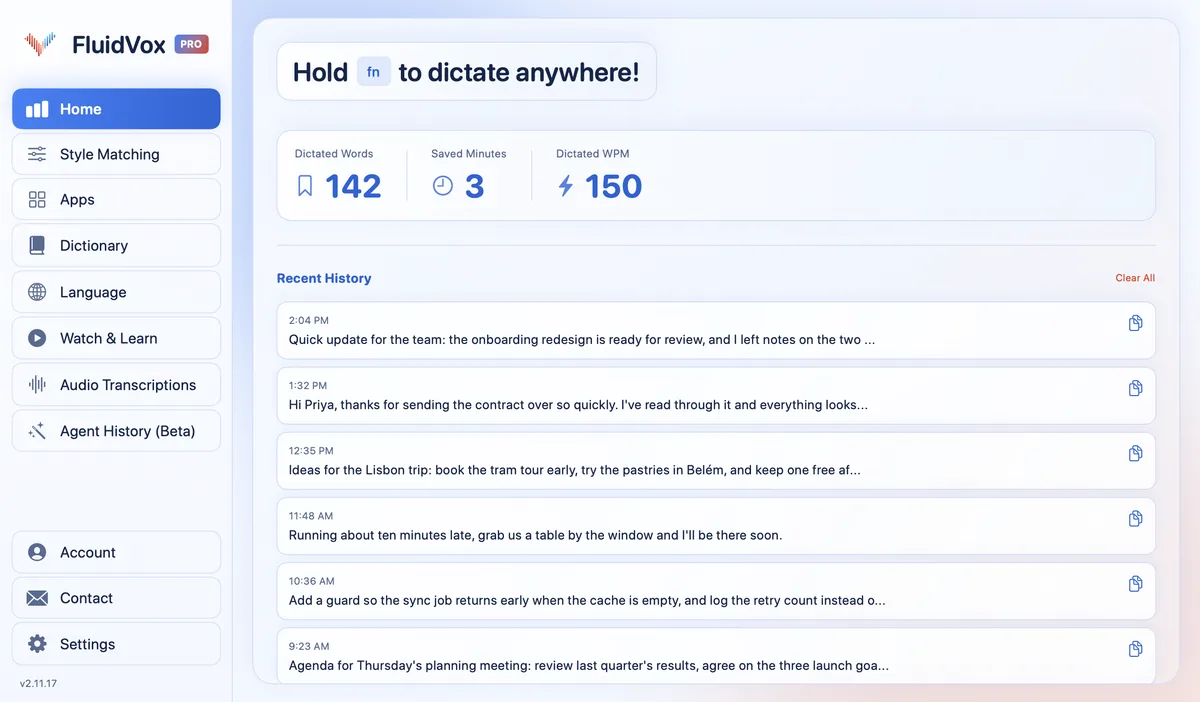
FluidVox doesn't need a button in Excel: it types into whatever app has your cursor, so a cell works like a document or a chat box.
- Download FluidVox and start the 14-day free trial. No credit card is needed.
- On a Mac, allow Microphone, Accessibility and Input Monitoring when setup asks. On Windows, check your dictation hotkey in FluidVox's settings.
- In Excel, select the cell, hold your hotkey (Fn on a Mac), say the entry, and let go. The text lands in the cell. Press Tab or Enter and do the next one.
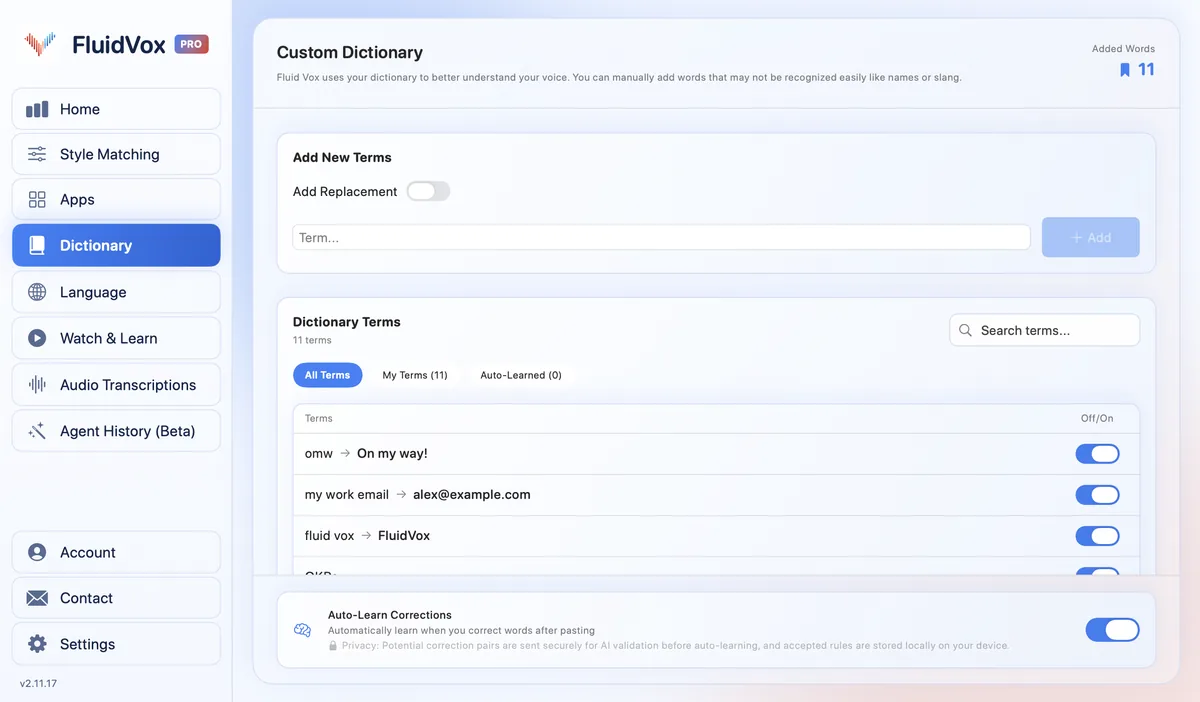
- Add client names, product codes and other terms to the Dictionary, so they come out the same way every time.
- On Pro, you can give Excel its own style under Apps. Natural, which FluidVox describes as its fastest mode, suits short entries.
On privacy: cloud transcription sends your audio to a speech service to turn it into text, and on the Local plan transcription runs on your computer instead. Either way, your transcript history stays on your computer.
Which should you use
For a few cells now and then, use what's already on your computer. On Windows, "press Tab" and "press Enter" let you fill a row or a column without going back to the keyboard between cells, and Speak Cells reads each entry back so you can catch a misheard number. On a Mac, Dictation is free and quick to turn on.
If you enter data in Excel every day, need to work offline (the Local plan transcribes on your computer), or keep fighting the same misspelled names, FluidVox gives you the same hold-to-talk steps on Mac and Windows and a dictionary that remembers your words. Try it for 14 days on a real sheet and see whether it saves you time.
FAQ
Does Excel have a Dictate button?
Microsoft's "Dictate in Microsoft 365" help lists Dictate articles for Word, Outlook, OneNote and PowerPoint, and none for Excel. To dictate in Excel, use Windows voice typing (Windows logo key + H) or Mac Dictation, which type into any text field, a cell included.
How do I move to the next cell by voice?
With Windows voice typing, say "press Tab" to move right or "press Enter" to move down; both are in Microsoft's list of voice typing commands. With Mac Dictation, press Tab or Return on the keyboard. On a Mac with Apple silicon, Dictation keeps listening while you type.
Can I dictate numbers and symbols into Excel?
Yes. Say the number, and say symbols by name. Microsoft's voice typing list includes "dollar sign", "percent sign", "plus sign", "equal sign" and "comma", among others. Check the result before you rely on it, especially long numbers.
Can Excel read my entries back to me?
On Windows, yes. Add Speak Cells, Stop Speaking and On Enter to the Quick Access Toolbar; with On Enter on, Excel reads each entry back after you press Enter. On a Mac, turn on Speak selection in Accessibility > Read & Speak and press Option-Esc.
Does dictation in Excel work offline?
Windows voice typing doesn't: it needs an internet connection. FluidVox's Local plan transcribes on your computer, so it works without one.
Sources
- Microsoft Support, Dictate in Microsoft 365, checked 19 November 2026.
- Microsoft Support, Use voice typing to talk instead of type on your PC, checked 19 November 2026.
- Microsoft Support, Converting text to speech in Excel, checked 19 November 2026.
- Apple Support, Dictate messages and documents on Mac, checked 19 November 2026.
- Apple Support, Have your Mac speak text that's on the screen, checked 19 November 2026.
Hold one key, speak, and clean text appears in whatever app you're using. Your transcript history stays on your computer.
Download FluidVox 14-day free trial, no credit card.