
Guide
Dictation Microphone: Do You Need One, and Which Kind?
Hold one key, speak, and clean text appears in whatever app you're using. Your transcript history stays on your computer.
Download FluidVox 14-day free trial, no credit card.
On this page
- Do you need a dictation microphone?
- Which kind of microphone
- Choose your microphone on a Mac
- Choose your microphone on Windows
- Test it in two minutes
- What a better microphone won't fix
- Built-in dictation and FluidVox compared
- Pick your microphone in FluidVox
- Which should you use
- FAQ
- Sources
Most advice about a dictation microphone comes from shops that sell them. The honest answer is shorter: try the microphone you already have first, in the place you'll actually dictate, and buy something only when that test fails. Below is how to tell which case you're in, which kind of mic fixes which problem, and how to tell your Mac or Windows PC to use it. If Mac Dictation isn't typing anything at all, start with our fixes for Mac Dictation instead: that's usually a setting, not the hardware.
Do you need a dictation microphone?
Speech recognition has to pick your words out of everything else the microphone hears. A laptop mic sits half a meter from your mouth, next to the fan and under your hands, so it also picks up the keyboard, the room's echo and anyone talking nearby. In a quiet room, with the screen in front of you, that rarely matters much. In a busy office, a kitchen or a room with bare walls, it does. We go through how much the input affects accuracy in voice typing accuracy, explained.
Your built-in mic is probably enough if:
- You dictate at a desk, facing the screen, in a quiet room.
- The mistakes you see are names and jargon, not ordinary words. A new mic won't fix those.
A separate microphone is worth trying if:
- Ordinary words come out wrong when there's background noise, other voices or a fan running.
- You lean back, walk around or sit away from the computer while you talk.
- You dictate in a shared space and don't want to raise your voice.
Google's own help for Docs voice typing says the same thing in fewer words: when it has trouble hearing you, move to a quiet room, plug in an external microphone, or adjust your microphone's input volume.
Which kind of microphone
There's no single best microphone for dictation. What matters most is how close the mic is to your mouth and how much of the room it hears.
| Kind | Good for | Watch out for |
|---|---|---|
| Built-in laptop or display mic | Quiet rooms, short notes and replies | Fan, keyboard and room noise; you have to face the screen |
| Wired or USB headset with a boom mic | Noisy rooms and long dictation; the mic stays the same distance from your mouth | Wearing something on your head all day |
| Bluetooth earbuds or headset | Moving around; you may already own a pair | Many switch to a lower-quality hands-free mode while their mic is on, and can take a moment to wake up |
| USB desk microphone | A quiet desk where you don't want to wear anything | Picks up the room more than a headset; keep it close and pointed at you |
| Handheld dictation microphone | Medical and legal dictation with record buttons, often with Dragon | Price: Philips lists its SpeechMike Premium Air from $497 |
For most people who dictate emails, messages and documents, a plain wired or USB headset with a boom mic is the safe upgrade: it's close to your mouth, it hears little of the room, and it doesn't need batteries. Handheld dictation microphones such as Philips' SpeechMike are built for professional dictation workflows. Philips lists several Dragon versions as supported and notes that Mac functionality may be limited.
Choose your microphone on a Mac
Your Mac can use its internal microphone, your display's microphone if it has one, your iPhone's microphone or an external one. Dictation has its own setting for which one it listens to:
- Choose Apple menu > System Settings, then click Keyboard in the sidebar. You may need to scroll down.
- Go to Dictation, click the pop-up menu next to Microphone source, and choose the microphone you want.
- If you choose Automatic, your Mac listens to the device it thinks you're most likely to use for Dictation, which isn't always the one you're speaking into.
To check the level, choose Apple menu > System Settings, click Sound, then click Input and select the device. Drag the input volume slider up if you speak softly, or down if the sound is too loud and distorted. Our Mac dictation setup guide covers the rest of Dictation's settings.
Choose your microphone on Windows
- Make sure the microphone is connected.
- Select Start > Settings > System > Sound.
- Under Input, find your microphone. For a Bluetooth microphone, select Add device and follow the prompts.
- To test it, select the microphone, choose > next to it to open its Properties, then under Input settings select Start test and speak normally. Select Stop test, choose Play to hear the sample, and adjust the Input volume slider if needed.
Windows voice typing (the Windows logo key + H) has its own setting too: select the gear icon in the voice typing menu to choose the Default microphone. Microsoft says voice typing needs a working microphone and an internet connection, and that its echo cancellation filters out sound from your speakers. For everything else about it, see our guide to Windows voice typing.
Test it in two minutes
Before you buy anything, run the same short test with each microphone you have:
- Pick a paragraph of about 100 words with a few names in it, and read it out loud with the dictation you normally use, in the room you normally use.
- Count the words that came out wrong, leaving out names and jargon.
- Do the same with the other mic, or with the same mic closer to your mouth.
If the ordinary-word mistakes drop clearly with the closer mic, a headset is worth it. If they barely change, the microphone isn't your problem, and the names that keep coming out wrong need a dictionary, not new hardware.
What a better microphone won't fix
A good mic gives the speech recognition a cleaner signal. It doesn't change what your dictation does with it:
- Names and terms. If your dictation doesn't know a client's name, it spells it wrong however clearly you say it. Apple's Dictation settings and Windows voice typing's settings have no place to add your own words.
- Pauses. Apple says Mac Dictation stops automatically when no speech is detected for 30 seconds, whichever mic you use.
- Filler words. Built-in dictation types what you said. On Windows, taking out filler words needs fluid dictation, which Microsoft offers on Copilot+ PCs, in English.
- Tone. A message to a friend and an email to a client come out the same way.
If those are the mistakes you're fixing by hand, a new microphone won't save you the time. Different dictation software might.
Built-in dictation and FluidVox compared
| Mac Dictation | Windows voice typing | FluidVox | |
|---|---|---|---|
| Choose the microphone | Keyboard settings > Dictation > Microphone source | Sound settings, or Default microphone in voice typing's settings | Settings > Microphone, on Mac and Windows |
| Your own words | No list | No list | Dictionary for names and terms |
| Long pauses | Stops after 30 seconds without speech | Microsoft names no silence limit; say "Stop listening" to stop | Listens for as long as you hold the key |
| Filler words | Typed as said | Removed only with fluid dictation on Copilot+ PCs, in English | Removed on Pro |
| Price | Free | Free | 14-day free trial, then a paid plan |
Pick your microphone in FluidVox
FluidVox is a dictation app for Mac and Windows that types into whatever app you're using. It uses the microphone your computer uses unless you pick another one:
- Download FluidVox and start the 14-day free trial. The download button gives you the version for your computer.
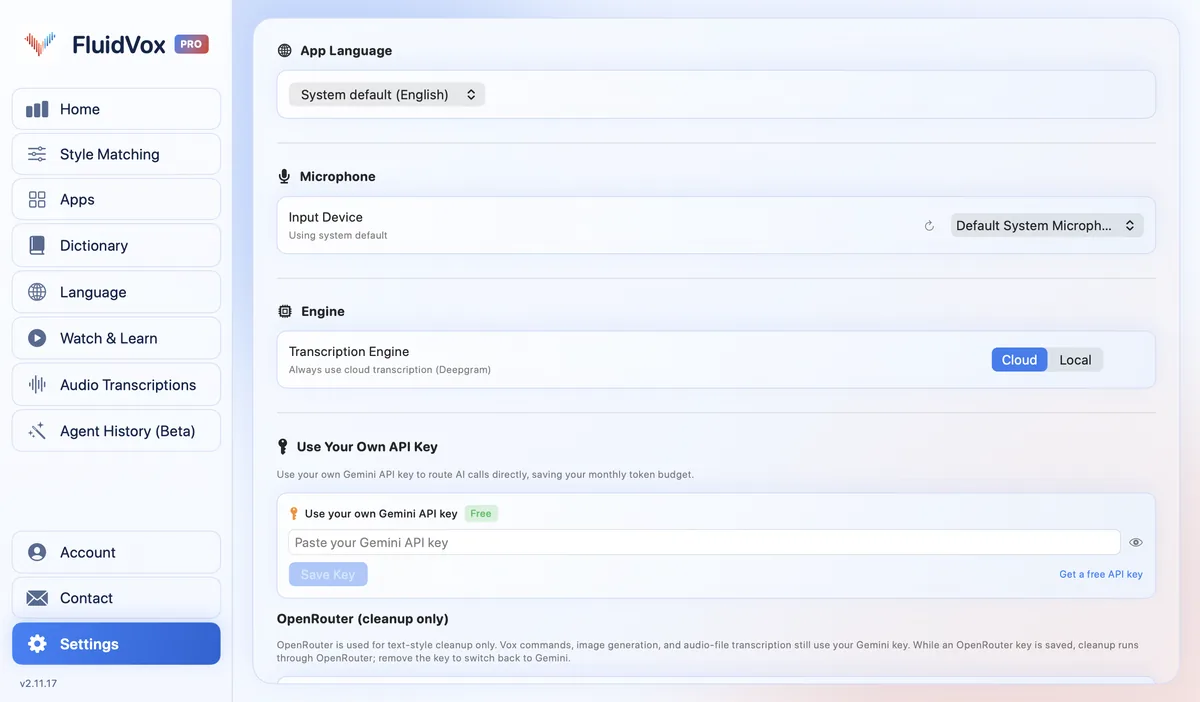
- Open Settings and find Microphone. On a Mac, choose your mic under Input Device, or leave Default System Microphone to follow your Mac's choice. On Windows, choose it from the list under Select your input device.
- Click where you want the text, hold your dictation key (Fn on a Mac; on Windows, the hotkey shown in its settings), speak, and let go.
- Add the names and terms you use to the Dictionary, so they come out right with any microphone.
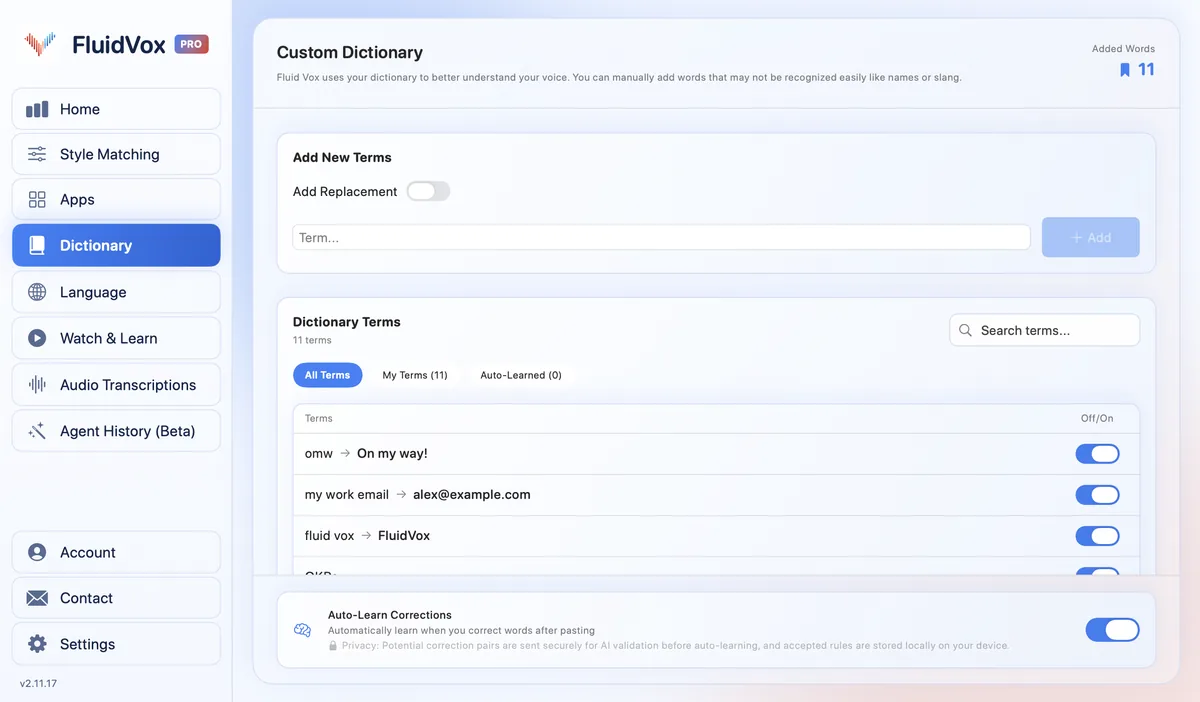
On Pro, FluidVox also removes filler words, fixes grammar and punctuation, and can use a different style in each app. On privacy: cloud transcription sends your audio to a speech service to turn it into text, while on the Local plan transcription runs on your computer. Either way, your transcript history stays on your computer.
Which should you use
Start with the microphone you have. If you dictate at a desk in a quiet room and the mistakes are mostly names, keep it, and fix the names with a dictionary. If ordinary words go wrong whenever the room gets noisy, or you move around while you talk, a wired or USB headset with a boom mic is the cheapest fix that works. A handheld dictation microphone makes sense mainly if you work in a medical or legal dictation setup that's built around one.
And if the microphone was never the problem, because what costs you time is cleaning up ums, pauses and the same misspelled names, try FluidVox free for 14 days with the mic you already own.
FAQ
Do I need a special microphone for dictation?
No. Dictation on a Mac or Windows works with the built-in microphone. A separate mic helps when there's noise or echo in the room, or when you're not sitting close to the computer. Test with what you have first.
Is a laptop microphone good enough for dictation?
Usually, in a quiet room with the screen in front of you. It hears the fan, the keyboard and the room too, so in noisy places a headset with a mic near your mouth does better.
Are Bluetooth earbuds good for dictation?
They can be, because the mic is closer to your mouth than a laptop's. Many Bluetooth headsets switch to a lower-quality hands-free mode while their microphone is on, so if you see more mistakes with them, try a wired or USB headset.
What microphone do doctors use for dictation?
Many use handheld dictation microphones with record and playback controls, such as Philips' SpeechMike, which Philips lists from $497 and as supported with several Dragon versions.
How do I change the microphone for dictation on a Mac?
Choose Apple menu > System Settings > Keyboard, go to Dictation, and choose your mic from the Microphone source pop-up menu. With Automatic, your Mac picks the device it thinks you're most likely to use.
Does a better microphone fix dictation mistakes?
It fixes mistakes caused by noise, echo and distance. It doesn't fix names and terms your dictation doesn't know, filler words, or Mac Dictation stopping after 30 seconds without speech.
Sources
- Apple Support, Dictate messages and documents on Mac, checked 16 November 2026.
- Apple Support, Change the sound input settings on Mac, checked 16 November 2026.
- Microsoft Support, How to set up and test microphones in Windows, checked 16 November 2026.
- Microsoft Support, Use voice typing to talk instead of type on your PC, checked 16 November 2026.
- Google Docs Editors Help, Type & edit with your voice, checked 16 November 2026.
- Philips, SpeechMike Premium Air Wireless Dictation Microphone, checked 16 November 2026.
Hold one key, speak, and clean text appears in whatever app you're using. Your transcript history stays on your computer.
Download FluidVox 14-day free trial, no credit card.