
Fix
Google Docs Voice Typing Not Working? How to Fix It
Hold one key, speak, and clean text appears in whatever app you're using. Your transcript history stays on your computer.
Download FluidVox 14-day free trial, no credit card.
On this page
- Quick checks first
- Fix it step by step
- When voice commands don't work
- When it works but still isn't enough
- Google Docs voice typing and FluidVox compared
- Dictate into Google Docs with FluidVox
- Which should you use
- FAQ
- Sources
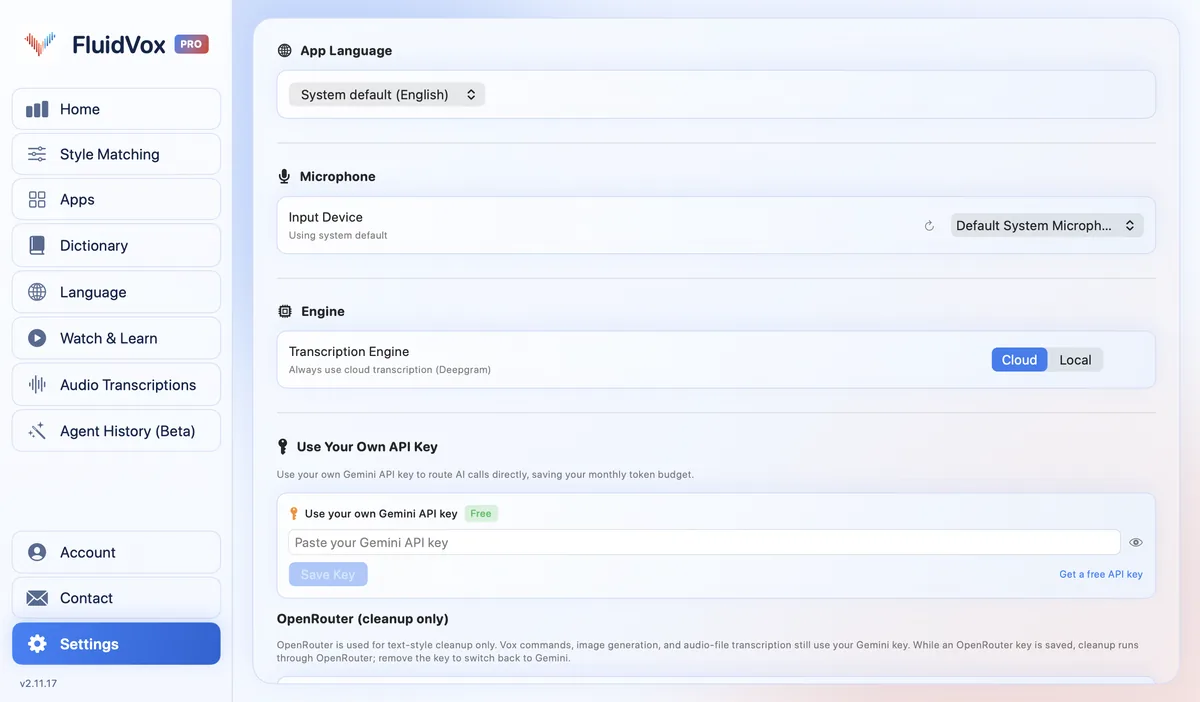
Google's own help page puts it plainly: when you turn on voice typing, your web browser controls the speech-to-text service and then sends the text to Docs. So when nothing appears, the problem is usually between your microphone, your computer's settings and the browser, not in the document. The fixes below come from Google's, Apple's and Microsoft's help pages. If you've never set voice typing up, start with our guide to turning on voice typing in Google Docs, and if you'd rather dictate into Docs from any browser, see how FluidVox works with Google Docs.
Quick checks first
- Your browser. Google says voice typing works with the latest versions of Chrome, Edge and Safari. If you're on another browser, or an old version, switch or update.
- The microphone button. Tools > Voice typing only opens the microphone box. Nothing is typed until you click the microphone in that box.
- The right place. Voice typing types into a Google Docs document. In Google Slides it's for speaker notes (Tools > Dictate speaker notes), not for slides themselves.
- Your account. On a work or school account, Google says the feature may have been turned off by your administrator, and Chrome's microphone settings may be managed too.
Fix it step by step
Work through these in order and try voice typing again after each one.
- Allow the microphone for Docs in Chrome. When Chrome asks, choose Allow while visiting the site or Allow this time. If you chose Never allow before, go to More > Settings > Privacy and security > Site settings, select Microphone under "Permissions", and under "Not allowed to use your camera or microphone" select docs.google.com and change its microphone permission to Allow. In Edge or Safari, check that browser's own site permissions for the microphone.
- Pick the right microphone in Chrome. On the same Microphone page in Site settings, select the down arrow and choose the microphone you're speaking into. A webcam or a disconnected headset can be selected without you noticing.
- Allow your browser in your Mac's settings. Choose Apple menu > System Settings, click Privacy & Security in the sidebar, click Microphone, and turn it on for Chrome or Edge. Chrome's help says your computer may ask you to quit the browser to save the change: quit, or restart the browser.
- Allow desktop apps in Windows settings. On Windows 11, select Start > Settings > Privacy & security, then Microphone under App permissions. Make sure Microphone access is on, Let apps access your microphone is on, and, because Chrome and Edge are desktop apps, Let desktop apps access your microphone is on too.
- Check the microphone itself. Google suggests checking that the microphone isn't broken, that it's plugged in and that no other app is using it. Close a video call or a recording app that might hold the mic. On a headset, make sure the mute switch on the cord is off.
- If you see "We're having trouble hearing you". Google's fixes for this message: move to a quieter room, plug in an external microphone, and adjust your microphone's input volume. If you're buying one, see how to pick an external mic for voice typing.
- Restart. Restart the browser, then the computer. Both Google's Docs and Chrome help pages list it as a step.
When voice commands don't work
Typing works, but "select paragraph" or "bold" ends up as text? Google lists a few reasons:
- Most commands are English only. Voice commands work only when both your Google account language and the document's language are English, and Google says punctuation commands such as "period" and "comma" might not be available in every language. Commands aren't available in Slides speaker notes.
- Pause around each command. Speak slowly and clearly, and pause before and after a command. The command may show in the document for a moment before it runs.
- Check what Docs heard. The microphone shows a bubble with the most recent command. If Docs got it wrong, say "Undo".
To stop, say "Stop listening". To pick up again at the end of the paragraph, say "Resume".
When it works but still isn't enough
Sometimes voice typing isn't broken, it just doesn't do what you need:
- It only types in Docs. The same words can't go into Gmail, Slack or a form in another tab with voice typing. For those, here's how to dictate on any website in Chrome.
- Only three browsers. Google lists the latest Chrome, Edge and Safari, and nothing else.
- You say the punctuation. Commands such as "period", "comma" and "new paragraph" are how you add punctuation, and they might not work in every language.
- Your words, your problem. Google's help page doesn't describe a list of your own names or terms, or any removal of filler words like "um" and "you know". You fix those by hand, with the cursor or by voice.
Google Docs voice typing and FluidVox compared
| Google Docs voice typing | FluidVox | |
|---|---|---|
| Price | Free with Google Docs | Local, which transcribes on your computer: $2.99 a month or $39 once. Pro, with AI clean-up: $10 a month. Both start with a 14-day free trial |
| Where it types | Google Docs, and Slides speaker notes | Any app with a text field, at your cursor, Google Docs included in any browser |
| Microphone permission | Per browser and per site, plus your computer's privacy settings | Once, for the FluidVox app |
| Punctuation and clean-up | Spoken commands, which might not work in every language | On Pro, removes filler words and fixes grammar, spelling and punctuation |
| Your own words | No custom word list on Google's help page | Personal dictionary that also learns your corrections |
Dictate into Google Docs with FluidVox
FluidVox doesn't run inside the browser: it's an app on your Mac or Windows PC that types wherever your cursor is. So it works the same in Docs, in any browser, and in every other app.
- Download FluidVox and start the 14-day free trial. No credit card is needed.
- On a Mac, allow Microphone, Accessibility and Input Monitoring when setup asks. On Windows, check your dictation hotkey in FluidVox's settings.
- Click where you want the text in your Google Doc, hold your hotkey (Fn on a Mac), speak, and let go. Clean, punctuated text appears at your cursor.
- Add names and terms to the Dictionary. On Pro, you can give your browser its own style under Apps; it applies to everything you dictate in that browser, Gmail and chat included.
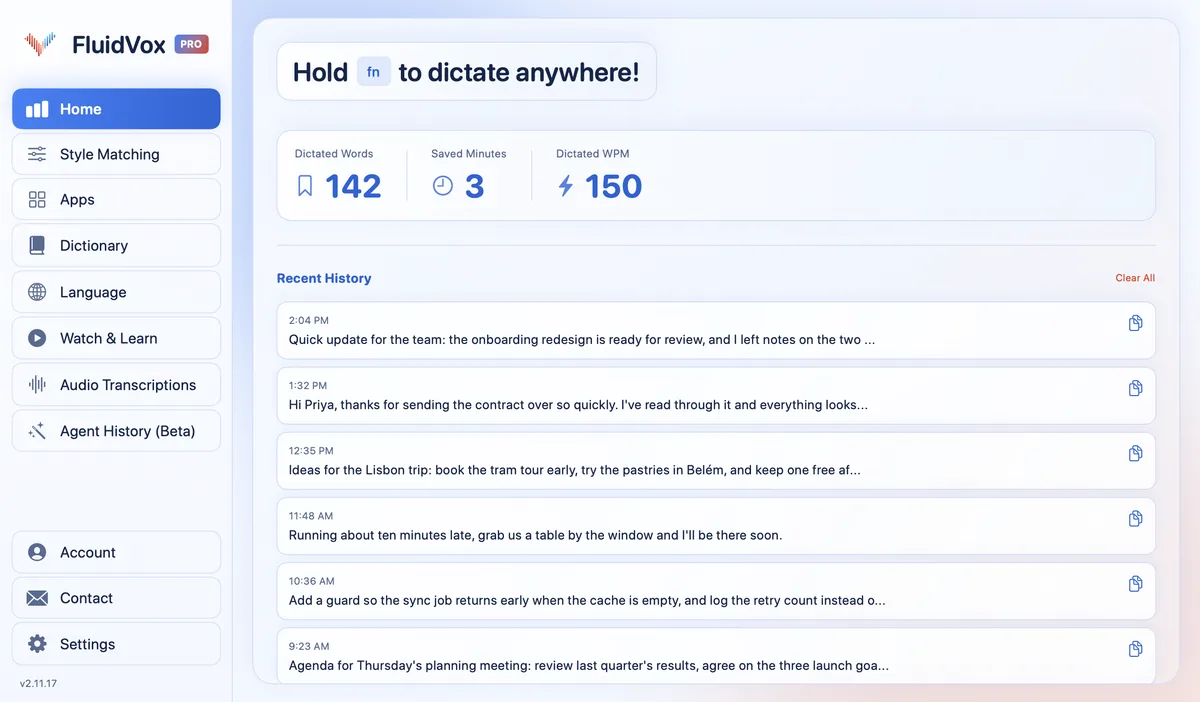
On privacy: cloud transcription sends your audio to a speech service to turn it into text, and on the Local plan transcription runs on your computer instead. Either way, your transcript history stays on your computer.
Which should you use
If voice typing works again after the steps above and you mostly write in Google Docs, keep using it. It's free, it's already there, and in English it handles punctuation and editing by voice.
If you keep fighting browser permissions, dictate in a language other than English, or want the same voice typing in email, chat and every other app, FluidVox gives you one key for all of it, with your own dictionary and, on Pro, clean-up of filler words. You can try it free for 14 days and keep Docs voice typing as a backup.
FAQ
Why is Google Docs voice typing not picking up my voice?
Usually because the browser doesn't have the microphone. Allow the microphone for docs.google.com in the browser's site settings, allow the browser in your computer's microphone privacy settings, and check that the right microphone is selected and that no other app is using it.
Why is the voice typing option missing from the Tools menu?
Google says the feature may have been turned off by your administrator on a work or school account. Also check that you're in a Google Docs document in the latest Chrome, Edge or Safari: in Google Slides, the menu item is Dictate speaker notes.
Why does voice typing type my commands as words?
Voice commands work only when your Google account language and the document's language are both English. Pause before and after each command, and if Docs heard it wrong, say "Undo".
Does Google Docs voice typing work in Firefox?
Google lists only the latest Chrome, Edge and Safari. In Firefox, switch to one of those three, or use an app such as FluidVox that types at your cursor in any app.
What does "We're having trouble hearing you" mean?
Google doesn't explain the message, but suggests moving to a quiet room, plugging in an external microphone and turning up the microphone's input volume.
How do I stop voice typing in Google Docs?
Click the microphone again, or say "Stop listening". Say "Resume" to start again at the end of the paragraph.
Sources
- Google Docs Editors Help, Type & edit with your voice, checked 13 November 2026.
- Google Chrome Help, Use your camera and microphone in Chrome, checked 13 November 2026.
- Apple Support, Control access to the microphone on Mac, checked 13 November 2026.
- Microsoft Support, Turn on app permissions for your microphone in Windows, checked 13 November 2026.
Hold one key, speak, and clean text appears in whatever app you're using. Your transcript history stays on your computer.
Download FluidVox 14-day free trial, no credit card.