
Guide
Speech to Text in Chrome: Built-In Options and Extensions
Hold one key, speak, and clean text appears in whatever app you're using. Your transcript history stays on your computer.
Download FluidVox 14-day free trial, no credit card.
On this page
- Does Chrome have speech to text built in?
- Voice typing in Google Docs
- Speech to text on any site: Windows
- Speech to text on any site: Mac
- Speech to text on a Chromebook
- Chrome extensions for speech to text
- Where it falls short
- The options compared
- Speech to text in Chrome with FluidVox
- Which should you use
- FAQ
- Sources
Does Chrome have speech to text built in?
Not as a button you can press in any text box. Chrome's own speech feature, Live Caption, goes the other way: it writes captions for audio playing in Chrome, such as videos, podcasts and video calls. You turn it on under More > Settings > Accessibility, and Google says the audio and captions are processed on your device and never stored. It doesn't type what you say.
To turn your own voice into text in Chrome, you have four choices:
- Google Docs voice typing, built into Docs, for documents.
- Your computer's dictation, which types wherever your cursor is, Chrome included.
- A Chrome extension that adds a microphone to the pages you visit.
- A dictation app that runs on your computer and types into any app, the browser included.
If you only want to see what Chrome's speech recognition can do, Google's Web Speech API Demonstration page is a quick test: click the microphone, speak for as long as you like, then copy the text out.
Voice typing in Google Docs
Google Docs has its own microphone button. Google says it works with the latest versions of Chrome, Edge and Safari.
- Open a document in Google Docs.
- Click Tools > Voice typing. A microphone box appears.
- Click the microphone when you're ready to speak. The first time, Chrome asks to use your microphone: choose Allow while visiting the site or Allow this time.
- Speak clearly at a normal pace. Say "period", "comma", "question mark", "new line" or "new paragraph" for punctuation.
- Click the microphone again when you're done, or say "stop listening".
You can fix a mistake without turning the microphone off: click the wrong word, correct it, then click back where you were. Voice commands such as "select paragraph" work only in English, with both your account language and the document's language set to English, and spoken punctuation isn't available in every language. In Google Slides, the same feature is Tools > Dictate speaker notes.
Google says that when you use voice typing, your web browser controls the speech-to-text service and decides how your speech is processed. For the shortcut and the full list of commands, see our guide to using voice typing in Google Docs, and if you'd rather dictate into Docs with one key in any browser, here's how FluidVox works in Google Docs.
Speech to text on any site: Windows
Gmail, chat windows and most web forms have no voice typing of their own. On Windows, voice typing fills them all, because it types wherever your cursor is.
- Click in the text box in Chrome.
- Press the Windows logo key + H. Wait for the "Listening..." alert.
- Speak. The words appear in the box as you talk.
- To stop, say "stop listening" or press the microphone button on the voice typing menu.
Microsoft says voice typing uses online speech recognition, so it needs an internet connection. Our guide to Windows voice typing covers the commands and settings.
Speech to text on any site: Mac
- Choose Apple menu > System Settings, click Keyboard, go to Dictation and turn it on.
- In Chrome, click in the text box where the words should go.
- Press the Microphone key if your keyboard has one, or use your Dictation keyboard shortcut.
- Speak. To stop, press Esc, the Microphone key or your shortcut.
Dictation stops by itself when it hears no speech for 30 seconds, so a long pause to think means starting it again. The first time you set it up, our guide to dictation on a Mac walks through languages and the microphone.
Speech to text on a Chromebook
On a Chromebook, dictation is part of ChromeOS, and it types in most places you type, Chrome's pages included.
- Select the time at the bottom right, or press Alt + Shift + S.
- Select Settings > Accessibility.
- Under "Keyboard and text input", turn on Dictation.
- Select the text box, then select Speak (the microphone), or press Search + D or Launcher + D.
- Speak. Say "comma", "period" or "question mark" for punctuation, and "cancel" to stop.
Google notes that speech won't work if the language you speak doesn't match the device language. Commands such as "delete the previous word", "new line" and "undo" edit as you go.
Chrome extensions for speech to text
The Chrome Web Store has many extensions that add speech to text to the pages you visit. Installing one works like any other extension:
- Open the Chrome Web Store and find the extension.
- Select Add to Chrome.
- If it asks for permissions or data, read the list, then select Add extension to approve it.
- Select its icon to the right of the address bar to use it.
Two things to know before you add one. Google's help says to approve only extensions you trust, and some extensions need permission to read and change site data. You can narrow that under More > Extensions > Manage extensions > Details: next to "Allow this extension to read and change all your data on websites you visit", set site access to On select or On specific sites. And an extension works only inside the browser: your desktop apps, a document editor or a chat app outside it get nothing.
You can't add extensions in Incognito mode or as a guest, and a work or school computer may block some. If you're mainly writing email, our page on dictating email in Gmail compares the Gmail extensions.
Where it falls short
Each built-in option works. The limits show up when you dictate a lot, or in more than one place:
- Docs voice typing stays in Docs. It types into Google Docs and Slides speaker notes, and nowhere else in Chrome.
- Spoken commands are English-only in Docs. Editing commands need English as both your account and document language, and spoken punctuation isn't available in every language.
- Windows voice typing needs the internet. Without a connection, it doesn't type.
- Mac Dictation stops after a pause. After 30 seconds without speech, it switches off.
- No list of your own words. None of the Google, Apple or Microsoft help pages cited below describes one, so a name or a product term that comes out wrong needs fixing every time.
- Extensions bring their own trade-offs. Each one asks for its own permissions, and they stop at the edge of the browser.
The options compared
| Google Docs voice typing | Your computer's dictation | Chrome extensions | FluidVox | |
|---|---|---|---|---|
| Price | Free in Google Docs | Free, part of Windows, macOS and ChromeOS | Varies by extension | 14-day free trial, then Pro at $10 a month, or Local at $2.99 a month or $39 once |
| Where it types | Google Docs and Slides speaker notes | Wherever your cursor is, in Chrome and other apps | The pages the extension can access, inside Chrome | Any app on your Mac or PC, Chrome included |
| How you start it | Tools > Voice typing, then the microphone | Windows + H, the Mac Microphone key or shortcut, Search + D on a Chromebook | The extension's button | Hold your hotkey while you speak, let go to stop |
| Your own words | No word list in Google's help | No word list in Apple's or Microsoft's help | Varies by extension | Personal dictionary that also learns your corrections |
| Works outside the browser | No | Yes | No | Yes, in any app |
Speech to text in Chrome with FluidVox
FluidVox isn't an extension. It runs on your Mac or PC and types into whatever app has your cursor, so a Chrome tab works the same as a document, an email or a chat box, and so does Safari, Edge or Firefox.
- Download FluidVox and start the 14-day free trial. No credit card is needed.
- On a Mac, allow Microphone, Accessibility and Input Monitoring when setup asks. On Windows, check your dictation hotkey in FluidVox's settings.
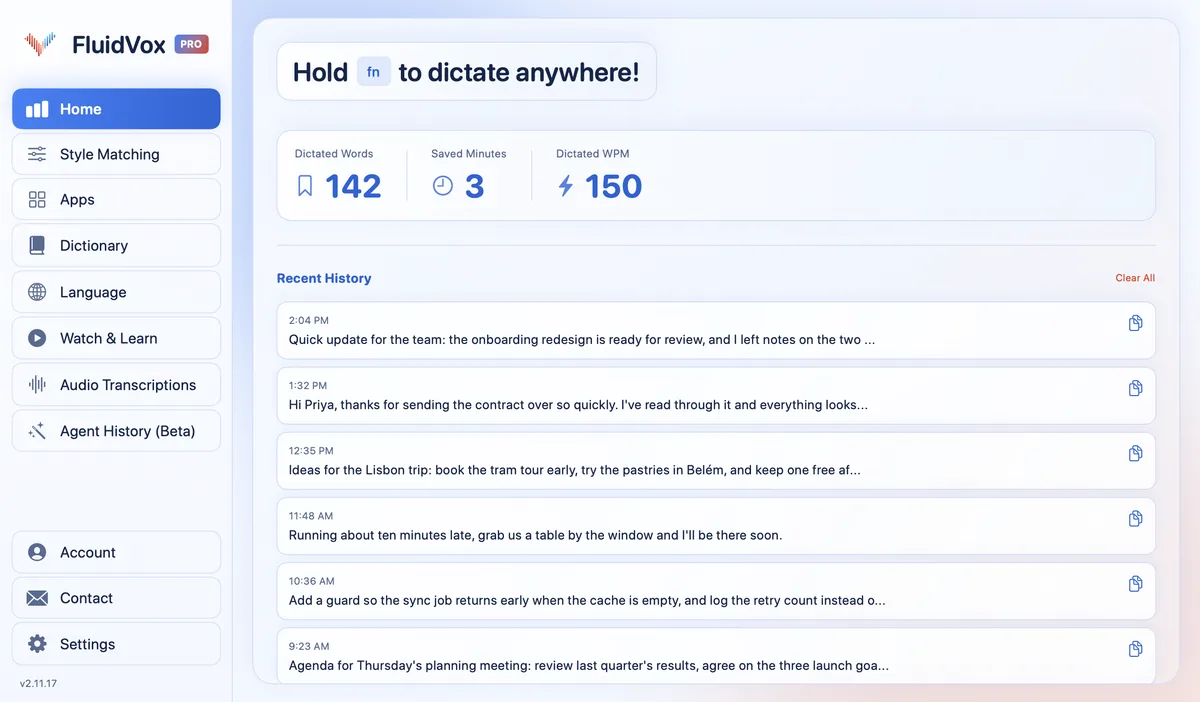
- In Chrome, click in the text box, hold your hotkey (Fn on a Mac), speak, and let go. The text lands where your cursor is.
- Add names, product terms and jargon to the Dictionary, so they come out the same way on every site.
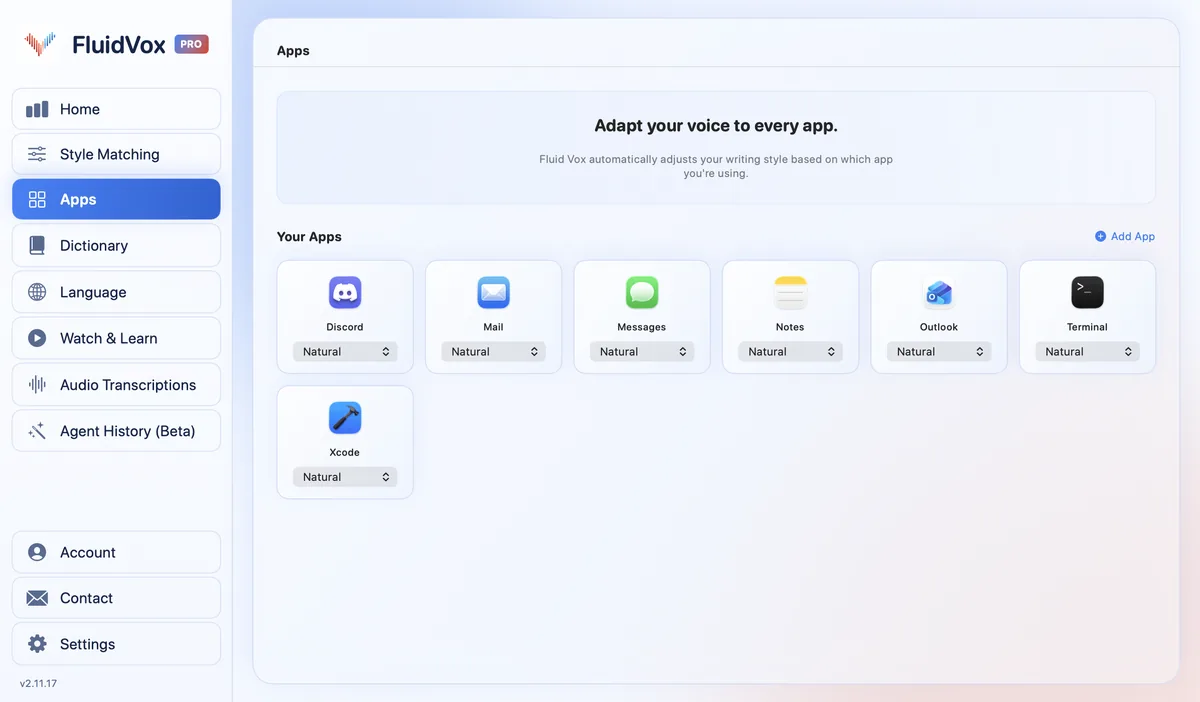
- On Pro, FluidVox takes out filler words and fixes the punctuation, and you can give Chrome its own style under Apps. Pick one that suits most of what you write in the browser, because the style applies to every tab.
On privacy: cloud transcription sends your audio to a speech service to turn it into text, and on the Local plan transcription runs on your computer instead. Either way, your transcript history stays on your computer.
Which should you use
If you write in Google Docs, start with Docs voice typing: it's free, it's already there, and in English you can edit and format by voice. For a quick message, a form or a search on any other site, your computer's own dictation does the job without installing anything.
Reach for an extension only if you want a microphone button on the page itself and you're happy with the permissions it asks for. If you dictate all day, in Chrome and outside it, want the same steps on Mac and Windows, or keep fixing the same names, FluidVox gives you one hotkey for every app and a dictionary that remembers your words. Try it for 14 days on your own work and see whether it saves you time.
FAQ
Does Chrome have built-in speech to text?
Not for typing into pages on Windows or Mac. Chrome's Live Caption writes captions for audio playing in the browser, but it doesn't type what you say. Google Docs has its own voice typing, and on a Chromebook, dictation is built into ChromeOS. Everywhere else, use your computer's dictation or an extension.
How do I turn on voice typing in Chrome?
In Google Docs, click Tools > Voice typing, then the microphone. On other sites, click in the text box and press Windows logo key + H on Windows, the Microphone key or your Dictation shortcut on a Mac, or Search + D on a Chromebook after turning on Dictation in Accessibility settings.
Why can't Chrome hear my microphone?
Check the site's permission first: in More > Settings > Privacy and security > Site settings > Microphone, find the site under "Not allowed to use your camera or microphone" and change it to Allow, and pick the right microphone from the list. Then check that your computer lets Chrome use the microphone. On a work or school computer, an administrator may manage these settings.
Is Live Caption the same as speech to text?
It's speech to text for audio playing in Chrome, such as a video or a call, shown as captions in a bubble you can move. Google says the audio and captions are processed on your device and never stored. It doesn't type your voice into a text box.
Are speech to text extensions for Chrome safe?
Google's help says to approve only extensions you trust. Read the permissions before you select Add extension, and if one asks to read and change data on all websites, limit its site access to On select or On specific sites under Manage extensions > Details.
Does speech to text in Chrome work offline?
Windows voice typing doesn't: Microsoft says it needs an internet connection. Google Docs leaves speech processing to your browser, and Google's help doesn't describe an offline mode. FluidVox's Local plan transcribes on your computer, so it works without one, in Chrome and every other app.
Sources
- Google Docs Editors Help, Type & edit with your voice, checked 21 November 2026.
- Google Chrome Help, Manage captions and translations in Chrome, checked 21 November 2026.
- Chromebook Help, Type text with your voice, checked 21 November 2026.
- Chrome Web Store Help, Install and manage extensions, checked 21 November 2026.
- Google Chrome Help, Use your camera and microphone in Chrome, checked 21 November 2026.
- Google, Web Speech API Demonstration, checked 21 November 2026.
- Microsoft Support, Use voice typing to talk instead of type on your PC, checked 20 November 2026.
- Apple Support, Dictate messages and documents on Mac, checked 20 November 2026.
Hold one key, speak, and clean text appears in whatever app you're using. Your transcript history stays on your computer.
Download FluidVox 14-day free trial, no credit card.