
Guide
iPhone Dictation Commands: Punctuation, Emoji and Editing
Hold one key, speak, and clean text appears in whatever app you're using. Your transcript history stays on your computer.
Download FluidVox 14-day free trial, no credit card.
On this page
- How Dictation commands work
- Punctuation commands
- Capitals, spaces and new lines
- Editing commands: change, select and delete
- Emoji by voice
- When you need more: Voice Control
- Where the commands fall short
- iPhone Dictation and FluidVox compared
- Punctuation without saying it, with the FluidVox keyboard
- Which should you use
- FAQ
- Sources
Apple's Dictation on the iPhone listens for two things at once: the words you want typed, and a set of spoken commands that turn into punctuation, line breaks, capitals and emoji. Apple says the commands are always available while you dictate, so there's nothing to switch on first: say "comma" and you get a comma. Below is Apple's list, grouped by what you'll use most, with the editing commands that newer iPhones understand and what to do when you need more control. If Dictation isn't set up yet, start with our guide to using talk to text on iPhone. If you'd rather not say punctuation at all, we also looked at iPhone apps that punctuate for you, and there's a wider roundup of voice typing apps for iPhone. On a Mac, the list is a little different: see Mac dictation commands.
How Dictation commands work
- Turn on Dictation once: open the Settings app, tap General, tap Keyboard, then turn on Enable Dictation. If a prompt appears, tap Enable Dictation.
- In any app, tap in a text field where you want the words to go.
- Tap the microphone on the onscreen keyboard. When it appears next to the insertion point, start talking.
- Say a command at the point in the sentence where you want its result, as if you were reading the text aloud with its punctuation.
- To stop, tap the microphone again or say "stop dictation". If you stay silent for 30 seconds, Dictation stops on its own.
In supported languages, Dictation adds commas, periods and question marks for you as you speak. If you'd rather say every mark yourself, go to Settings > General > Keyboard and turn off Auto-Punctuation. The commands work either way, so you can leave Auto-Punctuation on and still say "exclamation point" or "colon" when you want one.
Punctuation commands
| Say | To get |
|---|---|
| "period" | . |
| "comma" | , |
| "question mark" | ? |
| "exclamation point" | ! |
| "colon", "semicolon" | : ; |
| "quote" … "end quote" | Curly quotation marks around what you say in between |
| "open parenthesis" … "close parenthesis" | ( ) |
| "dollar sign" | $ |
| "hashtag" | # |
The iPhone's list is shorter than the Mac's: Apple's iPhone page doesn't list commands for brackets, dashes, currency other than the dollar, or symbols such as the at sign. When you need one of those, tap it on the keyboard while Dictation keeps listening.
Capitals, spaces and new lines
| Say | What it does |
|---|---|
| "new line" | Starts a new line |
| "new paragraph" | Starts a new paragraph |
| "cap" | Capitalizes the next word |
| "caps on" … "caps off" | Capitalizes the first letter of each word in between |
| "all caps" | Writes the next word in capitals |
| "all caps on" … "all caps off" | Writes everything in between in capitals |
| "no caps on" … "no caps off" | Writes everything in between in lowercase |
| "no space" | Removes the space between two words |
| "no space on" … "no space off" | Runs a series of words together |
Apple notes that "no space" and "no space on … no space off" aren't available in every language.
Editing commands: change, select and delete
These are the commands Apple added for fixing what you've dictated without touching the screen. They work in U.S. English on iPhone 12 and later, except iPhone SE.
| Say | What it does |
|---|---|
| "change … to …" | Replaces words you already dictated, such as "change Tuesday to Wednesday" |
| "insert … before …" | Adds new words in front of existing ones |
| "insert … after …" | Adds new words after existing ones |
| "select …" | Selects the words you name |
| "delete …" | Deletes the words you name |
| "delete all" | Deletes all the text |
| "undo", "redo" | Undoes or repeats the last action |
Two more tricks come from Apple's Dictation help. To spell a name, say it and then its letters: "Let's invite Steven S-T-E-P-H-E-N". To fix the spelling of a word you already said, say something like "change tea to T-E-E".
Emoji by voice
In some languages, you can say an emoji's name followed by "emoji". Apple's examples include "smiley emoji", "heart eyes emoji", "laugh out loud emoji", "fingers crossed emoji", "purple heart emoji", "celebrate emoji", "puppy emoji", "rainbow emoji" and "present emoji". If it doesn't work, emoji by voice may not be supported in your language; Apple lists the languages on its iOS and iPadOS Feature Availability website.
When you need more: Voice Control
If you want to edit more than a few words by voice, or the editing commands don't work on your iPhone or in your language, Apple's accessibility feature Voice Control goes further. It lets you dictate and edit text, tap buttons and move around your iPhone by voice. It isn't available in every language either.
- Make sure your iPhone is on Wi-Fi: Voice Control needs a one-time download from Apple, then works without an internet connection.
- Open Settings, tap Accessibility, tap Voice Control, tap Set Up Voice Control and follow the onscreen instructions.
- In a text field, just talk: Voice Control starts in Dictation mode, which types any words that aren't commands.
- Say "show numbers" to put a number next to each line of text, then say a command with the number, such as "Delete" and the number.
- Say "show commands" to see what you can say where you are, or open Settings > Accessibility > Voice Control > Commands for the full list.
Voice Control also has a Spelling mode for passwords and web addresses, a Command mode that ignores everything except commands, and a Vocabulary setting where you teach it new words (not every Voice Control language supports it). Say "stop listening" to pause it. Keep one thing in mind: while Voice Control is on, standard Dictation isn't available, and Voice Control does the dictating instead.
Where the commands fall short
For a quick text, a few spoken commas are no trouble. If you dictate longer messages, these are the places the commands get in the way:
- You speak in punctuation. Saying "comma" and "new paragraph" in the middle of a thought breaks your flow, and Auto-Punctuation only adds commas, periods and question marks.
- Editing by voice is limited. "Change", "select" and "delete" work only in U.S. English, on iPhone 12 and later, and not on iPhone SE.
- It stops when you pause. After 30 seconds of silence, Dictation switches off and you tap the microphone again.
- No list of your own words. Dictation has nowhere to add names or jargon; Voice Control's Vocabulary does, but it replaces Dictation while it's on.
- Clean-up is limited. In iOS 27, Apple Intelligence improves Dictation's spelling, punctuation and capitalization, but only in English, on iPhone 17 Pro, iPhone 17 Pro Max, iPhone Air or later.
iPhone Dictation and FluidVox compared
| iPhone Dictation | FluidVox for iPhone | |
|---|---|---|
| Punctuation | Say each mark; Auto-Punctuation adds commas, periods and question marks in supported languages | Pro polishes the text the moment you stop. On Lifetime, AI clean-up uses your own Google Gemini API key |
| Your own words | No list of your own words | Custom words and replacement rules |
| Tone | One style | Styles such as Casual, Concise and Professional |
| Offline | Yes, in many languages | Lifetime transcribes on your iPhone and works offline, in languages with an on-device model. Pro transcribes in the cloud |
| Where it types | Anywhere you can type | Any app, through the FluidVox keyboard |
| Price | Free, built in | Pro: $14.99 a month, after a 3-day free trial. Lifetime: $39 once |
Punctuation without saying it, with the FluidVox keyboard
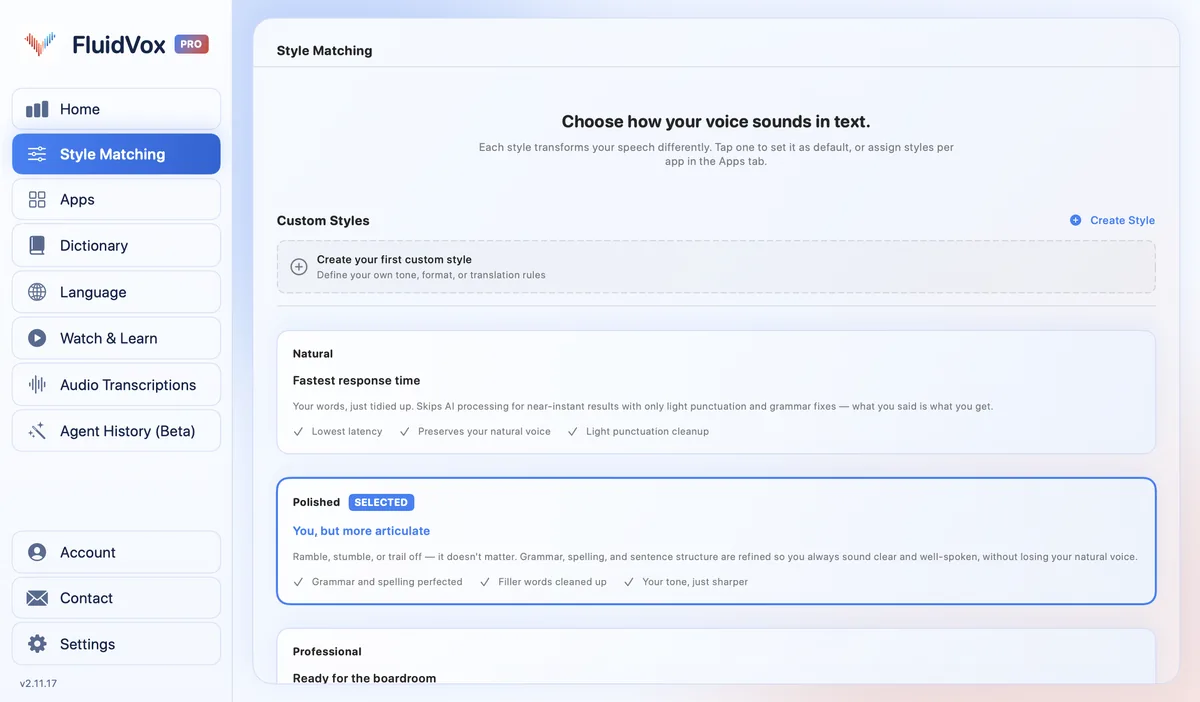
FluidVox for iPhone works as a keyboard, so it types into the same text fields as Dictation, in any app. Instead of saying "comma" and "period", you talk the way you'd talk to a friend, and on Pro the text comes back punctuated and cleaned up.
- Get FluidVox from the App Store and open it once.
- Go to Settings > General > Keyboard > Keyboards, tap Add New Keyboard… and choose FluidVox.
- Tap FluidVox in the list and turn on Allow Full Access. The keyboard needs it to talk to the FluidVox app, which records and processes your voice.
- In any text field, touch and hold the globe key and choose FluidVox.
- Tap Start VOX on the FluidVox keyboard. FluidVox opens to start a session and keeps running in the background; go back to your app, then tap the mic and speak.
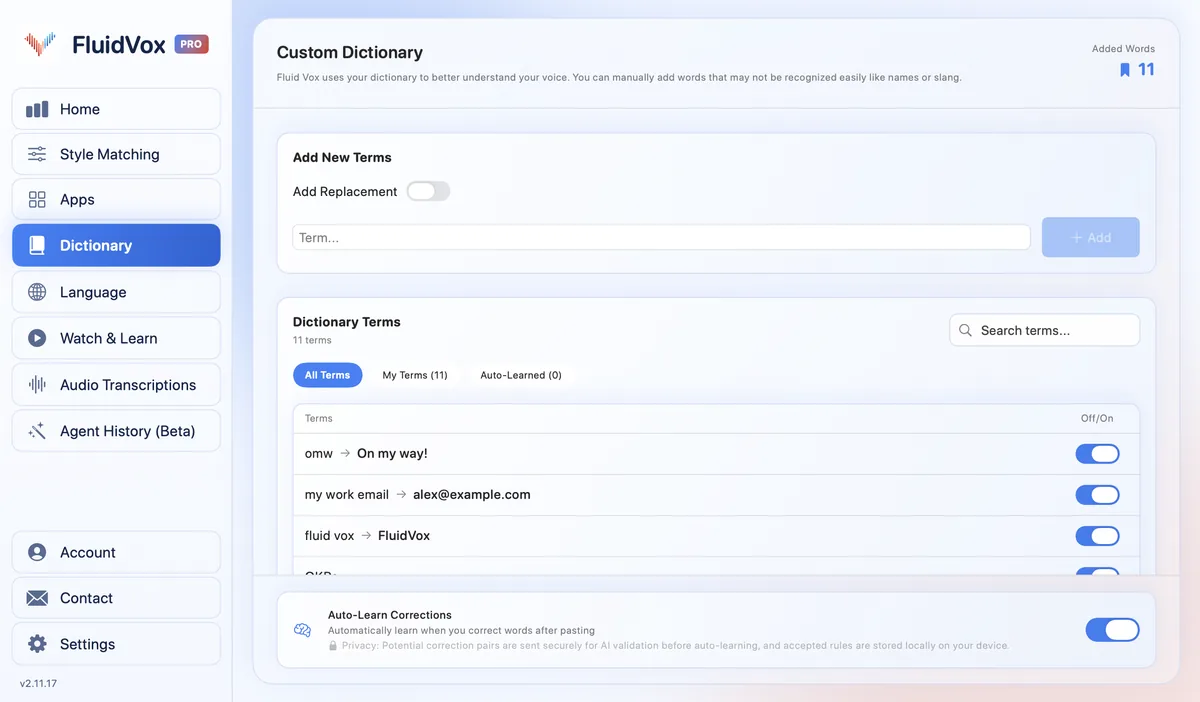
Add names, brands and terms under Custom Words, and set up Replacements for words it keeps getting wrong, so you don't have to spell them out letter by letter. Pick a style for how your text should read, or Natural to skip the AI clean-up.
On privacy: with Pro, your audio is sent to a speech service to be turned into text, and the text to an AI model for clean-up. Those providers keep it for up to 55 days for abuse monitoring only, never for model training. With Lifetime, transcription runs on your iPhone instead, in languages your iPhone can transcribe on-device, and AI clean-up, if you use it, goes through your own Google Gemini API key. Either way, FluidVox keeps no recordings and can't see your transcript history.
FluidVox for iPhone has its own App Store plans, separate from the Mac and Windows apps. The 14-day free trial is for FluidVox on Mac and Windows.
Which should you use
If you dictate a text or two at a time, Apple's commands are free and worth learning. Leave Auto-Punctuation on, and keep "new paragraph", "exclamation point" and "cap" in your head for the rest. On an iPhone 12 or later in U.S. English, "change … to …" and "delete" save you a lot of tapping.
If you dictate long emails and notes and find yourself speaking punctuation more than words, or spelling out the same names, the FluidVox keyboard gives you cleaner text in the same apps. You can keep both keyboards and switch with the globe key.
FAQ
What are the dictation commands on iPhone?
They're words you say while dictating to get punctuation, formatting and emoji instead of the word itself: "period", "comma", "question mark", "new line", "new paragraph", "cap", "all caps", "no space" and an emoji's name followed by "emoji". In U.S. English on iPhone 12 and later, except iPhone SE, there are also editing commands such as "change … to …", "select", "delete", "undo" and "redo".
How do I add punctuation when dictating on iPhone?
Say the mark's name, such as "comma", "period", "question mark" or "exclamation point". In supported languages, Auto-Punctuation also adds commas, periods and question marks for you; you can turn it off in Settings > General > Keyboard.
How do I start a new paragraph with iPhone dictation?
Say "new paragraph". Say "new line" to start a new line without a blank line between.
How do I delete a word with iPhone dictation?
Say "delete" followed by the word or phrase, or "delete all" to remove all the text. The editing commands work in U.S. English on iPhone 12 and later, except iPhone SE. On other models or languages, tap to fix the word, or use Voice Control if it's available in your language.
Why don't the editing commands work on my iPhone?
Apple's editing commands, such as "change … to …", "select", "delete" and "undo", work only in U.S. English on iPhone 12 and later, and not on iPhone SE. Check that your keyboard language is English (US) and that your iPhone is a supported model.
How do I capitalize a word with iPhone dictation?
Say "cap" before a word to capitalize it, or "all caps" to write it in capitals. "Caps on" and "caps off" capitalize the first letter of every word in between, and "all caps on" and "all caps off" write everything in between in capitals.
Can you add emoji with iPhone dictation?
Yes, in some languages. Say the emoji's name followed by "emoji", such as "heart emoji" or "smiley emoji".
Sources
- Apple Support, Commands for dictating text on iPhone, checked 15 November 2026.
- Apple Support, Dictate text on iPhone, checked 15 November 2026.
- Apple Support, Use Voice Control to interact with iPhone, checked 15 November 2026.
Hold one key, speak, and clean text appears in whatever app you're using. Your transcript history stays on your computer.
Download FluidVox 14-day free trial, no credit card.