
Guide
Mac Dictation Commands: Punctuation, New Lines and Editing
Hold one key, speak, and clean text appears in whatever app you're using. Your transcript history stays on your computer.
Download FluidVox 14-day free trial, no credit card.
On this page
- How Dictation commands work
- Punctuation commands
- Formatting: lines, spacing and numbers
- Capital letters
- Symbols, math, currency and faces
- Editing by voice
- Where the commands fall short
- Dictation commands and FluidVox compared
- Punctuation without saying it, with FluidVox
- Which should you use
- FAQ
- Sources
Apple's Dictation on the Mac listens for two things at once: the words you want typed, and a set of spoken commands that turn into punctuation, line breaks, capitals and symbols. Apple says the commands are always available while you dictate. You don't have to switch modes or press anything: say "comma" and you get a comma. Below is Apple's list, grouped by what you'll use most, and what to do when you want to change text you've already dictated. If Dictation isn't set up yet, start with our guide to turning on voice to text on a Mac, and if Dictation won't start or keeps stopping, our Mac dictation troubleshooting steps go symptom by symptom. If you're weighing other Mac apps, here's FluidVox as an alternative to Apple Dictation.
How Dictation commands work
- Turn on Dictation once: choose Apple menu > System Settings, click Keyboard in the sidebar, then turn on Dictation and click Enable if asked.
- Click where you want the text, then press the Microphone key, your Dictation keyboard shortcut, or choose Edit > Start Dictation.
- When the cursor is highlighted and pulsing, speak. Say a command at the point in the sentence where you want its result, as if you were reading the text aloud with its punctuation.
- Press Escape, the Microphone key or your shortcut to stop. Dictation also stops by itself after 30 seconds without speech.
In supported languages, Dictation adds commas, periods and question marks for you as you speak. If you'd rather say every mark yourself, turn off Auto-punctuation under Dictation in Keyboard settings. The commands work either way, so you can leave auto-punctuation on and still say "exclamation mark" or "colon" when you want one.
Punctuation commands
| Say | To get |
|---|---|
| "period", "point", "dot" or "full stop" | . |
| "comma" | , |
| "question mark" | ? |
| "exclamation mark" | ! |
| "colon", "semicolon" | : ; |
| "dash", "hyphen" | – - |
| "ellipsis" | … |
| "apostrophe" | ' |
| "quote" … "end quote" | Double quotation marks around what you say in between |
| "begin single quote" … "end single quote" | Single quotation marks |
| "open parenthesis" … "close parenthesis" | ( ) |
| "open square bracket" … "close square bracket" | [ ] |
| "open brace" … "close brace" | { } |
Apple's list also has "open angle bracket" and "close angle bracket". Say the opening and closing commands around the words you want inside the marks.
Formatting: lines, spacing and numbers
| Say | What it does |
|---|---|
| "new line" | Starts a new line, like pressing Return once |
| "new paragraph" | Starts a new paragraph, like pressing Return twice |
| "tab key" | Moves the cursor to the next tab stop |
| "numeral" | Formats the next phrase as a number |
| "roman numeral" | Formats the next phrase as a Roman numeral |
| "no space on" … "no space off" | Writes the next phrase without spaces, then goes back to normal spacing |
The line break doesn't appear the moment you say it: Apple says new lines and new paragraphs appear when you're done dictating, so keep talking.
Capital letters
| Say | What it does |
|---|---|
| "caps on" … "caps off" | Writes what you say in between in Title Case, then goes back to normal |
| "all caps" | Writes the next word in capitals |
| "all caps on" … "all caps off" | Writes everything in between in capitals |
Symbols, math, currency and faces
- Typography: "ampersand" (&), "asterisk" (*), "at sign" (@), "backslash", "forward slash" (/), "caret" (^), "center dot", "large center dot", "degree sign" (°), "hashtag" or "pound sign" (#), "percent sign" (%), "underscore" (_) and "vertical bar" (|).
- Math: "equal sign", "greater than sign", "less than sign", "minus sign", "multiplication sign" and "plus sign".
- Currency: "dollar sign", "cent sign", "pound sterling sign", "euro sign" and "yen sign".
- Faces: "smiley face" types :-), "frowny face" :-(, "winky face" ;-) and "cross-eyed laughing face" XD.
- Legal marks: "copyright sign", "registered sign" and "trademark sign".
- Emoji: in some languages, say an emoji's name, such as "heart emoji".
Editing by voice
Apple's list of Dictation commands has no command to delete, select or replace text. When you need to fix something, you have three options:
- Use the keyboard while you talk. On a Mac with Apple silicon, you can type without stopping Dictation, so fix a word and keep speaking.
- Pick from Dictation's guesses. A word underlined in blue is one Dictation wasn't sure about. Click it and choose an alternative, or type the right word.
- Switch to Voice Control. Voice Control, under System Settings > Accessibility > Voice Control, is the Mac feature for dictating and editing text by voice. Say "Replace cat with dog" to swap words, or say "Show numbers" and then "Delete" with a number to remove that piece of text. "Show commands" lists what you can say in the app you're in, and Commands in Voice Control settings has the full list.
Voice Control is a different tool, not an add-on: Apple says that while Voice Control is on, standard Dictation isn't available, and Voice Control does the dictating instead. It's built for controlling your whole Mac by voice, so it treats what you say as commands or text until you say "Stop listening". That suits people who use their Mac hands-free more than people who want to dictate an email.
Where the commands fall short
For a short message, a few spoken commas are no trouble. If you dictate a lot, this is where the commands start to get in the way:
- You speak in punctuation. Saying "comma" and "new paragraph" in the middle of a thought breaks your flow, and auto-punctuation only adds commas, periods and question marks.
- Line breaks show up late. New lines and paragraphs appear when you finish dictating, so you can't check the layout as you go.
- No editing by voice. Fixing a word means the keyboard, or switching Dictation off for Voice Control.
- It stops when you pause. After 30 seconds without speech, Dictation ends, and you start it again.
- No list of your own words. Dictation's Keyboard settings have no place for names or jargon, so you fix the same words every time.
- Clean-up is limited. In macOS 27, Apple Intelligence improves spelling, punctuation and capitalization, but only in English, on Macs with M3 or later and at least 12GB of memory.
Dictation commands and FluidVox compared
| Apple Dictation | FluidVox | |
|---|---|---|
| Punctuation | Say each mark; auto-punctuation adds commas, periods and question marks in supported languages | On Pro, fixes grammar, spelling and punctuation for you |
| Filler words | Apple's Dictation help doesn't describe removing them | On Pro, removed |
| Pauses | Stops after 30 seconds without speech | Records for as long as you hold the key |
| Your own words | No word list in Dictation's settings | Personal dictionary that also learns your corrections |
| Tone per app | The same everywhere | On Pro, a style per app, such as casual in Slack and professional in Outlook |
| Price | Free, built into macOS | Pro, with AI clean-up and styles: $10 a month. Local, which transcribes on your Mac: $2.99 a month or $39 once. Both start with a 14-day free trial |
| Computers | Mac only | Mac and Windows, plus an iPhone app with its own plans |
Punctuation without saying it, with FluidVox
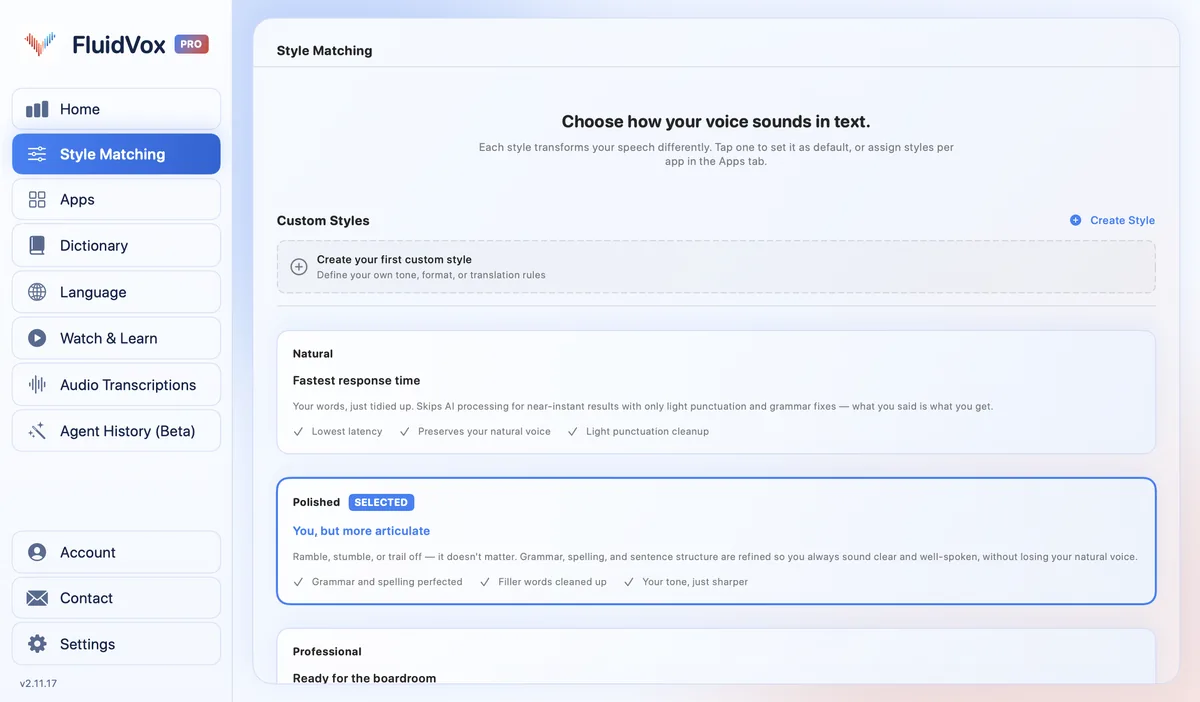
FluidVox sits in the menu bar and types into whichever app has your cursor: Mail, Notes, Pages, Slack or your browser. Instead of dictating "comma" and "period", you talk the way you'd talk to a colleague, and on Pro the text comes back punctuated and cleaned up.
- Download FluidVox and start the 14-day free trial. No credit card is needed.
- The first time you open it, allow Microphone, Accessibility and Input Monitoring. FluidVox needs them to hear you, type into other apps and notice your key.
- Click where you want the text, hold Fn, speak, and let go. Clean text appears at your cursor. For longer pieces, press Fn and Space together for hands-free mode.
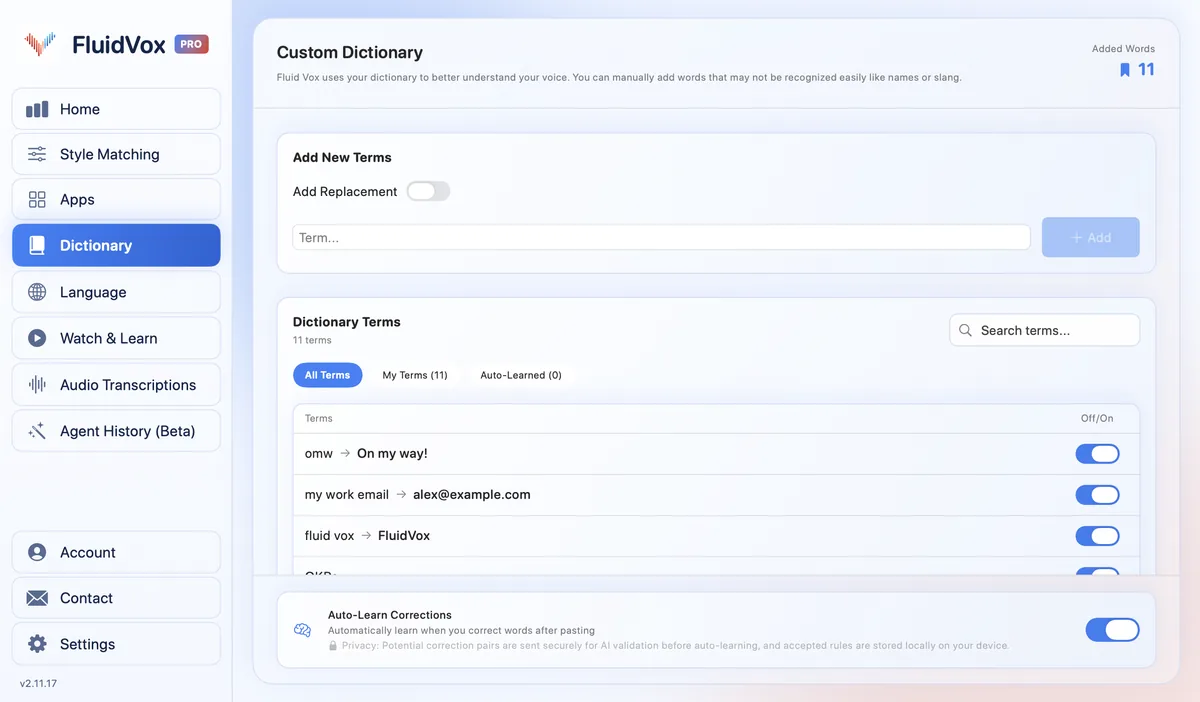
- On Pro, FluidVox removes filler words and fixes grammar, spelling and punctuation. Add names and terms you use to the Dictionary, and choose a style for each app under Apps.
On privacy: cloud transcription sends your audio to a speech service to turn it into text, and in local mode transcription runs on your Mac, so your recordings don't leave it. Either way, your transcript history stays on your computer.
Which should you use
If you dictate a sentence or two at a time, Apple's commands are free and worth learning. Leave auto-punctuation on, and keep "new paragraph", "exclamation mark" and "caps on" in your head for the rest. If you also dictate on an iPhone, it has its own list of commands: here's how to use talk to text on an iPhone.
If you dictate long emails or documents and find yourself speaking punctuation more than words, or stopping to fix the same names, FluidVox is built for that. Try it free for 14 days; Apple's Dictation stays on your Mac either way.
FAQ
What are the dictation commands on a Mac?
They're words you say while dictating to get punctuation, layout and symbols instead of the word itself: "comma", "period", "question mark", "new line", "new paragraph", "caps on", "all caps", "smiley face" and dozens more. Apple lists them all in "Commands for dictating text on Mac" in the Mac User Guide.
How do I start a new paragraph with dictation on a Mac?
Say "new paragraph". It's like pressing Return twice, and "new line" is like pressing it once. Both appear when you finish dictating, not the moment you say them.
How do I capitalize a word with Mac dictation?
Say "all caps" before a word to write it in capitals, or "all caps on" and "all caps off" around several words. "Caps on" and "caps off" write the words in between in Title Case.
Can you delete words with Mac dictation?
Not with a spoken command: Apple's Dictation commands don't include delete, select or replace. Fix the word with the keyboard (you can type while dictating on Apple silicon), or turn on Voice Control, which takes commands like "Replace cat with dog". While Voice Control is on, standard Dictation isn't available.
Where can I see every Mac dictation command?
Apple lists them in "Commands for dictating text on Mac" in the Mac User Guide, grouped into punctuation, typography, formatting, capitalization, math, currency, emoticons and intellectual property. For Voice Control, say "Show commands", or open Commands in Voice Control settings.
Sources
- Apple Support, Commands for dictating text on Mac, checked 4 November 2026.
- Apple Support, Dictate messages and documents on Mac, checked 4 November 2026.
- Apple Support, Use Voice Control commands to interact with your Mac, checked 4 November 2026.
Hold one key, speak, and clean text appears in whatever app you're using. Your transcript history stays on your computer.
Download FluidVox 14-day free trial, no credit card.