
Guide
Mac Dictation Shortcut: How to Set, Change and Use It
Hold one key, speak, and clean text appears in whatever app you're using. Your transcript history stays on your computer.
Download FluidVox 14-day free trial, no credit card.
On this page
- The default shortcut: the Microphone key
- How to change the Mac dictation shortcut
- Other ways to start Dictation
- Where the shortcut falls short
- The shortcut and FluidVox compared
- One key you hold, with FluidVox
- Which should you use
- FAQ
- Sources
Dictation is built into macOS, and the quickest way to start it is a single key. If your keyboard has a key with a microphone on it, that's the one. Below is how that key works, how to pick a different shortcut in Keyboard settings, and what to do when your keyboard has no Microphone key. If Dictation isn't set up at all yet, start with our guide to setting up voice to text on your Mac. Once it's running, learn the spoken commands for punctuation and new lines. And if you'd rather hold one key while you talk, FluidVox is an Apple Dictation alternative built around exactly that.
The default shortcut: the Microphone key
Apple's function-key guide pictures a MacBook Air keyboard where Dictation, marked with a microphone, is F5. Here's how to use it:
- Turn Dictation on once: choose Apple menu > System Settings, click Keyboard in the sidebar, go to Dictation and turn it on, then click Enable.
- Click where you want the text, in any app.
- Press and release the Microphone key. A quick press, not a hold: Apple says pressing and holding the key activates Siri instead, if Siri is turned on.
- When the cursor is highlighted and pulsing, or you hear the tone, speak.
- To stop, press the Microphone key again, Escape, or your Dictation shortcut. Dictation also stops by itself when it hears no speech for 30 seconds.
In supported languages, Dictation adds commas, periods and question marks for you as you speak.
How to change the Mac dictation shortcut
If your keyboard has no Microphone key, or you'd rather use another one, choose your own shortcut:
- Choose Apple menu > System Settings, then click Keyboard in the sidebar. You may need to scroll down.
- Go to Dictation. Turn it on if it's off.
- Click the Shortcut pop-up menu and choose a shortcut, such as Press Fn (Function) Key Twice.
- For a shortcut that isn't in the list, choose Customize, then press the keys you want to use, such as Option-Z.
One side effect to know about: depending on your Mac, choosing a Dictation shortcut can change the "Press fn key to" (or "Press Globe key to") setting in Keyboard settings. Apple's example: pick Press Fn (Function) Key Twice, and that setting changes to Start Dictation (Press Fn Twice) automatically.
Other ways to start Dictation
- From the menu bar. In the app you're typing in, choose Edit > Start Dictation. It works without any key at all.
- When the Microphone key does something else. If the key acts as a plain function key (F5 on a MacBook Air) instead of starting Dictation, check System Settings > Keyboard > Keyboard Shortcuts > Function Keys. With Use F1, F2, etc. keys as standard function keys turned on, the top row works as standard function keys. Turn it off, or set a Dictation shortcut as above.
- On a keyboard without a Microphone key. Not every keyboard has one; Apple's own steps say to press it "if available". Without one, a shortcut from the Shortcut menu is the quickest way in.
Where the shortcut falls short
For a quick reply, one press is all you need. If you dictate a lot, these are the parts that get in the way:
- It's a switch, not a key you hold. You press once to start and once to stop. Apple's Dictation help describes only a shortcut that starts and stops it, not a key that listens while you hold it.
- Hold it and you may get Siri. If Siri is on, keep the Microphone key down a beat too long and Siri answers instead of Dictation.
- A pause can end it. Stop to think for 30 seconds, and Dictation switches itself off. You press the key again to carry on.
- Fn twice can take over the Fn key's own setting. On some Macs, choosing Press Fn (Function) Key Twice also switches the "Press fn key to" setting to Start Dictation.
- You still say the layout. Auto-punctuation adds commas, periods and question marks, but new lines and new paragraphs are spoken commands.
- Clean-up is limited. In macOS 27, Apple Intelligence improves spelling, punctuation and capitalization, but only in English, on Macs with M3 or later and at least 12GB of memory.
The shortcut and FluidVox compared
| Apple Dictation | FluidVox | |
|---|---|---|
| How you start and stop | Press the Microphone key or your shortcut to start, and again to stop | Hold the key while you talk, let go when you're done |
| Which key | The Microphone key, a preset from the Shortcut menu, or a combination you record | Fn by default; Control, Option, Command, a key combination of your own or a mouse button |
| Pauses | Stops after 30 seconds without speech | Records for as long as you hold the key |
| Punctuation | Auto-punctuation adds commas, periods and question marks in supported languages; you say the rest | On Pro, fixes grammar, spelling and punctuation for you |
| Your own words | No word list in Dictation's settings | Personal dictionary that also learns your corrections |
| Tone per app | The same everywhere | On Pro, a style per app, such as casual in Slack and professional in Outlook |
| Price | Free, built into macOS | Pro, with AI clean-up and styles: $10 a month. Local, which transcribes on your Mac: $2.99 a month or $39 once. Both start with a 14-day free trial |
| Computers | Mac only | Mac and Windows, plus an iPhone app with its own plans |
One key you hold, with FluidVox
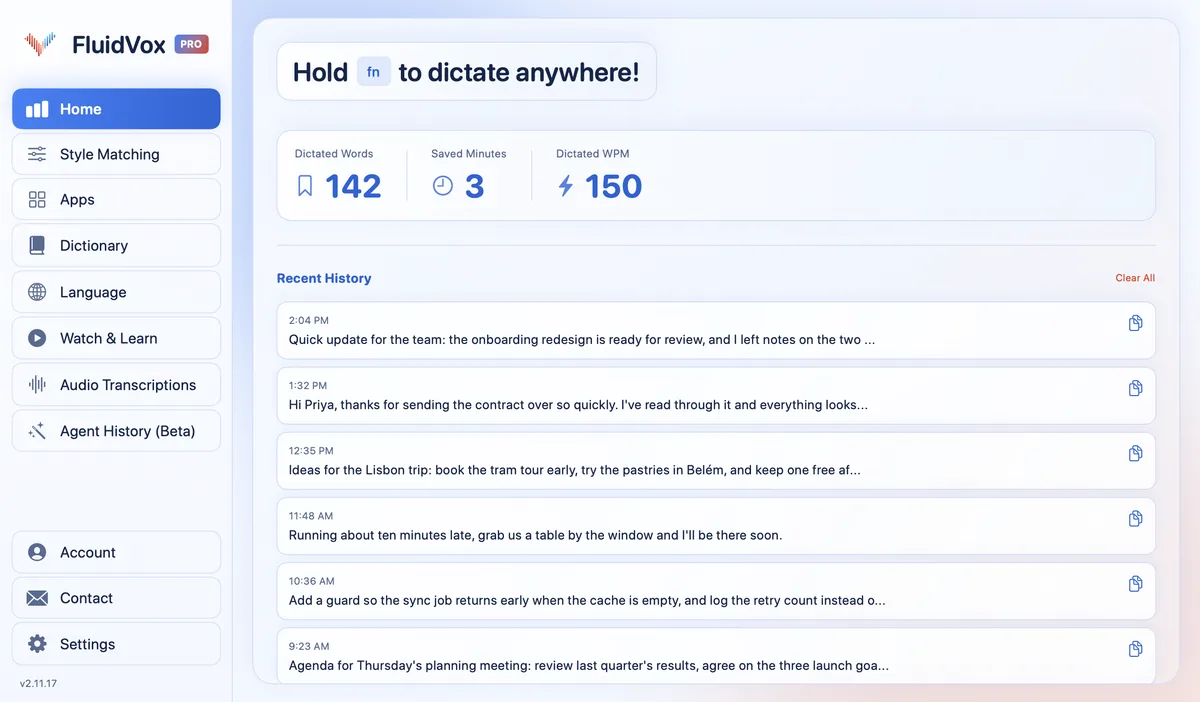
FluidVox sits in the menu bar and types into whichever app has your cursor. Instead of a shortcut that switches Dictation on and off, you hold one key for as long as you're talking, and the text arrives when you let go.
- Download FluidVox and start the 14-day free trial. No credit card is needed.
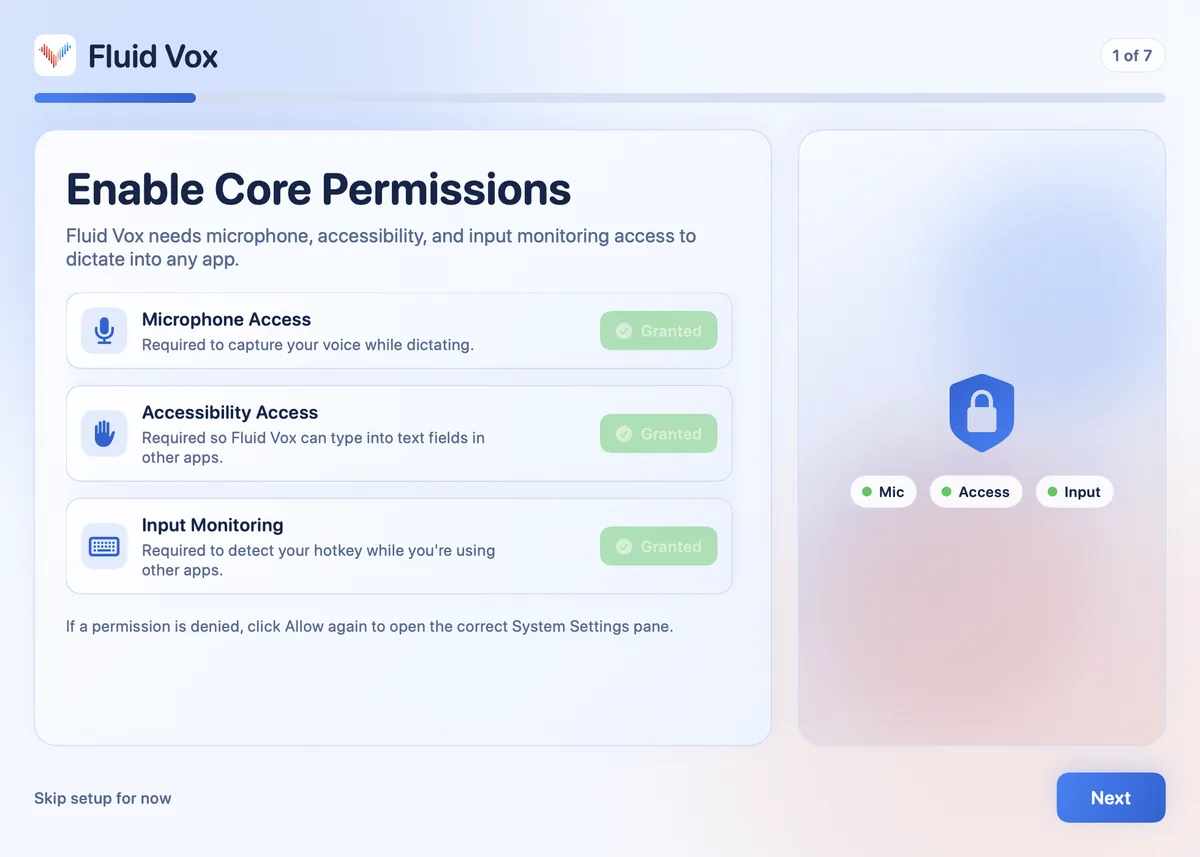
- The first time you open it, allow Microphone, Accessibility and Input Monitoring. FluidVox needs them to hear you, type into other apps and notice your key.
- Click where you want the words, hold Fn, and speak. Let go, and the text lands at your cursor. A pause to think doesn't end anything, because FluidVox listens until you let go.
- To use another key, open Settings and pick a different Recording Trigger: Control, Option, Command, a key combination you record, or a mouse button. For long pieces there's hands-free mode: with Fn, Control, Option or Command, press the key together with Space; with a custom key or a mouse button, tap it.
- On Pro, FluidVox removes filler words and fixes grammar, spelling and punctuation, and you can choose a style for each app under Apps.
On privacy: cloud transcription sends your audio to a speech service to turn it into text, and in local mode transcription runs on your Mac, so your recordings don't leave it. Either way, your transcript history stays on your computer.
Which should you use
If you dictate a line or two at a time, the Microphone key is free and already on your keyboard: press it once, talk, and press it again. On a keyboard without one, Press Fn (Function) Key Twice is an easy shortcut to remember. If Dictation won't start at all, our fixes for Mac dictation that won't start go symptom by symptom.
If you dictate longer emails and documents, and you keep losing Dictation to a pause or to Siri, a key you hold suits the way you talk better. FluidVox gives you that in every app. Try it free for 14 days; Apple's Dictation stays on your Mac either way.
FAQ
What is the shortcut for dictation on a Mac?
The Microphone key in the top row of the keyboard, if yours has one: press and release it to start Dictation. You can also set your own under System Settings > Keyboard > Dictation > Shortcut, or choose Edit > Start Dictation in the app you're using.
How do I change the dictation shortcut on my Mac?
Choose Apple menu > System Settings, click Keyboard, go to Dictation, and click the Shortcut pop-up menu. Choose one, such as Press Fn (Function) Key Twice, or choose Customize and press the keys you want, such as Option-Z.
Why does the Microphone key open Siri?
Because you held it. Apple's Microphone key starts Dictation when you press and release it, and activates Siri when you press and hold it, if Siri is turned on. Give it a quick tap instead.
Can Mac dictation listen only while I hold a key?
Apple's Dictation help describes only a shortcut that starts and stops Dictation, and holding the Microphone key can start Siri if it's on. An app like FluidVox works that way: hold Fn, speak, and let go.
How do I start dictation on a Mac without a shortcut key?
Choose Edit > Start Dictation in the app you're typing in. To stop, press Escape, or wait: Dictation stops on its own after 30 seconds without speech.
Why does my Microphone key act as F5 instead?
Your top row is probably set to work as standard function keys. Check System Settings > Keyboard > Keyboard Shortcuts > Function Keys and turn off Use F1, F2, etc. keys as standard function keys, or set a Dictation shortcut instead.
Sources
- Apple Support, Dictate messages and documents on Mac, checked 6 November 2026.
- Apple Support, How to use the function keys on your Mac, checked 6 November 2026.
Hold one key, speak, and clean text appears in whatever app you're using. Your transcript history stays on your computer.
Download FluidVox 14-day free trial, no credit card.