
Guide
Dictation vs Transcription: What's the Difference?
Hold one key, speak, and clean text appears in whatever app you're using. Your transcript history stays on your computer.
Download FluidVox 14-day free trial, no credit card.
On this page
- What dictation is
- What transcription is
- The difference at a glance
- Where the two words come from
- Dictation built into your computer
- Transcription built into Word
- Where the built-in tools fall short
- Built-in tools and FluidVox compared
- Dictation and transcription with FluidVox
- Which should you use
- FAQ
- Sources
What dictation is
Dictation is speaking the words you want written. You're the author: you say a sentence, and it appears as text, in an email, a document, a chat box or a note. You can say punctuation ("comma", "question mark", "new line"), or let the software add it, and you fix things as you go. The result is something you wrote, just without typing it.
Every modern computer can do it. A Mac has Dictation, Windows has voice typing (Windows + H), and Word has its own Dictate button. Voice typing is the newer name for the same idea; if the two terms confuse you, here's how voice typing and dictation compare.
What transcription is
Transcription is turning speech that was recorded into a written record: an interview, a lecture, a meeting, a podcast, a voice note. The people on the recording weren't writing anything. They were talking, and the transcript records what they said, often with who said it and when.
A transcript can keep every "um", repeat and false start, which matters when the exact words count, as in research interviews or legal records. Or it can be tidied into readable sentences, which is what most people want from a lecture or a team call. Either way, it starts from audio, not from you sitting down to write. For the options that turn a file into text, see our guide to transcribing audio to text in any app.
The difference at a glance
| Dictation | Transcription | |
|---|---|---|
| Starts from | You, speaking now | A recording, made earlier or being made |
| Who speaks | Usually one person, the author | Anyone on the recording, often several people |
| When text appears | As you speak | After the recording is processed |
| Where it goes | Wherever your cursor is | A transcript you read, edit and copy from |
| What it's for | Writing: emails, documents, messages, notes | Keeping a record: interviews, lectures, meetings |
| Built-in tools | Mac Dictation, Windows voice typing, Word's Dictate | Word's Transcribe |
Where the two words come from
In medicine and law, dictation and transcription used to be two halves of one job. A doctor or a lawyer dictated a letter, a report or a set of notes into a recorder, and a transcriptionist typed it up later. That's why a search for dictation vs transcription still turns up so many medical and legal pages.
Speech recognition changed the order. Software can now type while you talk, so dictation no longer needs a second person to become text, and the same kind of software can transcribe a recording on its own. The words stayed, but today they describe two ways of working: writing by voice, and turning audio you already have into text.
Dictation built into your computer
You can try dictation today without installing anything.
On a Mac:
- Choose Apple menu > System Settings, then click Keyboard in the sidebar. You may need to scroll down.
- Go to Dictation and turn it on. If you're asked, click Enable.
- In any app, click where you want the text to go.
- Press the Microphone key if your keyboard has one, use your Dictation keyboard shortcut, or choose Edit > Start Dictation.
- Speak. Say "comma" or "question mark" for punctuation, and "new line" or "new paragraph" to break the text.
- To stop, press Esc, the Microphone key or your shortcut. Dictation also stops after 30 seconds without speech.
The first time, our step-by-step Mac dictation setup covers languages and the microphone.
On Windows:
- Click in a text box. Voice typing needs an internet connection and a working microphone.
- Press the Windows logo key + H and wait for the "Listening..." alert.
- Speak, and your words appear at the cursor.
- To stop, say "Stop listening" or press the microphone button on the voice typing menu.
There's more on settings and commands in our Windows voice typing guide.
Transcription built into Word
Word is the clearest place to see the two side by side, because it has both. Home > Dictate is dictation: Microsoft's help says you "start speaking to see text appear on the screen." Home > Dictate > Transcribe is transcription, and Microsoft spells out the difference: "Word transcribes in the background as you record; you won't see text on the page as you would when dictating."
- Open Word for the web in Microsoft Edge or Chrome, signed in to Microsoft 365. (Microsoft says that in the Word app on Windows, Transcribe is only available to commercial Microsoft 365 tenants.)
- Go to Home > Dictate dropdown > Transcribe.
- In the Transcribe pane, select Start recording to record now, or Upload audio to choose a .wav, .mp4, .m4a or .mp3 file.
- When you've finished recording, select Save and transcribe now. Keep the pane open while it works.
- Word separates the speakers as "Speaker 1", "Speaker 2" and so on. To rename one or fix a line, hover over a section and select Edit transcript section.
- Select Add all to document, or add one section at a time with Add section to document.
Microsoft 365 subscribers can transcribe up to 300 minutes of uploaded audio a month. Transcribe needs an internet connection, and your recordings are saved in a Transcribed Files folder in OneDrive. If you only want Word's live typing, our guide to dictating in Word covers the Dictate button.
Where the built-in tools fall short
The free tools cover both jobs, but not in one place, and not everywhere:
- Two jobs, two tools. Mac Dictation and Windows voice typing type what you say, but neither turns a recording into text. Word's Transcribe handles recordings, but only in Word or OneNote with Microsoft 365, and it needs the internet.
- Mac Dictation stops after 30 seconds of silence. There's no time limit while you talk, but a long pause to think switches it off, and you start it again.
- Windows voice typing needs the internet. It uses online speech recognition, so without a connection it doesn't type. On Copilot+ PCs, Microsoft adds Fluid dictation, which fixes grammar, punctuation and filler words on the PC, in English.
- Transcription has a monthly cap. Word's Transcribe takes 300 minutes of uploaded audio a month on a Microsoft 365 subscription, and it needs the internet too.
- The same text everywhere. None of them changes the tone for where the words are going, so a Slack reply and a client email come out alike.
Built-in tools and FluidVox compared
| Mac Dictation and Windows voice typing | Word's Transcribe | FluidVox | |
|---|---|---|---|
| Job | Dictation | Transcription | Dictation, plus transcription of audio files |
| Where the text goes | Wherever your cursor is | The Transcribe pane, then into your Word document | Wherever your cursor is; file transcripts stay in the app |
| Internet | Windows: needed. Mac: Keyboard settings show whether it's processed on your Mac | Needed | Not needed with a local model, which transcribes on your computer |
| Recordings | No | Up to 300 minutes of uploads a month | Cloud: 60 minutes a month on Pro, 300 on Pro+. Local: on your computer with a downloaded model |
| Price | Free, part of macOS and Windows | Included with Microsoft 365 | 14-day free trial, then Local from $2.99 a month or $39 once, Pro at $10 a month, or Pro+ at $29 a month |
| Works on | Mac or Windows | Word | Any app on Mac and Windows |
Dictation and transcription with FluidVox
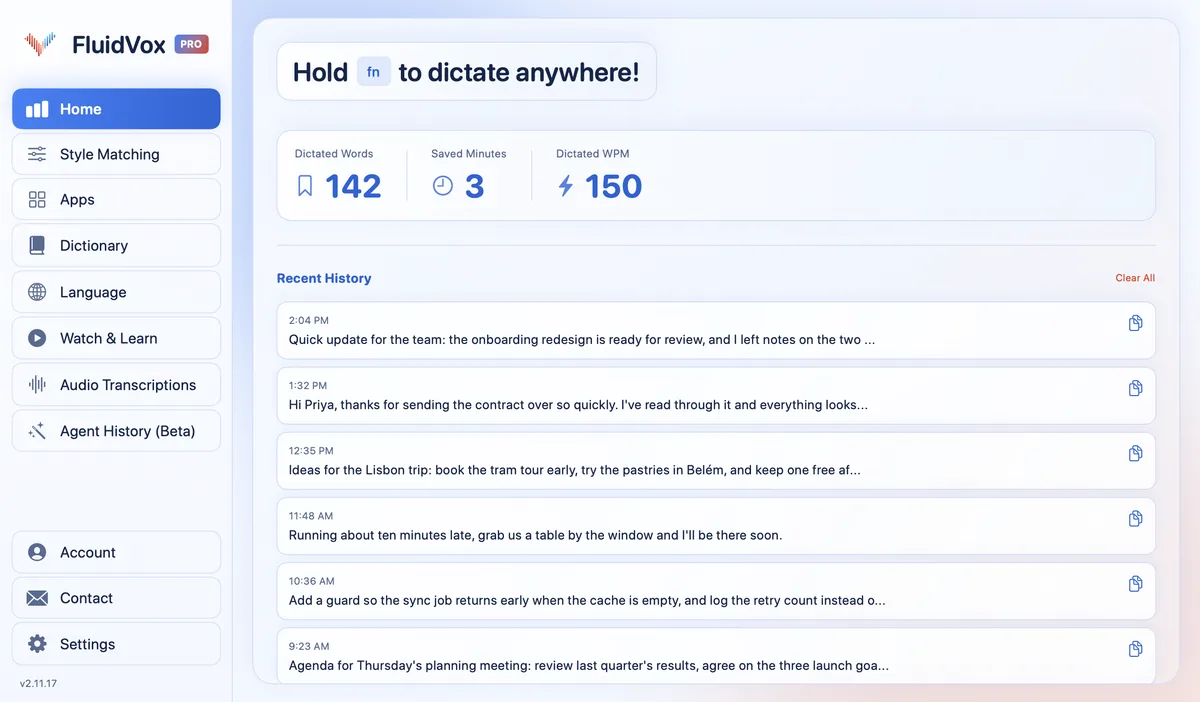
FluidVox is a dictation app first: it types into whatever app has your cursor. It can also turn a recording you already have into text, so one app covers both jobs.
To dictate:
- Download FluidVox and start the 14-day free trial. No credit card is needed.
- On a Mac, allow Microphone, Accessibility and Input Monitoring when setup asks. On Windows, check your dictation hotkey in FluidVox's settings.
- Click where the text should go, in any app. Hold your hotkey (Fn on a Mac), speak, and let go. The text lands at your cursor.
- On Pro, filler words and false starts come out and the punctuation is fixed, and you can give each app its own style under Apps.
To transcribe a recording:
- Open Audio Transcriptions and add the audio or video file, such as a lecture or an interview.
- Choose Cloud or Local. Pro includes 60 minutes of file transcription a month and Pro+ 300, and with a downloaded local model, files are transcribed on your computer. On Pro, you can also turn the transcript into AI-generated notes.
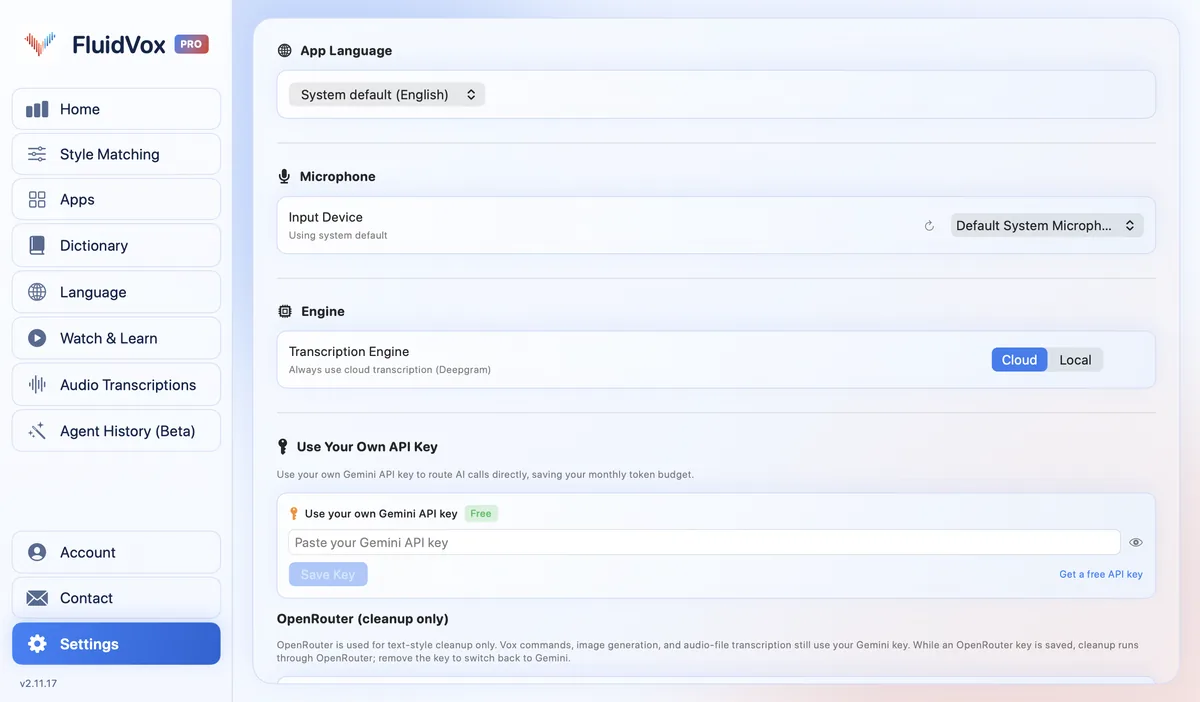
FluidVox isn't built to take live notes of a meeting for a whole team; for that, a meeting note taker fits better. On privacy: cloud transcription sends your audio to a speech service to turn it into text, and local transcription runs on your computer instead. Either way, your transcript history stays on your computer. If transcribing files is most of what you do, here's how FluidVox compares as a MacWhisper alternative.
Which should you use
If you're writing, you want dictation. For a quick message or a paragraph now and then, the dictation already on your Mac or PC is free and good enough. If you write by voice every day, across email, chat and documents, or want it to work offline, a dictation app like FluidVox saves you the clean-up and the starting over.
If you have a recording, you want transcription. With a Microsoft 365 subscription, Word's Transcribe is already paid for and labels each speaker, which suits interviews and meetings. If you'd rather transcribe recordings on your computer with a local model, or you dictate as well, FluidVox does both in one app. Try it for 14 days on your own recordings and your own writing.
FAQ
What is the difference between dictation and transcription?
Dictation turns your voice into text as you speak, so you can write emails, documents and notes by talking. Transcription turns a recording, such as an interview, a lecture or a meeting, into a written record after it's made, often with each speaker labeled.
Is dictation the same as speech to text?
Dictation is one use of speech to text: you speak, and the words are typed as you go. Transcription is another use of the same technology, applied to a recording instead of live speech. Voice typing is a newer name for dictation.
What is medical dictation vs medical transcription?
In medicine, dictation is a clinician speaking notes, letters or reports, and transcription is turning that recording into a typed document. For years a medical transcriptionist did the second step; speech recognition now lets many clinicians dictate straight into text.
Is a transcript word for word?
It can be. A word-for-word transcript keeps every "um", repeat and false start, which matters in research or legal work. Many transcripts are tidied into readable sentences instead. Dictation tools aim for clean, finished text from the start.
Can dictation software transcribe a recording?
Built-in dictation can't: Mac Dictation and Windows voice typing listen to the microphone, not to files. Word's Transcribe takes uploaded audio files, and FluidVox transcribes audio and video files under Audio Transcriptions as well as dictating into any app.
Does Word have both dictation and transcription?
Yes. Home > Dictate types as you speak, and Home > Dictate > Transcribe turns a recording or an uploaded audio file into a transcript with each speaker separated. Both need a Microsoft 365 subscription and an internet connection.
Sources
- Apple Support, Dictate messages and documents on Mac, checked 20 November 2026.
- Microsoft Support, Use voice typing to talk instead of type on your PC, checked 20 November 2026.
- Microsoft Support, Dictate your documents, checked 20 November 2026.
- Microsoft Support, Transcribe your recordings, checked 20 November 2026.
Hold one key, speak, and clean text appears in whatever app you're using. Your transcript history stays on your computer.
Download FluidVox 14-day free trial, no credit card.