
Guide
How to Type Faster on iPhone (and When to Just Talk)
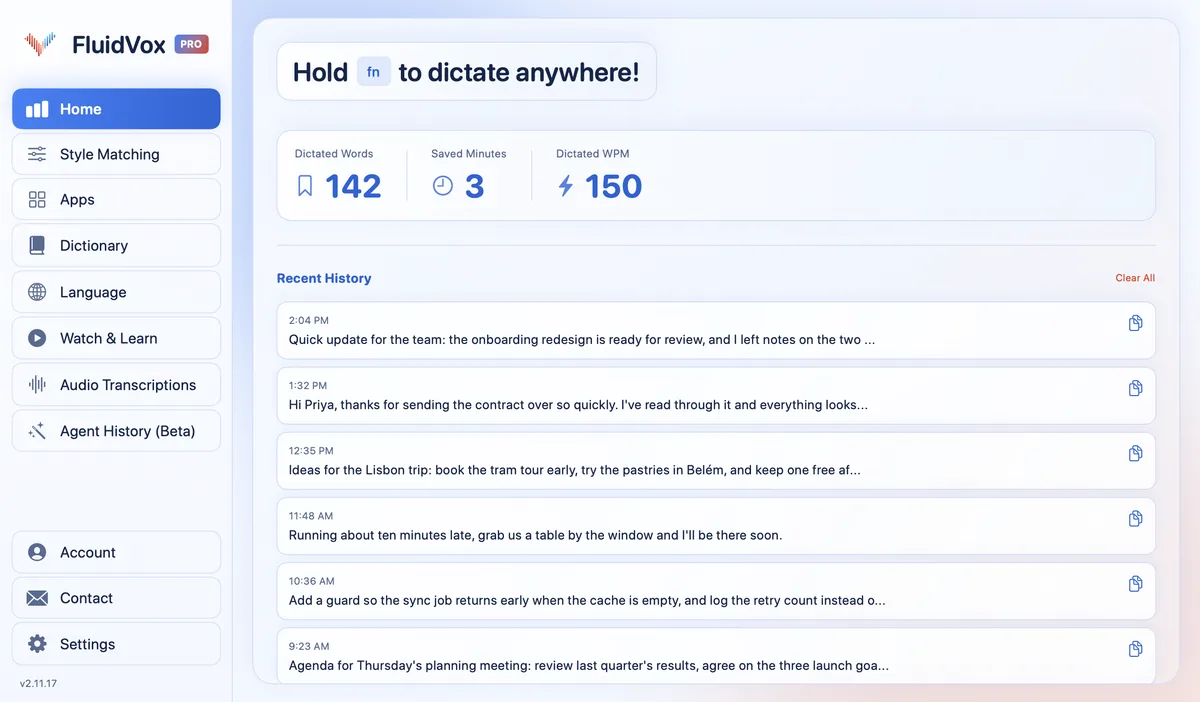
Hold one key, speak, and clean text appears in whatever app you're using. Your transcript history stays on your computer.
Download FluidVox 14-day free trial, no credit card.
On this page
- Use both thumbs
- Slide to type and other keyboard shortcuts
- Let Auto-Correction do the work
- Turn phrases you repeat into shortcuts
- Fix mistakes without backspacing
- Where thumb typing tops out
- Talk instead: iPhone Dictation
- Keyboard, Dictation and FluidVox compared
- Write at speaking speed with the FluidVox keyboard
- Which should you use
- FAQ
- Sources
Most tips for typing faster on a phone come from habit, so it helps to look at how people actually type. In 2019, researchers at Aalto University in Finland published a study of 37,370 volunteers who took a typing test on their mobile devices. They averaged 36.2 words per minute, about 70% of what people manage on a full computer keyboard, and the habits of the faster typists are easy to copy. Below are those habits, the shortcuts already built into the iPhone keyboard, and the point where talking beats any amount of practice. For tips on a computer keyboard, see our guide to typing faster on a keyboard. If you also text from your Mac, here's how voice typing in Messages on a Mac works with FluidVox.
Use both thumbs
In the Aalto study, more than 74% of people typed with both thumbs, and they were significantly faster than people who typed with one thumb or one index finger. If you hold the phone in one hand and peck with a finger of the other, try holding it in both hands and typing with both thumbs.
Two more things from Apple make thumb typing easier:
- Turn the iPhone sideways. Apple says landscape gives you a larger keyboard in many apps, including Mail, Messages, Notes and Safari.
- Move the keys to one side when you only have one hand free. Touch and hold the Emoji button or the Switch Keyboard key, then tap the left- or right-handed layout. To center it again, tap the right or left edge of the keyboard.
Slide to type and other keyboard shortcuts
The iPhone keyboard has a few built-in moves that save taps:
- Slide instead of tapping. Touch and hold the first letter of a word, slide to the next letters without lifting your finger, then lift at the end of the word. Apple calls it QuickPath. You can switch between sliding and tapping in the middle of a sentence, and it isn't available in every language. If sliding does nothing, open Settings > General > Keyboard and check that slide to type is on under All Keyboards.
- Double-tap the Space bar to end a sentence with a period and a space.
- Touch Shift and slide to a letter to type one capital, or double-tap Shift for Caps Lock.
- Touch and hold a letter for its accents, such as é on the e key, and slide to the one you want.
- Feel each tap. If you'd like a small tap under your thumb for every key, go to Settings > Sounds & Haptics > Keyboard Feedback and turn on Haptic.
To see every typing option at once, touch and hold the Emoji button or the Switch Keyboard key while you type and tap Keyboard Settings.
Let Auto-Correction do the work
The Aalto researchers found that people who used auto-correction typed faster, while people who stopped to tap words the keyboard suggested typed slower. That's a correlation from a typing test, not a controlled experiment, but it points one way: keep typing and let the iPhone fix small slips.
- Keep Auto-Correction on. It's in Settings > General > Keyboard, with Auto-Capitalization and Check Spelling and Grammar.
- Accept inline predictions with the Space bar. As you type, iOS can show the rest of a word or phrase in gray. Tap the Space bar to accept it, or keep typing to ignore it. Predictive text and inline predictions aren't available in every language.
- Don't hunt through the suggestions bar. The words above the keyboard are there when you need a long or tricky word, but stopping to choose one for every word slows you down.
- Undo a wrong correction quickly. Autocorrected words are briefly underlined. Tap the word, then tap your original spelling, which is listed first.
Turn phrases you repeat into shortcuts
A text replacement types a whole phrase from a few letters. The iPhone comes with one already: type omw and it suggests On my way! To add your own, such as your email address or a sign-off:
- While you're typing, touch and hold the Emoji button or the Switch Keyboard key.
- Tap Keyboard Settings, then tap Text Replacement.
- Tap the Add button.
- Type the phrase in the Phrase field and the letters you want to type for it in the Shortcut field.
You can also get there from Settings > General > Keyboard > Text Replacement. To stop the keyboard replacing a word you use, such as a name, add it in the Phrase field and leave the Shortcut field blank. To keep your personal dictionary up to date on your other Apple devices, open Settings, tap your name, tap iCloud, tap See All, tap iCloud Drive, then turn on Sync this iPhone.
Fix mistakes without backspacing
Every correction costs time, so the faster you can fix one, the faster you type:
- Use the Space bar as a trackpad. Touch and hold the Space bar until the keyboard turns light gray, then slide your finger to move the cursor. To select text while you're in trackpad mode, touch the keyboard with a second finger and move the first.
- Select with taps. Double-tap a word to select it, or triple-tap to select a paragraph.
- Undo with three fingers. Swipe left with three fingers, then tap the Undo button or Undo at the top of the screen. Swipe right with three fingers to redo.
- Fix a misspelled word in place. Tap a word underlined in red, then tap a suggested correction.
Where thumb typing tops out
Practice helps, but a phone keyboard has a ceiling:
- Your thumbs are slower than your fingers. The 36.2 words per minute in the Aalto study is about 70% of what people type on a computer keyboard. For computers, see the average typing speed by age and job.
- Corrections add up. In the Stanford lab study below, people corrected 11.22% of what they typed on the iPhone keyboard, and every fix costs taps.
- Long messages are where it hurts. A quick reply is fine; a long email or a page of notes with your thumbs takes a while.
Speaking is in a different league. In a laboratory study led by Stanford University researchers, people entered short messages on an iPhone 6 Plus either by typing on its keyboard or by speaking to Baidu's Deep Speech 2 speech recognizer. In English, speech was 2.93 times faster: 153 words per minute against 52 on the keyboard, with fewer corrections along the way (5.30% against 11.22%) but slightly more errors left in the final text (1.30% against 0.79%). People copied set messages in a lab, under what the authors call ideal conditions, so real-world numbers may be lower. Even so, no keyboard trick comes close to that gap.
Talk instead: iPhone Dictation
Your iPhone can already type what you say, for free:
- Open the Settings app, tap General, then tap Keyboard.
- Turn on Enable Dictation. If a prompt appears, tap Enable Dictation.
- In any app, tap where you want the text, then tap the Dictate button (the microphone) on the keyboard.
- When the Dictate button appears near the insertion point, speak.
- To stop, tap the Dictate button again or say "stop dictation". Dictation also stops after 30 seconds of silence.
The keyboard stays open while you dictate, so you can talk a sentence, tap a fix and keep talking. Apple says Dictation runs on the iPhone in many languages, with no internet connection needed. For every setting, see how to use talk to text on iPhone, and for the words that add commas, new lines and emoji, our list of iPhone dictation commands.
Dictation has its own limits if you write long messages this way:
- It stops after a long pause. After 30 seconds of silence it switches off, and you tap the Dictate button again.
- You say a lot of the punctuation. In supported languages Dictation adds commas, periods and question marks for you; everything else you say out loud.
- It has no list of your words. Apple's Dictation settings have no place to add names or jargon.
- Clean-up is limited. In iOS 27, Apple Intelligence improves Dictation's spelling, punctuation and capitalization, but only in English, on iPhone 17 Pro, iPhone 17 Pro Max, iPhone Air or later.
Keyboard, Dictation and FluidVox compared
| iPhone keyboard | iPhone Dictation | FluidVox for iPhone | |
|---|---|---|---|
| Speed | About 36 words per minute on a phone, on average (Aalto study) | Speaking speed | Speaking speed |
| Punctuation | Double-tap Space for a period; the rest by hand | Say each mark; Auto-Punctuation adds commas, periods and question marks in supported languages | Pro polishes the text the moment you stop. On Lifetime, AI clean-up uses your own Google Gemini API key |
| Your own words | Text replacements and words you add | No list of your own words | Custom words and replacement rules |
| Tone | Whatever you type | One style | Styles such as Casual, Concise and Professional |
| Offline | Yes | Yes, in many languages | Lifetime transcribes on your iPhone and works offline, in languages with an on-device model. Pro transcribes in the cloud |
| Price | Free, built in | Free, built in | Pro: $14.99 a month, after a 3-day free trial. Lifetime: $39 once |
Write at speaking speed with the FluidVox keyboard
FluidVox for iPhone works as a keyboard, so it types into the same text fields as Dictation, in any app. You talk the way you'd talk to a friend, and on Pro the text comes back punctuated and cleaned up, without saying "comma" and "period".
- Get FluidVox from the App Store and open it once.
- Go to Settings > General > Keyboard > Keyboards, tap Add New Keyboard… and choose FluidVox.
- Tap FluidVox in the list and turn on Allow Full Access. The keyboard needs it to talk to the FluidVox app, which records and processes your voice.
- In any text field, touch and hold the globe key and choose FluidVox.
- Tap Start VOX on the FluidVox keyboard. FluidVox opens to start a session and keeps running in the background; go back to your app, then tap the mic and speak.
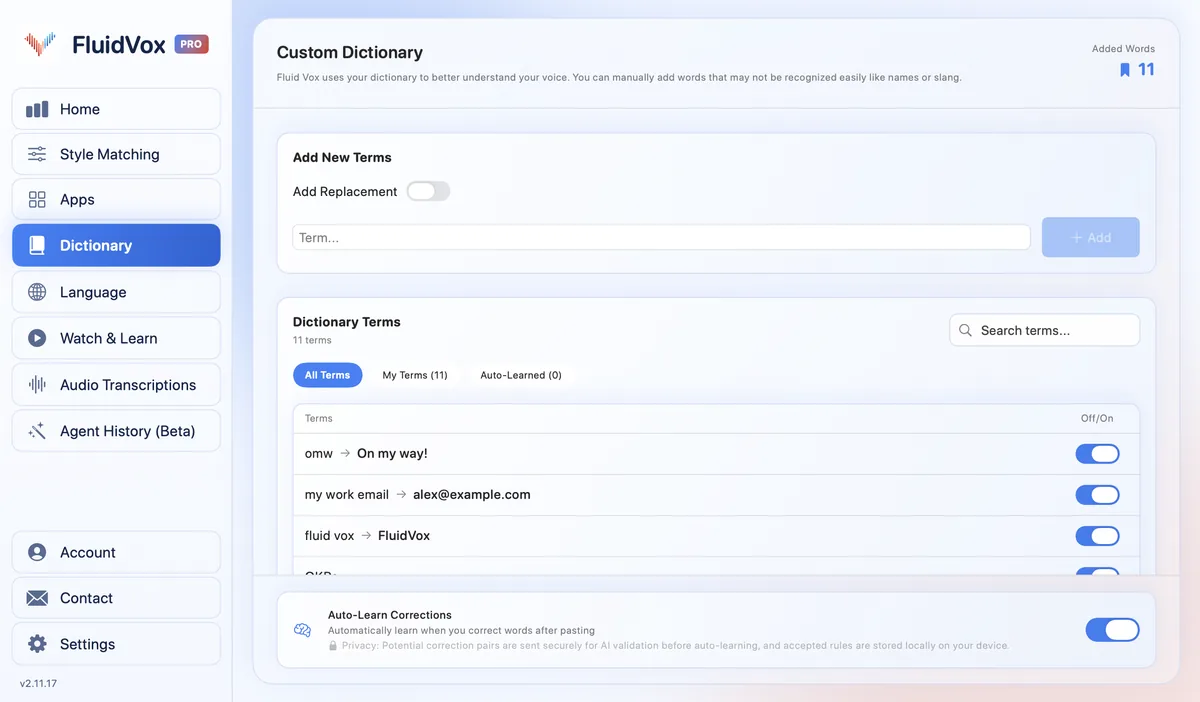
Add names, brands and terms under Custom Words, and set up Replacements for words it keeps getting wrong. Pick a style for how your text should read, or Natural to skip the AI clean-up.
On privacy: with Pro, your audio is sent to a speech service to be turned into text, and the text to an AI model for clean-up. Those providers keep it for up to 55 days for abuse monitoring only, never for model training. With Lifetime, transcription runs on your iPhone instead, in languages your iPhone can transcribe on-device, and AI clean-up, if you use it, goes through your own Google Gemini API key. Either way, FluidVox keeps no recordings and can't see your transcript history.
FluidVox for iPhone has its own App Store plans, separate from the Mac and Windows apps. The 14-day free trial is for FluidVox on Mac and Windows.
Which should you use
For quick replies, the iPhone keyboard is hard to beat once you use both thumbs, slide to type, double-tap for periods and keep Auto-Correction on. Add text replacements for your email address and the phrases you type every day, and use the Space bar trackpad to fix mistakes. It costs nothing.
For long messages, emails and notes, stop typing. Try Dictation first; it's free and already on your iPhone. If it keeps stopping when you pause, you're tired of saying punctuation, or it keeps misspelling the same names, the FluidVox keyboard gives you cleaner text in the same apps. You can keep both keyboards and switch with the globe key.
FAQ
How can I type faster on my iPhone?
Hold the phone in both hands and type with both thumbs, slide from letter to letter instead of tapping, and double-tap the Space bar to end sentences. Keep Auto-Correction on and keep typing rather than stopping to pick suggestions. Set up text replacements for phrases you repeat, and use the Space bar as a trackpad to fix mistakes.
How do I turn on swipe typing on iPhone?
Swipe typing is what Apple calls QuickPath, or slide to type. Open Settings > General > Keyboard and check that slide to type is on under All Keyboards. Then touch the first letter of a word, slide through the rest and lift your finger. It isn't available in every language.
How do I type a period quickly on iPhone?
Double-tap the Space bar. The iPhone ends the sentence with a period and a space, so you don't have to switch to the numbers and symbols keys.
What is the average typing speed on a phone?
In Aalto University's study of 37,370 volunteers on mobile devices, the average was 36.2 words per minute, with 2.3% of errors left uncorrected. That's about 70% of what people typed on full computer keyboards.
How do I move the cursor on iPhone?
Touch and hold the Space bar until the keyboard turns light gray, then slide your finger to move the cursor. You can also touch and hold the text itself to magnify the insertion point and drag it.
Is it faster to talk or type on iPhone?
Talking, by a wide margin, at least in a lab. In a study led by Stanford University researchers, speaking English to a speech recognizer on an iPhone was 2.93 times faster than typing on its keyboard: 153 against 52 words per minute.
Sources
- Apple Support, Type with the onscreen keyboard on iPhone, checked 24 November 2026.
- Apple Support, Use predictive text on iPhone, checked 24 November 2026.
- Apple Support, Set up shorthand for frequently used text on iPhone, checked 24 November 2026.
- Apple Support, Select, edit, and move text on iPhone, checked 24 November 2026.
- Apple Support, Adjust the onscreen and external keyboard settings for accessibility on iPhone, checked 24 November 2026.
- Apple Support, Dictate text on iPhone, checked 24 November 2026.
- Palin, Feit, Kim, Kristensson and Oulasvirta, How do People Type on Mobile Devices? Observations from a Study with 37,000 Volunteers, MobileHCI 2019, checked 24 November 2026.
- Ruan, Wobbrock, Liou, Ng and Landay, Comparing Speech and Keyboard Text Entry for Short Messages in Two Languages on Touchscreen Phones, IMWUT 2017, checked 24 November 2026.
Hold one key, speak, and clean text appears in whatever app you're using. Your transcript history stays on your computer.
Download FluidVox 14-day free trial, no credit card.