
Guide
How to Type Faster (and When to Stop Typing)
Hold one key, speak, and clean text appears in whatever app you're using. Your transcript history stays on your computer.
Download FluidVox 14-day free trial, no credit card.
On this page
- What the fastest typists do differently
- How to practice
- Let your Mac type the phrases you repeat
- Check your progress
- Where typing practice tops out
- Stop typing: dictate on a Mac or a PC
- Typing, built-in dictation and FluidVox compared
- Write at speaking speed with FluidVox
- Which should you use
- FAQ
- Sources
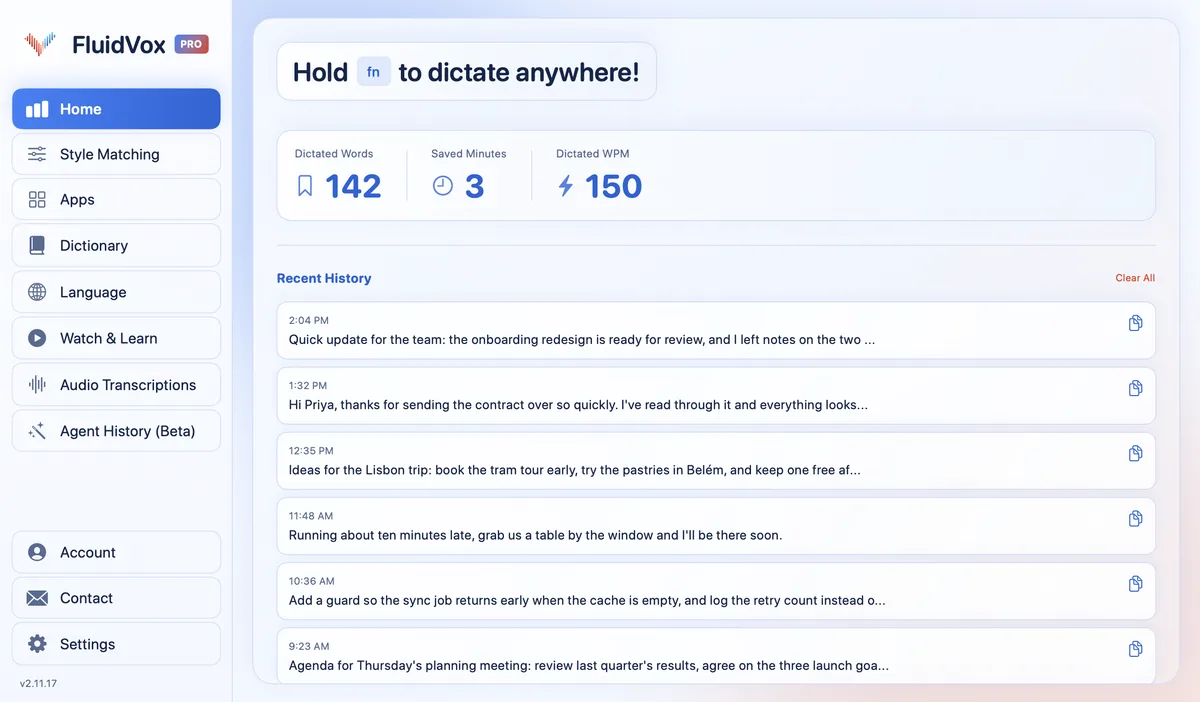
Most typing tips are passed on from person to person, so it helps to look at what fast typists actually do. In 2018, researchers led by Aalto University in Finland published an analysis of 136 million keystrokes from 168,960 people who took an online typing test, and compared the fastest typists with the slowest. Below are the habits that set the fast ones apart, how to practice them, the shortcuts already on your Mac, and the point where talking gets you further than any amount of practice. To see where you're starting from, check the average typing speed first. If you already suspect the keyboard is what slows you down, see voice typing compared with typing, and if you write for a living, here's how writers use voice typing for first drafts.
What the fastest typists do differently
People in the Aalto study averaged 51.56 words per minute. The fastest 10% averaged about 90 and the slowest 10% about 21. Here's what separated them:
- They use more fingers. The fastest group used 8.4 fingers on average and the slowest 5.3. Across everyone the average was 6.95, and 47.6% said they type with nine or ten. In touch typing, each finger is responsible for one or two columns of keys, so no finger has far to travel.
- They look at the keys less. Slow typists rely more on searching for keys with their eyes. Earlier research the study cites found that faster typists rely less on seeing their fingers on the keyboard, whether or not they'd been trained.
- They make fewer mistakes. "Typists making and correcting fewer errors are generally faster," the researchers write. People corrected over 6% of what they typed, and every fix costs keystrokes.
- They press the next key early. Fast typists often press the next key before letting go of the last one, which the researchers call rollover. It happened in 49.9% of keystrokes for the fastest group and in 7.6% for the slowest. Using fewer fingers limits rollover, the researchers note.
- They switch hands smoothly. How quickly people typed letter pairs that use different hands or fingers predicted their speed far better than how quickly they typed double letters. Fast typists typed pairs that switch hands a little faster than one-hand pairs; slow typists were slower on them.
You don't need ten fingers or a course to type quickly. Earlier work cited by the Aalto team found that consistent finger use, moving your hands as little as possible and getting ready for the next key predicted speed whatever the technique, and that some people who didn't use all their fingers or learn touch typing still typed about as fast as touch typists.
How to practice
- Rest your fingers on the home row (A, S, D, F and J, K, L, ;) and give each finger the same keys every time. If you type with two or three fingers now, bring the others in gradually.
- Keep your eyes on the text. You'll slow down at first, but looking down is one of the things that holds slow typists back.
- Go for accuracy before speed. Type at a pace where you rarely hit Backspace, then speed up. Fewer errors and more speed go together.
- Practice on real text, such as a paragraph from an article you haven't read, rather than the same drill over and over.
- Practice little and often. A few minutes a day keeps the finger positions fresh.
Let your Mac type the phrases you repeat
Typing faster also means typing less. A text replacement turns a few letters into a whole phrase, such as your email address or a sign-off. On a Mac:
- Choose Apple menu > System Settings, then click Keyboard in the sidebar. You may need to scroll down.
- Click Text Replacements.
- Click the Add button in the dialog that appears, type the text to replace and its replacement, then click Add. Apple's own example turns fwiw into for what it's worth.
- Click Done.
Text replacements work in many apps, but not all. In an app, choose Edit > Substitutions to check that Text Replacement is turned on. Apple has one more small time-saver: in Keyboard settings, go to Text Input, click Edit and turn on Add period with double-space, and two presses of the Space bar end a sentence.
Check your progress
Typing tests count every five characters, spaces included, as one word. Take one before you change anything, then again after a few weeks of practice, using text you haven't seen so you aren't typing from memory. Look at accuracy as well as speed: if your speed rises while your errors climb, slow down again.
Where typing practice tops out
Practice helps, but it has limits:
- A course isn't worth much speed. In the Aalto study, people who had taken a typing course averaged 54.35 words per minute, against 49.00 for those who hadn't: only about 5 words per minute faster.
- A test isn't real writing. In a test you copy sentences you can see. When you write an email, you also stop to think about what to say.
- Every correction costs time. Even at speed, fixing mistakes eats into what you gain.
Speaking is in a different league. In a laboratory study led by Stanford University researchers, people entered short messages on an iPhone 6 Plus either by typing on its keyboard or by speaking to Baidu's Deep Speech 2 speech recognizer. In English, speech was 2.93 times faster: 153 words per minute against 52 on the phone's keyboard. Speech also needed fewer corrections along the way (5.30% against 11.22%), but left slightly more errors in the final text (1.30% against 0.79%). People copied set phrases in a quiet lab, and the authors call these upper-bound results, so real-world numbers may be lower. Even so, the gap is far bigger than the few words per minute a typing course was worth in the Aalto study. For how fast people talk in everyday conversation, reading aloud and audiobooks, see our guide to words per minute speaking.
Stop typing: dictate on a Mac or a PC
Your computer can already type what you say, for free.
On a Mac:
- Choose Apple menu > System Settings, then click Keyboard in the sidebar. You may need to scroll down.
- Go to Dictation on the right and turn it on. If a prompt appears, click Enable.
- Click where you want the text, then press the Microphone key if your keyboard has one, use the Dictation keyboard shortcut, or choose Edit > Start Dictation.
- Speak. To stop, press the Microphone key, the shortcut or Escape. Dictation also stops after 30 seconds without speech.
On Windows:
- Click in a text box.
- Press the Windows logo key + H.
- Wait for the "Listening…" alert, then speak.
- To stop, say "Stop listening" or press the microphone button on the voice typing menu.
You'll need a working microphone, and the voice typing settings include automatic punctuation. For the words to say for punctuation and what to do when nothing types, see how to talk to text on your computer.
The built-in tools are fine for a sentence or two, but they have limits if you dictate a lot:
- Mac Dictation stops after a long pause. After 30 seconds without speech it ends, so stopping to think means starting again.
- Windows voice typing needs the internet. Without a connection, it won't type.
- Neither keeps a list of your words. A name or term they get wrong, they keep getting wrong.
- The text reads the same everywhere. A chat message and a client email come out in the same tone.
Typing, built-in dictation and FluidVox compared
| Typing faster | Built-in dictation | FluidVox | |
|---|---|---|---|
| Speed | About 52 words per minute on average; the fastest typists average about 90 (Aalto) | Speaking speed | Speaking speed, typed at your cursor in any app |
| Price | Free, but it takes practice | Free, built into macOS and Windows | 14-day free trial, then Pro at $10 a month, or Local at $2.99 a month or $39 once |
| When it stops | When you do | Mac: when you press Escape, the Microphone key or the shortcut, or after 30 seconds without speech. Windows: when you say "Stop listening" or press the microphone button | When you let go of the key |
| Internet | Not needed | Windows voice typing needs it | Not needed on the Local plan, which transcribes on your computer |
| Your own words | Mac text replacements for phrases you repeat | No list of custom words | Personal dictionary that also learns your corrections |
| Clean-up | You fix your own typos | Automatic punctuation (on a Mac, in supported languages) | On Pro, removes filler words and fixes grammar, spelling and punctuation |
Write at speaking speed with FluidVox
FluidVox puts speaking speed into the apps you already type in. It lives in the menu bar on a Mac and in the notification area on Windows, and types wherever your cursor is.
- Download FluidVox and start the 14-day free trial. No credit card is needed.
- On a Mac, allow Microphone, Accessibility and Input Monitoring when setup asks. On Windows, check your dictation hotkey in FluidVox's settings.
- Click where you want the text, hold your dictation key (Fn on a Mac), speak, and let go. Clean text appears at your cursor.
- On Pro, FluidVox removes filler words and fixes grammar, spelling and punctuation, so you edit less afterwards. Choose a style for each app under Apps, so a chat message and a client email don't sound the same. Add names and terms you use to the Dictionary.
In Settings, pick the microphone you speak into and choose whether transcription runs in the cloud or on your computer.
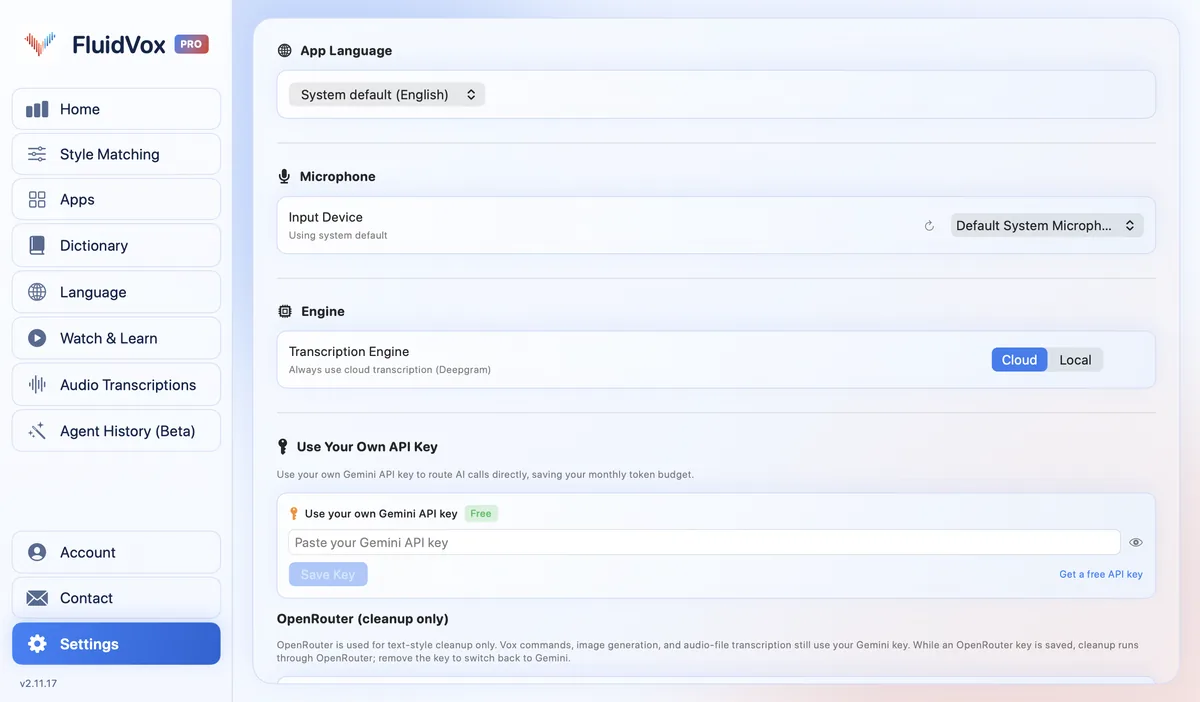
On privacy: cloud transcription sends your audio to a speech service to turn it into text, and with local transcription it runs on your computer instead. Either way, your transcript history stays on your computer.
Which should you use
If you mostly edit documents, write code or type a few words at a time, work on your typing: more fingers, eyes on the screen, fewer mistakes, and text replacements for the phrases you repeat. It costs nothing, and it pays off every day.
If you write long emails, reports or notes, don't expect practice to close the gap with speaking. Try the dictation already on your computer first; if it keeps stopping when you pause, gets the same names wrong, or you'd like clean text without fixing filler words, try FluidVox for 14 days. Your keyboard stays right where it is for the edits.
FAQ
How can I type faster?
Use more fingers, keep your eyes on the screen instead of the keys, and aim for fewer mistakes. In Aalto University's study of 168,960 typists, the fastest used 8.4 fingers on average against 5.3 for the slowest and made fewer errors, and earlier research the team cites found fast typists rely less on looking at the keyboard. Text replacements for phrases you repeat save keystrokes too.
How do I learn to type faster?
Rest your fingers on the home row, give each finger the same keys every time, and practice on real text a few minutes a day without looking down. Go slowly enough to avoid errors at first, then speed up. Measure yourself with a typing test every few weeks.
How do I type faster and more accurately?
Slow down until you rarely need Backspace, then build speed from there. The Aalto researchers found that typists who make and correct fewer errors are generally faster, so accuracy and speed improve together rather than one at the expense of the other.
Does a typing course make you faster?
A little. In the Aalto study, people who had taken a typing course averaged 54.35 words per minute, against 49.00 for those who hadn't: about 5 words per minute more. The researchers also found that trained and untrained typists typed in very similar ways.
Is talking faster than typing?
Yes, by a wide margin in a lab setting. A study led by Stanford University researchers found English speech input was 2.93 times faster than typing on an iPhone keyboard: 153 against 52 words per minute.
Sources
- Aalto University, How do people type on keyboards? (136M Keystrokes), checked 7 November 2026.
- Dhakal, Feit, Kristensson and Oulasvirta, Observations on Typing from 136 Million Keystrokes, CHI 2018, checked 7 November 2026.
- Apple, Replace text and punctuation in documents on Mac, checked 7 November 2026.
- Apple, Dictate messages and documents on Mac, checked 7 November 2026.
- Microsoft, Use voice typing to talk instead of type on your PC, checked 7 November 2026.
- Ruan, Wobbrock, Liou, Ng and Landay, Comparing Speech and Keyboard Text Entry for Short Messages in Two Languages on Touchscreen Phones, IMWUT 2017, checked 7 November 2026.
Hold one key, speak, and clean text appears in whatever app you're using. Your transcript history stays on your computer.
Download FluidVox 14-day free trial, no credit card.