
Guide
How to Write Faster Without Writing Worse
Hold one key, speak, and clean text appears in whatever app you're using. Your transcript history stays on your computer.
Download FluidVox 14-day free trial, no credit card.
On this page
- Split drafting from editing
- Plan before you write
- Draft without stopping
- Edit in a separate pass
- Draft by voice on a Mac or a PC
- Where built-in dictation slows a draft down
- Typing, built-in dictation and FluidVox compared
- Draft at speaking speed with FluidVox
- Which should you use
- FAQ
- Sources
Most slow writing isn't slow typing. It's stopping after every sentence to reread it, hunting for a better word, fixing a typo, then losing the thread of what you meant to say next. The fix is a change of order more than a change of speed: decide what you'll say, get it all down rough, and only then make it good. Below is how to do each step, and how to draft at the speed you talk once the keyboard is the last thing holding you back. If you write for a living, see how authors and journalists draft by voice. If your fingers are the bottleneck for short messages too, start with our tips for typing quicker.
Split drafting from editing
Drafting and editing pull in opposite directions. Drafting needs momentum: one sentence leading to the next. Editing needs a critical eye: is this clear, is it true, does it belong? Try to do both at once and each one interrupts the other, so you write a line, judge it, rewrite it, and an hour later you have one polished paragraph and no draft.
Writing faster starts with keeping them apart:
- Plan what you're going to say, in a few minutes.
- Draft the whole thing without stopping to fix it.
- Edit afterwards, ideally after a break, in a separate pass.
The draft will be messy. That's the point: a messy page you can fix beats a perfect sentence with nothing after it.
Plan before you write
A few minutes of planning saves far more time in the draft, because you never stop to wonder what comes next.
- Write your point in one sentence. If you can't, you aren't ready to draft yet. "We should move the launch to March because the beta found two serious bugs" is a plan; "the launch" isn't.
- List three to five points underneath it. These become your sections or paragraphs. Bullet points are enough.
- Know who it's for. A note to your team and a report for a client need different detail. Decide before you start, not halfway through.
- Gather what you need first. Open the figures, quotes and links you'll use before you start drafting, so you don't go searching mid-sentence.
Draft without stopping
This is where most of the time goes, and where these habits help most:
- Don't fix as you go. No deleting, no rewording, no going back to the start. If a sentence is clumsy, leave it and keep moving.
- Use placeholders. When you don't know a number, a name or the right word, type a marker such as TK or [CHECK] and carry on. You'll find them all in one search later.
- Start with the easiest section. You don't have to write in order. Begin with the part you know best and the rest gets easier.
- Work in timed sprints. Set a timer for 25 minutes and write until it rings, without email or chat. A deadline you can see keeps you from polishing.
- Stop mid-sentence at the end of a session. You'll know exactly how to start next time.
- Reuse what you write often. Set up text shortcuts for your signature, standard replies and long names, so you type them in a few keystrokes.
The fastest way to draft without stopping is to talk. When you speak, you don't backspace, and you can't fuss over a word for long without losing your train of thought, which is exactly the habit a first draft needs.
Edit in a separate pass
Once the draft exists, switch roles:
- Take a break first. Even a short walk lets you read the draft as a reader would, not as the person who wrote it.
- Fix structure before sentences. Move, merge or cut whole paragraphs first. There's no point polishing a paragraph you're about to delete.
- Cut. Most drafts get better when they get shorter. Look for sentences that repeat the one before them.
- Read it aloud. Your ear catches clumsy sentences and missing words that your eye skips.
- Fill the placeholders last. Search for TK or [CHECK], look up the facts, and check names and numbers.
Draft by voice on a Mac or a PC
Once you draft without stopping, the keyboard becomes the limit. In a laboratory study led by Stanford University researchers, people entered short messages on an iPhone 6 Plus either by typing on its keyboard or by speaking to Baidu's Deep Speech 2 speech recognizer. In English, speech was 2.93 times faster: 153 words per minute against 52. The study was done under laboratory conditions, and the authors call these upper-bound results, so expect less in real life. That 52 is also close to the average typing speed on a computer keyboard, while people talk at about 150 to 170 words a minute in conversation (see how many words per minute people speak).
Your computer can already type what you say, for free.
On a Mac:
- Choose Apple menu > System Settings, then click Keyboard in the sidebar. You may need to scroll down.
- Go to Dictation on the right and turn it on. If a prompt appears, click Enable.
- Click where you want the text, then press the Microphone key if your keyboard has one, use the Dictation keyboard shortcut, or choose Edit > Start Dictation.
- Speak. To stop, press Escape, the Microphone key or your shortcut.
In supported languages, Dictation adds commas, periods and question marks for you, and you can say "new paragraph" to start one.
On Windows:
- Click in the text box where you want the words.
- Press the Windows logo key + H.
- Wait for the "Listening…" alert, then speak.
- To stop, say "Stop listening" or press the microphone button on the voice typing menu.
Select the gear icon on the voice typing menu to turn on Automatic punctuation. For the spoken punctuation on each system and what to do when nothing types, see how to talk to text on your computer.
Tips for drafting out loud: talk through your plan point by point, as if you were explaining it to a colleague. Don't stop to correct a misheard word; fix it when you edit. And dictate the draft only: editing is still easier with a keyboard and your eyes on the page.
Where built-in dictation slows a draft down
The built-in tools are fine for a paragraph. For a whole draft, these are the limits you'll run into:
- Mac Dictation stops after a long pause. Apple says you can dictate text of any length, but Dictation stops by itself after 30 seconds without speech, so a long pause means starting it again.
- Windows voice typing needs the internet. Microsoft says it uses online speech recognition, so without a connection, it won't type.
- Neither keeps a list of your words. Their dictation settings have no list for names, product names or jargon, so you fix the same words by hand.
- Filler words stay in. Your ums and restarts go onto the page, and you remove them when you edit. Windows removes filler words only with Fluid dictation, on Copilot+ PCs in English. On a Mac, Apple Intelligence in macOS 27 improves spelling, punctuation and capitalization, in English on Macs with M3 or later and at least 12GB of memory, but Apple's page doesn't mention filler words.
- Every app gets the same tone. A draft for a client and a message to a friend come out the same way.
Typing, built-in dictation and FluidVox compared
| Typing your draft | Built-in dictation | FluidVox | |
|---|---|---|---|
| Speed | Your typing speed | Speaking speed | Speaking speed, typed at your cursor in any app |
| Price | Free | Free, built into macOS and Windows | 14-day free trial, then Pro at $10 a month, or Local at $2.99 a month or $39 once |
| Pauses to think | Take as long as you like | Mac: stops after 30 seconds without speech. Windows: stops when you say "Stop listening" or press the microphone button | Records for as long as you hold the key, or hands-free on a Mac |
| Internet | Not needed | Windows voice typing needs it | Not needed on the Local plan, which transcribes on your computer |
| Your own words | You type them | No list of custom words | Personal dictionary that also learns your corrections |
| Clean-up | You fix your own typos | Automatic punctuation; filler words removed only with Fluid dictation on Copilot+ PCs | On Pro, removes filler words and fixes grammar, spelling and punctuation |
Draft at speaking speed with FluidVox
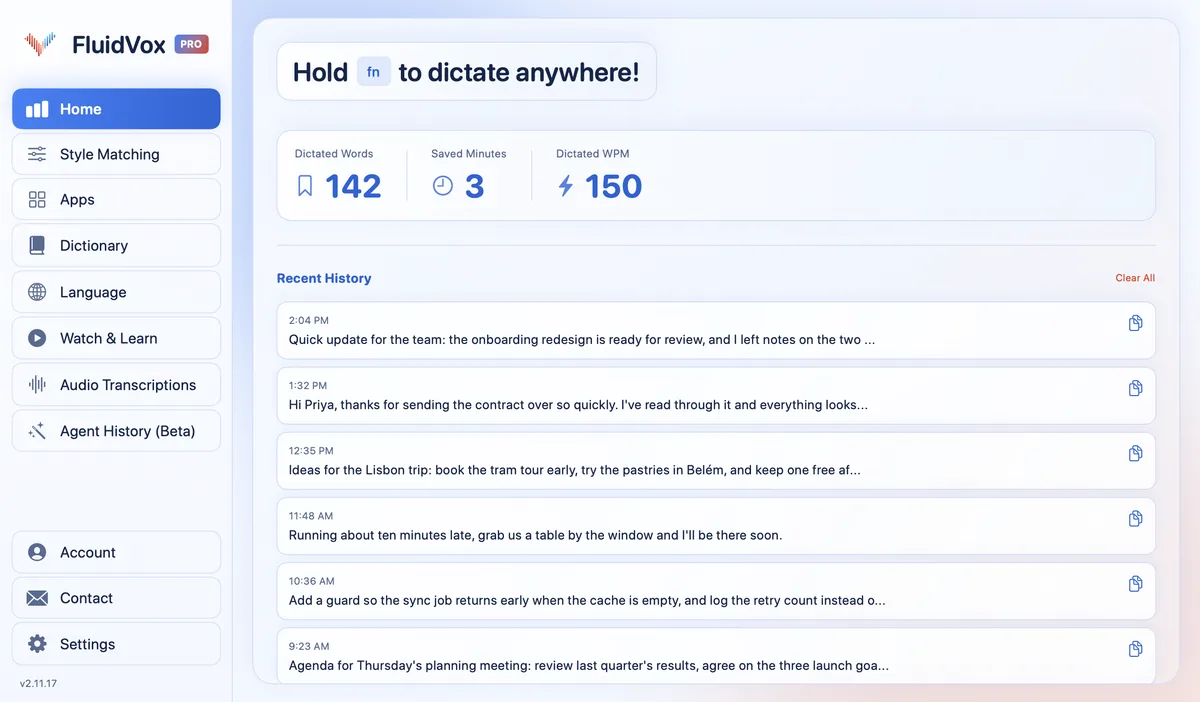
FluidVox types what you say into whatever app you write in: Word, Google Docs, Notion, Pages or your email. It lives in the menu bar on a Mac and in the notification area on Windows.
- Download FluidVox and start the 14-day free trial. No credit card is needed, and the download button gives you the version for your computer.
- On a Mac, allow Microphone, Accessibility and Input Monitoring when setup asks. On Windows, open its settings and check your dictation hotkey; you can change it there.
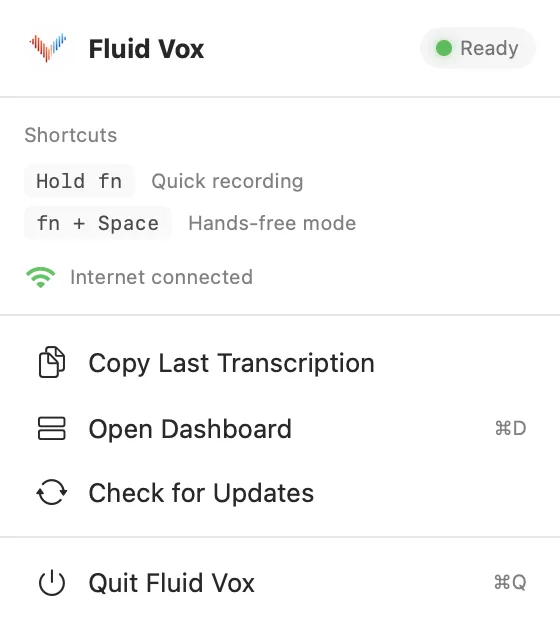
- Click where you want the draft, hold your dictation key (Fn on a Mac), talk through your first point, and let go. Clean text appears at your cursor.
- For a longer stretch on a Mac, press Fn and Space together for hands-free mode, so you can talk without holding the key.
- Add the names and terms you write about to the Dictionary. On Pro, FluidVox removes filler words and fixes grammar, spelling and punctuation, so your edit starts from a cleaner draft.
On privacy: cloud transcription sends your audio to a speech service to turn it into text, and on the Local plan transcription runs on your computer instead. Either way, your transcript history stays on your computer.
Which should you use
Start with the habits, because they cost nothing: plan in a few lines, draft without stopping, and edit in a separate pass. Try them on your next piece before you change any tools.
If you write in short bursts, the dictation already on your computer is a free way to try drafting out loud. If you write long drafts every day, pause while you think, keep correcting the same names, or want your ums gone before you edit, try FluidVox for 14 days. Your keyboard stays where it is for the editing pass.
FAQ
How can I write faster?
Separate the steps. Spend a few minutes on a plan, write the whole draft without stopping to fix anything, then edit in a separate pass. Use placeholders such as TK for facts you don't have yet, and write in timed sprints. To draft faster still, speak your first draft instead of typing it.
How do I write faster without losing quality?
Keep quality for the editing pass. A rough first draft written quickly, then edited carefully, often reads better than one you polished sentence by sentence, because you can see the whole piece before you fix it. Reading the draft aloud during the edit catches many clumsy sentences.
Is it faster to write by speaking?
For a first draft, usually. In a lab study led by Stanford University researchers, English speech input was 2.93 times faster than typing on an iPhone keyboard: 153 against 52 words per minute. The authors note these are upper-bound results from laboratory conditions. You'll still want a keyboard for editing.
Do these tips help when writing by hand, such as in exams?
The planning and drafting habits do: a short outline first, then writing without crossing out and rewriting as you go. Dictation doesn't apply when you have to write by hand.
Can I dictate a draft in Word or Google Docs?
Yes. Both built-in tools and FluidVox type wherever your cursor is, so they work in Word, Google Docs and most other apps where you can type.
Sources
- Ruan, Wobbrock, Liou, Ng and Landay, Comparing Speech and Keyboard Text Entry for Short Messages in Two Languages on Touchscreen Phones, IMWUT 2017, checked 14 November 2026.
- Apple Support, Dictate messages and documents on Mac, checked 14 November 2026.
- Microsoft Support, Use voice typing to talk instead of type on your PC, checked 14 November 2026.
Hold one key, speak, and clean text appears in whatever app you're using. Your transcript history stays on your computer.
Download FluidVox 14-day free trial, no credit card.