
Guide
How to Talk to Text on Your Computer (Mac and Windows)
Hold one key, speak, and clean text appears in whatever app you're using. Your transcript history stays on your computer.
Download FluidVox 14-day free trial, no credit card.
On this page
- Talk to text on a Mac
- Talk to text on Windows
- Say punctuation and new lines
- If nothing types
- Where the built-in tools fall short
- Built-in dictation and FluidVox compared
- Talk to text in any app with FluidVox
- Which should you use
- FAQ
- Sources
Watch it in 3 minutes: How to Talk to Text on Your Computer (Mac and Windows)
Every Mac and every Windows PC can already turn your voice into text. Apple calls it Dictation. Microsoft calls it voice typing on Windows 11 and dictation on Windows 10. Both type what you say wherever your cursor is, in Mail, Word, a chat window or a browser, and there's nothing to install. Below are the steps for each, the words to say for punctuation, and what to do when the built-in tool isn't enough.
Talk to text on a Mac
Turn Dictation on once:
- Choose Apple menu > System Settings, then click Keyboard in the sidebar. You may need to scroll down.
- Go to Dictation on the right and turn it on. If a prompt appears, click Enable.
- If you're asked whether you want to improve Siri and Dictation, click Share Audio Recordings or Not Now.
Then, whenever you want to talk instead of type:
- Click where you want the text to go, in any app.
- Press the Microphone key (if your keyboard has one), use your Dictation keyboard shortcut, or choose Edit > Start Dictation. Press the Microphone key briefly: holding it starts Siri instead, when Siri is on.
- When the cursor is highlighted and pulsing, or you hear the tone, speak.
- To stop, press Escape, the Microphone key or your shortcut.
To change the key, open the Shortcut pop-up menu under Dictation in Keyboard settings and choose one, such as Press Fn (Function) Key Twice, or choose Customize and press your own. The same section has Microphone source and Languages. Apple says there's no limit on how long you dictate, but Dictation stops by itself after 30 seconds without speech. Every setting is explained in our guide to setting up Dictation on a Mac, and if you're weighing other Mac apps, see our Apple Dictation alternative page.
Talk to text on Windows
- Click in the text box where you want the words: an email, a document, a chat window or a browser field.
- Press the Windows logo key + H. On a touchscreen, press the Microphone button on the touch keyboard instead.
- Wait for the "Listening…" alert, then speak normally.
- To stop, say "Stop listening" or press the microphone button on the voice typing menu.
Microsoft lists three things voice typing needs: an internet connection, a working microphone, and your cursor in a text box. It uses online speech recognition, powered by Azure Speech services. Select the gear icon on the voice typing flyout to turn on Automatic punctuation, choose the Default microphone, or turn on the Voice typing launcher. On Windows 10, the same keys open the dictation toolbar, and you say "Stop dictation" to stop. For every command and setting, read our Windows voice typing guide, and for the other options on a PC, our Windows Speech Recognition alternative page.
Say punctuation and new lines
Both tools listen for the names of punctuation marks while you talk:
| To get | On a Mac, say | On Windows, say |
|---|---|---|
| A comma or a period | "comma", "period" | "comma", "period" or "full stop" |
| A question mark | "question mark" | "question mark" |
| A new line | "new line" | "new line" or "next line" |
| A new paragraph | "new paragraph" | "new paragraph" |
| An emoji or a face | An emoji's name, such as "heart emoji" | "smiley face" types :) and "heart emoji" types <3 |
You don't have to say every comma. On a Mac, Dictation adds commas, periods and question marks for you in supported languages. On Windows 11, turn on Automatic punctuation in voice typing's settings. On Windows you can also say "delete that" or "erase that" to remove what you just said, and "undo that" to undo it.
If nothing types
- On a Mac, check that Dictation is on in Keyboard settings, that Microphone source is the mic you're speaking into, and that the language matches what you speak. Voice Control must be off: while it's on, standard Dictation isn't available. Our list of fixes for Mac Dictation goes symptom by symptom.
- On Windows, check your internet connection first, because voice typing doesn't work offline. Make sure your cursor is in a text box before you press the keys, and pick the right mic under Default microphone in voice typing's settings.
Where the built-in tools fall short
For a quick message, the tool on your computer is enough. If you talk to text a lot, these are the limits you'll run into:
- Mac Dictation stops when you pause. After 30 seconds without speech it ends, so if you stop to think, you start it again.
- Windows voice typing needs the internet. On a plane without Wi-Fi, it won't type.
- Neither keeps a list of your words. There's no place in their settings for names, product names or jargon, so a word they get wrong, they keep getting wrong.
- The text sounds the same in every app. A chat message and a client email come out in the same tone.
- Clean-up is limited. You get your words with automatic punctuation. Removing filler words and fixing grammar comes only with Fluid dictation, on Copilot+ PCs in English. On a Mac, Apple Intelligence improves spelling, punctuation and capitalization in English, on Macs with M3 or later and at least 12GB of memory.
- They're two different tools. If you use a Mac at home and a PC at work, you learn two shortcuts and two sets of settings.
Built-in dictation and FluidVox compared
| Mac Dictation | Windows voice typing | FluidVox | |
|---|---|---|---|
| Price | Free, built into macOS | Free, built into Windows | Pro, with AI clean-up and styles: $10 a month. Local, which transcribes on your computer: $2.99 a month or $39 once. Both start with a 14-day free trial |
| How you start it | The Microphone key, a shortcut you choose, or Edit > Start Dictation | Windows logo key + H | Hold your dictation key (Fn on a Mac), speak, let go |
| When it stops | When you stop it, or after 30 seconds without speech | When you say "Stop listening" or press the microphone button | When you let go of the key |
| Offline | Depends on your Mac and language; Keyboard settings tells you | No, it needs the internet | Yes, on the Local plan transcription runs on your computer |
| Your own words | No list of custom words | No list of custom words | Personal dictionary that also learns your corrections |
| Tone per app | The same everywhere | The same everywhere | On Pro, a style per app, such as casual in Slack and professional in Outlook |
| Clean-up | Auto-punctuation in supported languages; better spelling, punctuation and capitalization with Apple Intelligence, in English on M3 or later | Automatic punctuation; grammar and filler words only with Fluid dictation on Copilot+ PCs | On Pro, removes filler words and fixes grammar, spelling and punctuation |
| Computers | Mac only | Windows only | Mac and Windows, plus an iPhone app with its own plans |
Talk to text in any app with FluidVox
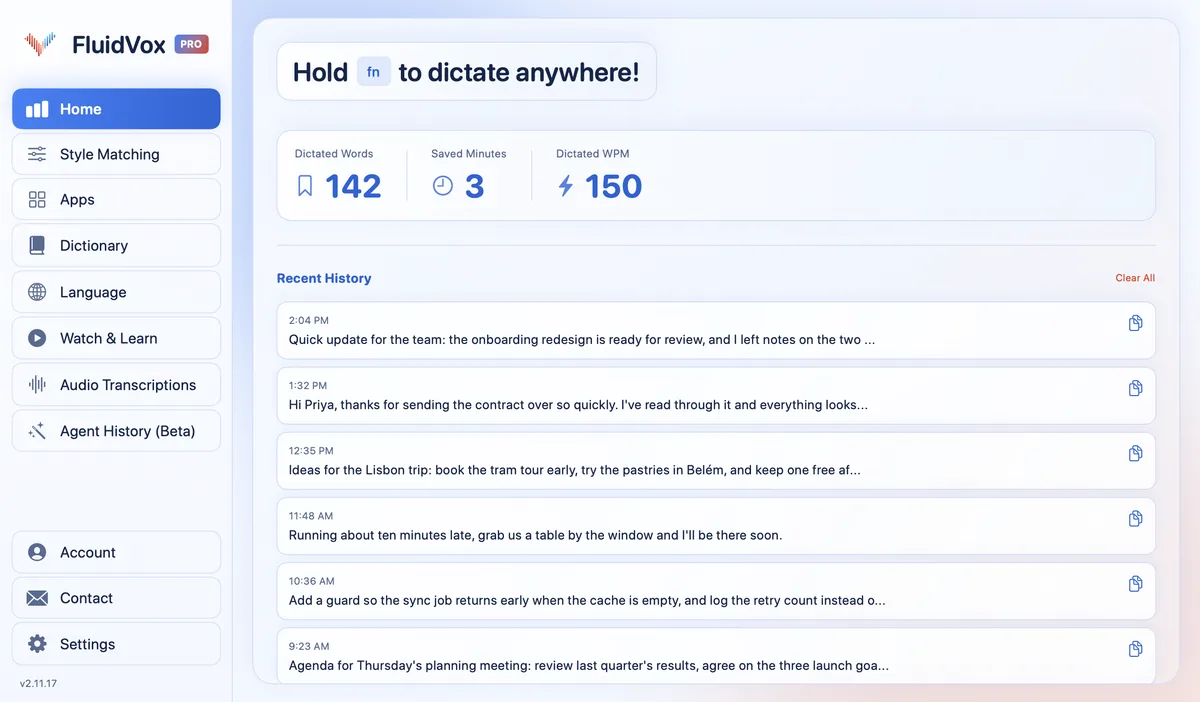
FluidVox lives in the menu bar on a Mac and in the notification area on Windows, and types into whichever app has your cursor: Mail, Outlook, Word, Slack, Teams or your browser.
- Download FluidVox and start the 14-day free trial. No credit card is needed, and the download button gives you the version for your computer.
- On a Mac, allow Microphone, Accessibility and Input Monitoring when setup asks. On Windows, open its settings and check your dictation hotkey; you can change it there.
- Click where you want the text, hold your dictation key (Fn on a Mac), speak, and let go. Clean text appears where your cursor is.
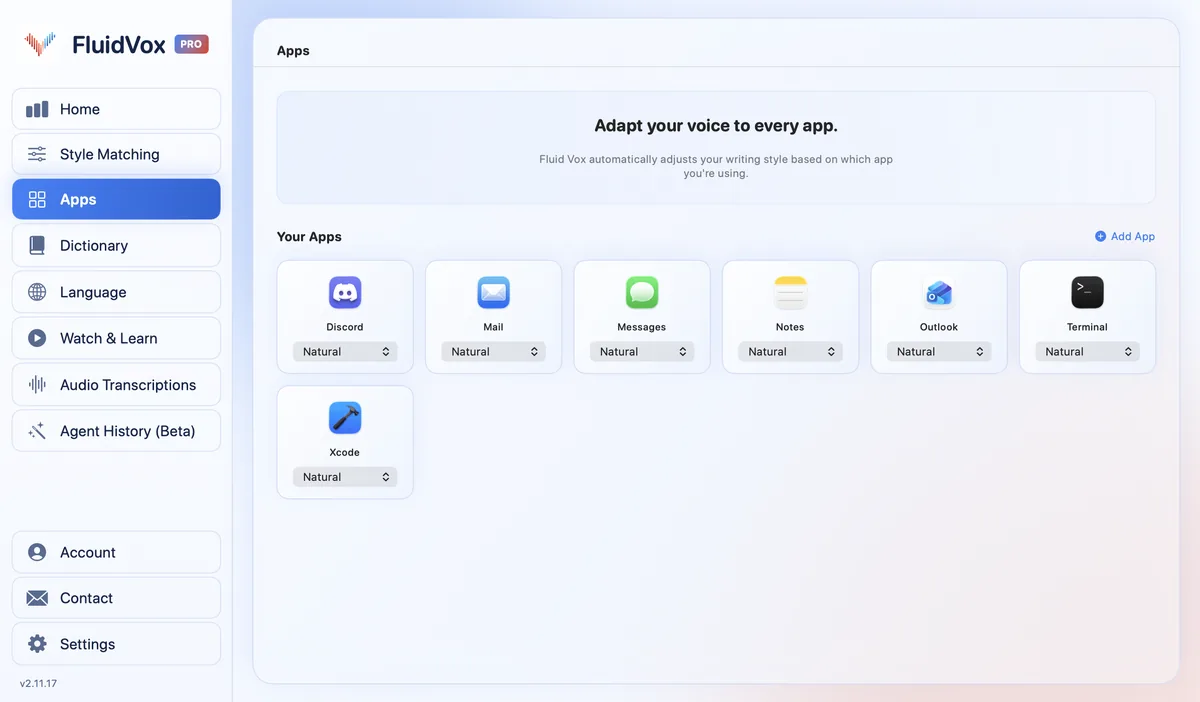
- Add the names and terms you use to the Dictionary. On Pro, choose a style for each app under Apps.
On a Mac, press Fn and Space together for hands-free mode when you want to talk for longer without holding the key.
On privacy: cloud transcription sends your audio to a speech service to turn it into text, and on the Local plan transcription runs on your computer instead. Either way, your transcript history stays on your computer.
Which should you use
If you talk to text a sentence or two at a time, the tool already on your computer is free and good enough. Talking is also much faster than typing for most people: the average typist manages about 52 words per minute. Turn on Dictation on a Mac, or press the Windows logo key + H on a PC, and see how far it takes you.
If you write long emails and documents by voice, pause while you think, keep correcting the same names, or switch between a Mac and a PC, FluidVox is built for that. Try it for 14 days; the built-in tools stay on your computer, so you can use both. For the paid options on a PC, see our comparison of speech recognition software for Windows.
FAQ
How do I talk to text on my computer?
On a Mac, turn on Dictation in System Settings > Keyboard, then press the Microphone key or your Dictation shortcut. On Windows, click in a text box and press the Windows logo key + H. Then speak, and your words appear where the cursor is.
Is talk to text free on a computer?
Yes. Dictation is built into macOS, and voice typing is built into Windows 11 and dictation into Windows 10, with nothing to buy or install. Apps such as FluidVox add what the built-in tools don't have, like a personal dictionary, and have their own plans.
Does talk to text work without the internet?
On Windows, no: Microsoft says voice typing uses online speech recognition, so it needs a connection. On a Mac, it depends on your Mac and language, and the text below Dictation in Keyboard settings tells you whether dictation is processed on your Mac. FluidVox's Local plan transcribes on your computer.
What is the shortcut for talk to text?
On Windows 11 and 10, it's the Windows logo key + H. On a Mac, it's the Microphone key, or the shortcut you pick under Dictation in Keyboard settings, such as pressing Fn twice.
Can I talk to text in any app?
Yes, in almost any app where you can type: email, documents, chat and the browser. Both built-in tools type where your cursor is, and on Windows the cursor has to be in a text box.
Sources
- Apple Support, Dictate messages and documents on Mac, checked 2 November 2026.
- Microsoft Support, Use voice typing to talk instead of type on your PC, checked 2 November 2026.
Hold one key, speak, and clean text appears in whatever app you're using. Your transcript history stays on your computer.
Download FluidVox 14-day free trial, no credit card.