
Guide
Offline Speech to Text on Mac and Windows
Hold one key, speak, and clean text appears in whatever app you're using. Your transcript history stays on your computer.
Download FluidVox 14-day free trial, no credit card.
On this page
- What offline speech to text means
- Offline dictation on a Mac
- Offline dictation on Windows
- Where the built-in options fall short
- The options compared
- Offline speech to text with FluidVox
- Which should you use
- FAQ
- Sources
On a plane, on a train between stations, or on a network that blocks outside services, most dictation tools stop typing. That's because they send your voice to a speech service and wait for the text to come back. Offline speech to text does the whole job on your own computer instead. Below is what your Mac and your Windows PC can already do without a connection, where each option stops, and how to set up dictation that keeps working offline in every app. If you're weighing a one-time local license against a cloud subscription, our opinion piece on why local transcription models beat a monthly fee makes that case, and our Apple Dictation alternative page compares FluidVox with the Mac's built-in tool feature by feature.
What offline speech to text means
Speech to text needs a speech recognition model: the software that turns sound into words. Cloud dictation keeps that model on a company's servers, so your audio travels there and the text comes back. Offline dictation keeps a model on your computer. You download it once, usually while you're online, and after that the transcription happens on your machine.
Two things follow from that. It works with no connection at all. And your recordings don't need to leave your computer. The trade-off is that the model takes up disk space and uses your computer's processor while you talk.
Offline dictation on a Mac
Apple's Dictation is free and built into macOS. It doesn't always run on your Mac itself, and Apple tells you whether yours does:
- Choose Apple menu > System Settings, then click Keyboard in the sidebar. You may need to scroll down.
- Go to Dictation and turn it on. If a prompt appears, click Enable.
- Read the text below Dictation. It tells you whether general dictation, such as messages and notes, is processed on your Mac and not sent to Siri servers. Dictating into a search box is handled separately.
- To dictate, click where you want the text, then press the Microphone key, use your Dictation shortcut, or choose Edit > Start Dictation.
Dictation isn't available in every language or region, so check the language you dictate in. In macOS 27, Apple Intelligence also improves Dictation's spelling, punctuation and capitalization with an on-device model, in English, on Mac models with M3 or later and at least 12GB of unified memory. Our Mac dictation setup guide covers the shortcut, languages and microphone settings.
Offline dictation on Windows
Windows has two built-in ways to talk instead of type, and only one of them works offline.
Voice typing (the Windows logo key + H) needs the internet. Microsoft says it uses online speech recognition, powered by Azure Speech services, and lists an internet connection as one of its three requirements, with a working microphone and your cursor in a text box. With no connection, it doesn't type. Everything else about it is in our guide to Windows speech to text.
Voice access works without the internet once it's set up. It's in Windows 11, version 22H2 and later, and it's built to control your whole PC by voice, with dictation as one of its jobs:
- Select Start > Settings > Accessibility > Speech, and turn on the Voice access switch.
- On the welcome screen, choose your language and select Agree and continue. Voice access downloads that language's files for on-device speech recognition. This step needs an internet connection.
- Pick your microphone on the Setup microphone screen. From then on, voice access works offline.
Microsoft lists 15 languages and dialects for voice access, among them several kinds of English, Spanish, German, French, Italian, Japanese and Chinese. Our walkthrough of Windows voice access explains its commands for dictating and correcting text.
Where the built-in options fall short
The free tools are worth trying first. Here's where people run into their limits when they need to dictate offline:
- Offline Dictation isn't guaranteed on a Mac. The text below Dictation tells you whether yours is processed on your Mac.
- Mac Dictation stops after 30 seconds without speech. Pause to think on a long email and you have to start it again.
- Windows voice typing stops the moment the connection drops, because it uses online speech recognition.
- Voice access is a whole-PC voice control tool. It's only on Windows 11, in 15 languages and dialects, and by default it listens for commands as well as text. You can say "Dictation mode" to only dictate, but it takes some learning if all you want is to write.
- Neither Apple nor Microsoft mentions a way to add your own words to Mac Dictation or voice typing, so a client's name or a product term can come out wrong. Voice access is the exception: you can add words with Add to vocabulary.
The options compared
| Mac Dictation | Windows voice typing | Windows voice access | FluidVox on the Local plan | |
|---|---|---|---|---|
| Works offline | Not guaranteed; Keyboard settings tell you | No, it needs the internet | Yes, after its language files download | Yes, after you download a model |
| Where it types | Wherever you can type | Any text box | Any text box, plus voice control of the PC | Whatever app has your cursor |
| How it stops | After 30 seconds without speech | Say "Stop listening" | Say "Voice access sleep" | When you let go of the key |
| Your own words | None mentioned | None mentioned | Add to vocabulary | Dictionary for names and terms |
| Price | Free | Free | Free | $2.99 a month or $39 once, after a 14-day free trial |
Offline speech to text with FluidVox
FluidVox is a dictation app for Mac and Windows that types into whatever app you're using. On the Local plan, transcription runs on your computer, so it works with no internet connection.
- Download FluidVox and start the 14-day free trial. The download button gives you the version for your computer.
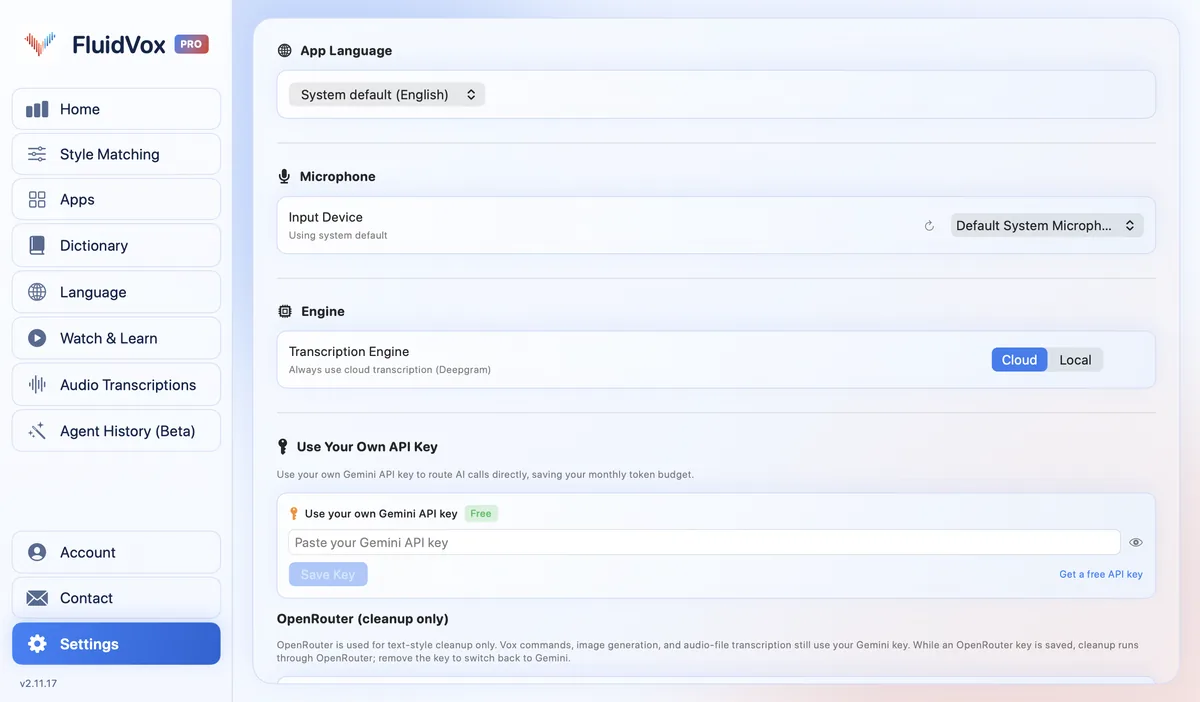
- Open Settings and set Transcription Engine to Local (on a Mac, it's under Engine). On the Local plan it's always Local.
- Click Manage Models and download a model while you're online. On a Mac with Apple silicon, the Parakeet models run on the Neural Engine, and Parakeet v2 for English is about 200 MB. On Windows, Parakeet runs on your processor, with no graphics card needed, and Parakeet Ultra, added in version 2.15.0, covers 25 languages in a 671 MB download.
- Click where you want the text, hold your dictation key (Fn on a Mac; on Windows, the hotkey shown in its settings), speak, and let go. The text appears at your cursor, connection or not.
- Add the names and terms you use to the Dictionary, so they come out right offline too.
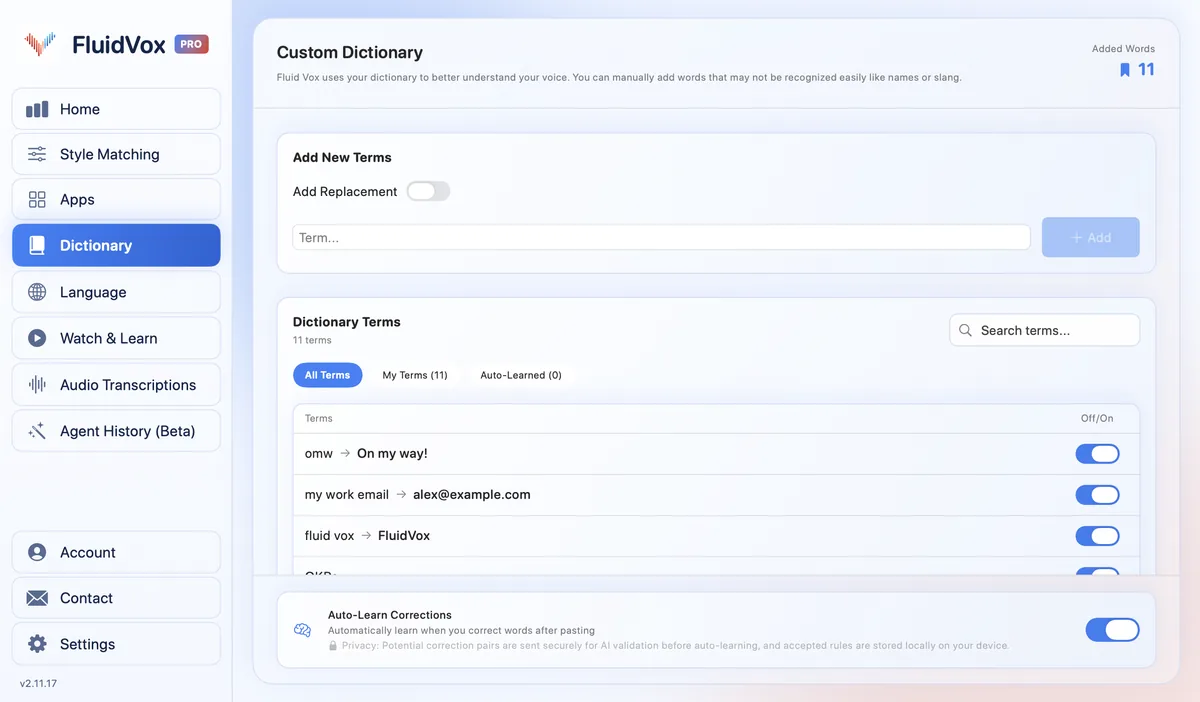
The Local plan costs $2.99 a month or $39 once and lists 99 languages for on-device transcription. On Windows, a Local license also works completely offline since version 2.9.0, including opening the app and dictating before you sign in. On Pro, AI clean-up removes filler words and fixes grammar; it uses Gemini in the cloud, so it needs a connection. On a Mac with macOS 26 or later and Apple Intelligence turned on, you can turn on On-device cleanup in Settings to polish your text with Apple Intelligence on your Mac instead. For how the Parakeet and Whisper models compare, see our look at the speech models behind local transcription.
On privacy: cloud transcription sends your audio to a speech service to turn it into text, while in local mode transcription runs on your computer, so your recordings don't leave it. Either way, your transcript history stays on your computer.
Which should you use
If you're on a Mac, start with Dictation. If the text below Dictation in Keyboard settings says it's processed on your Mac, it may already be all the offline speech to text you need for short notes and replies. On Windows 11, set up voice access before you travel, while you still have a connection, and learn a few of its commands. Voice typing won't help you offline.
If you write a lot by voice and need it to work everywhere, on a plane or on a locked-down network, in every app, without stopping when you pause, try FluidVox's Local plan. The trial is free for 14 days, and you can download the model before you leave.
FAQ
Is there offline speech to text on Windows?
Yes. Voice access, built into Windows 11 version 22H2 and later, works without the internet once it has downloaded your language. Voice typing (Windows logo key + H) doesn't: Microsoft says it uses online speech recognition and needs an internet connection.
Does Mac dictation work offline?
It can. Below Dictation in Keyboard settings, macOS tells you whether general dictation is processed on your Mac and not sent to Siri servers.
Does Windows voice typing work without internet?
No. Microsoft lists an internet connection as a requirement, because voice typing uses online speech recognition powered by Azure Speech services. Use voice access or an app that transcribes on your PC instead.
Can I use speech to text on a plane?
Yes, if it runs on your computer: Mac Dictation when Keyboard settings say it's processed on your Mac, Windows voice access, or FluidVox on the Local plan. Download any language files or models before you lose the connection.
Is offline speech to text more private?
On the transcription side, yes: the audio is turned into text on your computer instead of being sent to a speech service. With FluidVox, your transcript history stays on your computer either way.
Sources
- Apple Support, Dictate messages and documents on Mac, checked 17 November 2026.
- Microsoft Support, Use voice typing to talk instead of type on your PC, checked 17 November 2026.
- Microsoft Support, Set up voice access, checked 17 November 2026.
- Microsoft Support, Get started with voice access, checked 17 November 2026.
Hold one key, speak, and clean text appears in whatever app you're using. Your transcript history stays on your computer.
Download FluidVox 14-day free trial, no credit card.