
Guide
Free Dictation Software for Mac and Windows: What Actually Works
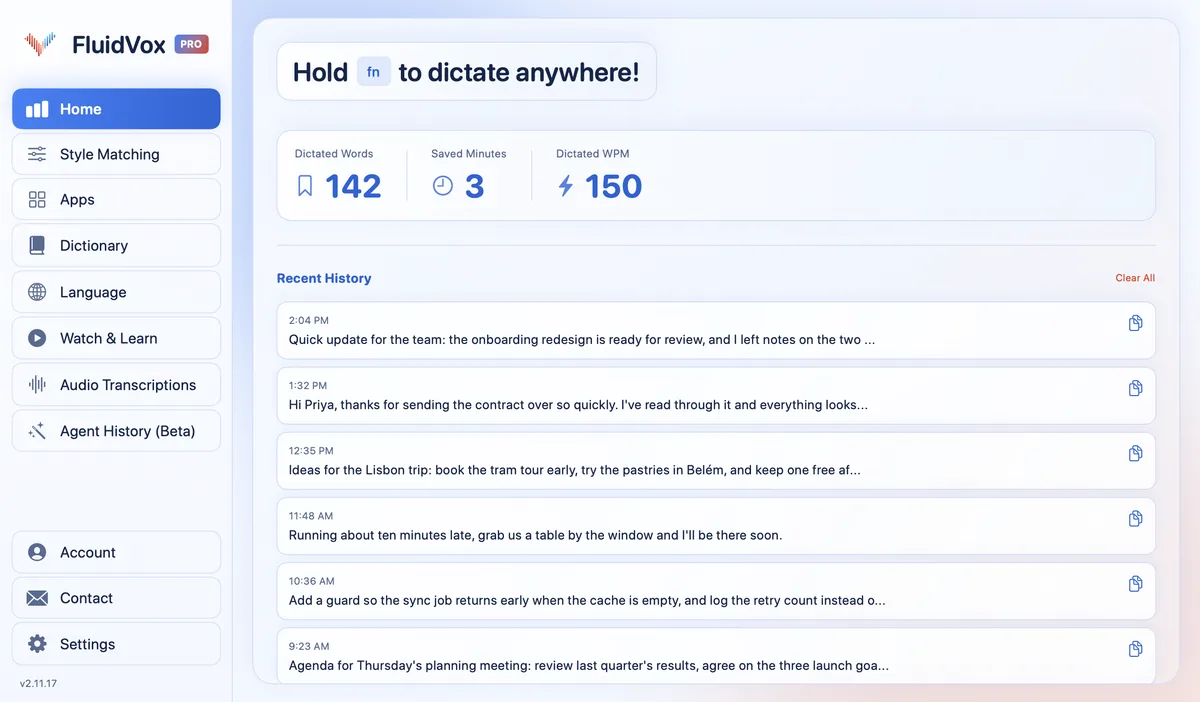
Hold one key, speak, and clean text appears in whatever app you're using. Your transcript history stays on your computer.
Download FluidVox 14-day free trial, no credit card.
On this page
- The three free options
- Free on a Mac: Dictation
- Free on Windows: voice typing
- Free in Google Docs: voice typing
- The catch in each one
- The free options and FluidVox compared
- When free isn't enough
- Which should you use
- FAQ
- Sources
Before you pay for dictation software, use what you already have. Your Mac and your Windows PC both came with dictation built in, and Google Docs has its own. None of them costs anything. Below is how to turn each one on, the catch in each one according to Apple's, Microsoft's and Google's own help pages, and how to tell when free is all you need. If you're weighing paid apps too, our comparison of speech to text apps, free and paid puts them side by side.
The three free options
- On a Mac: Dictation, in System Settings > Keyboard. It types anywhere you can type.
- On Windows 11 and 10: voice typing (called dictation on Windows 10), with the Windows logo key + H. It types into the text box where your cursor is.
- In Google Docs: voice typing, in Tools > Voice typing. It types only in Docs and in Slides speaker notes.
Each one is good for a quick reply or a short note. The difference shows up when you write for longer: you pause to think, you work offline, or you switch between apps.
Free on a Mac: Dictation
- Choose Apple menu > System Settings, then click Keyboard in the sidebar. You may need to scroll down.
- Go to Dictation and turn it on, then click Enable.
- Click where you want the text, then press the Microphone key if your Mac has one, use the Dictation keyboard shortcut, or choose Edit > Start Dictation.
- Speak. When you're done, press the Escape key, the Microphone key or the Dictation shortcut.
With Auto-punctuation on, Dictation adds commas, periods and question marks for you in supported languages. For every setting and the commands to say, see our step-by-step guide to dictation on a Mac; if you'd rather start it with a different key, change the Mac dictation shortcut.
Free on Windows: voice typing
- Click in a text box.
- Press the Windows logo key + H.
- Wait for Listening…, then speak.
- To stop, say "Stop listening", or press the microphone button on the voice typing menu.
Open the settings (the gear icon) and turn on Automatic punctuation, so you don't have to say every comma. On Windows 10 the same shortcut starts dictation. Our guide to Windows voice typing covers the commands and what to do when it won't start.
Windows 11 version 22H2 and later also has voice access for free, in Settings > Accessibility > Speech. It's built to control your PC by voice, and you can write text with it too. Setting it up downloads its language files, which needs the internet once; after that it uses on-device speech recognition and works without the internet. If you want to know how it replaced the older tool, see Windows Speech Recognition and its successor.
Free in Google Docs: voice typing
- Open a document in Chrome, Edge or Safari.
- Choose Tools > Voice typing. A microphone box appears.
- Click the microphone when you're ready to speak, and talk.
- Click the microphone again when you're done.
You say punctuation out loud ("comma", "period", "new line"). For more, read our tips on getting the most out of voice typing in Google Docs.
The catch in each one
All three are free, and all three work. Each has a catch, and it's in the fine print:
- Mac Dictation stops after a 30-second pause. Apple says you can dictate text of any length, but Dictation stops automatically when no speech is detected for 30 seconds. Stop to think for half a minute, and you start it again.
- Windows voice typing needs the internet. Microsoft says voice typing uses online speech recognition, powered by Azure Speech services. With no connection, on a plane for example, it doesn't type.
- Google Docs voice typing works only in Docs and Slides speaker notes. Your email, your chat and your notes app get nothing.
- The clean-up is basic. Mac and Windows add punctuation for you. Taking out filler words on Windows needs fluid dictation, which Microsoft offers only on Copilot+ PCs, in English. In Docs you say the punctuation yourself, and its voice commands work only in English.
- There's no tone per app. A message to a friend and an email to a client come out the same way.
If none of that gets in your way, stay with the free tool. If one of them does, that's the point where paying for dictation starts to make sense.
The free options and FluidVox compared
| Mac Dictation | Windows voice typing | Google Docs voice typing | FluidVox | |
|---|---|---|---|---|
| Types in | Anywhere you can type on the Mac | The text box where your cursor is | Docs and Slides speaker notes | Any app, on Mac and Windows |
| The catch | Stops when no speech is detected for 30 seconds | Needs an internet connection | Needs Chrome, Edge or Safari | Not free after the 14-day trial |
| Offline | Apple doesn't say; Keyboard settings show whether it's processed on your Mac | No | Google doesn't say; your browser handles the speech | Yes, on the Local plan |
| Clean-up | Auto-punctuation | Automatic punctuation; filler words only on Copilot+ PCs, in English | Spoken punctuation; voice commands only in English | On Pro, filler words removed and grammar fixed, with a style per app |
| Price | Free | Free | Free | 14-day free trial, then Local at $2.99 a month or $39 once, or Pro at $10 a month |
When free isn't enough: FluidVox
FluidVox isn't free. It's a dictation app for Mac and Windows that types into whatever app you're using. You can try it free for 14 days with no credit card, then you pick a paid plan.
- Download FluidVox and start the 14-day free trial. The download button gives you the version for your computer.
- Click where you want the text.
- Hold your dictation key (Fn on a Mac; on Windows, the hotkey shown in its settings), speak, and let go. It listens for as long as you hold it, so a pause to think doesn't end anything.
- Clean text appears where your cursor is. Add the names and terms you use to the Dictionary so it spells them right.
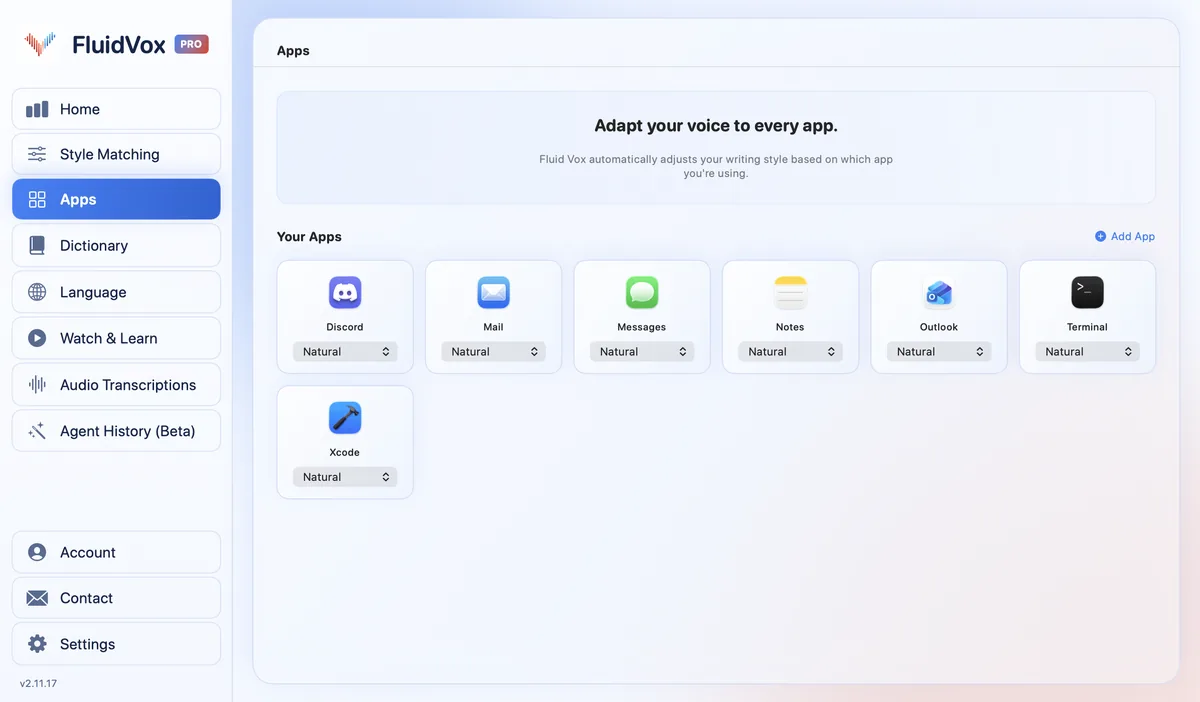
On Pro, FluidVox removes filler words, fixes grammar and punctuation, and lets you choose a style for each app, such as casual in Slack and professional in Outlook. On privacy: cloud transcription sends your audio to a speech service to turn it into text, while on the Local plan transcription runs on your computer, so it keeps working offline. Either way, your transcript history stays on your computer. If you're coming from a built-in tool, our pages on the Apple Dictation alternative and what to use instead of Windows' own speech tools go into the differences.
Which should you use
Use what you have first. For a quick reply or a short note, free is all you need: Dictation on a Mac, the Windows logo key + H on a PC, or Tools > Voice typing in Docs.
Pay for dictation only when the catch starts costing you time: when Dictation keeps stopping while you think, when you need dictation that works offline and voice access isn't for you, when you want clean text in every app rather than only in Docs, or when you're tired of fixing filler words and the same names. That's when it's worth trying FluidVox free for 14 days, alongside the free tool you already have.
FAQ
What is the best free dictation software?
The dictation built into your computer: Dictation on a Mac and voice typing on Windows. Both type where your cursor is and cost nothing. If you write in Google Docs, its own voice typing is free too, but it only types in Docs and Slides speaker notes.
Is there free dictation software for Windows?
Yes. Windows 11 has voice typing built in, and Windows 10 has dictation: on both, click in a text box and press the Windows logo key + H. It needs an internet connection. Windows 11 version 22H2 and later also has voice access, which works offline once its language files are downloaded.
Is Mac Dictation really free?
Yes. It's part of macOS: turn it on in System Settings > Keyboard > Dictation. Apple says it stops automatically when no speech is detected for 30 seconds, so long pauses end a session.
Does free dictation software work offline?
Windows voice typing doesn't: it uses Microsoft's online speech recognition. Voice access on Windows 11 works without the internet once it's set up. On a Mac, Apple says you can check Keyboard settings to see whether your dictation is processed on your device. FluidVox's Local plan transcribes on your computer and works offline, but it's a paid plan after the trial.
Is FluidVox free?
No. FluidVox has a 14-day free trial with no credit card, then a paid plan: Local at $2.99 a month or $39 once, or Pro at $10 a month. If you only dictate now and then, the free tool already on your computer may be all you need.
Sources
- Apple Support, Dictate messages and documents on Mac, checked 10 November 2026.
- Microsoft Support, Use voice typing to talk instead of type on your PC, checked 10 November 2026.
- Microsoft Support, Set up voice access, checked 10 November 2026.
- Google Docs Editors Help, Type & edit with your voice, checked 10 November 2026.
Hold one key, speak, and clean text appears in whatever app you're using. Your transcript history stays on your computer.
Download FluidVox 14-day free trial, no credit card.